

Not what you're looking for? Return to the ReadyNAS Not Accessible FAQ.
If you have lost or forgotten the admin password for your ReadyNAS OS 6 device, there are three methods to recover the password:
- Password Recovery Page.
- Physical Reset Button.
- OS Re-install.
Method 1: Password Recovery Page
Note: The password recovery page will only work if it was already configured.
- Launch a web browser and enter the URL https://ReadyNAS_IP_address/password_recovery (ReadyNAS_IP_address is the IP address of your ReadyNAS).
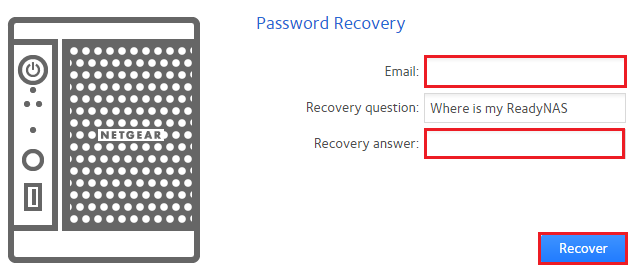
- The password recovery screen displays.
- Enter your email address. This must be the email address you provided when you configured the password recovery option.
- Enter the Recovery answer that matches the Recovery question.
- Click Recover.
- If the email address and recovery answer are correct, then a new password is sent by email. Please check your email and use the new password to login.
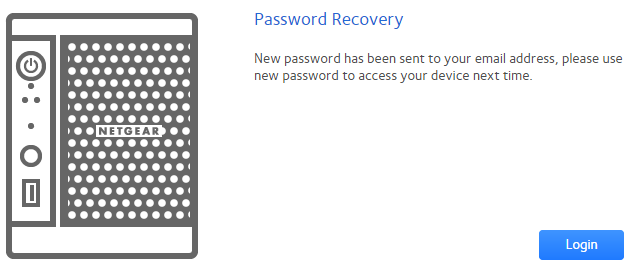
- Now that you have recovered the admin password, you may wish to set a new password.
Method 2: Physical Reset Button
This method requires physical access to the ReadyNAS.
Note: Recovery using the physical reset button will only work if it was already configured.
- Launch a web browser and enter the URL https://ReadyNAS_IP_address/password_recovery (ReadyNAS_IP_address is the IP address of your ReadyNAS).
- The password recovery screen displays.
- Click the Reset button on screen to begin the process.
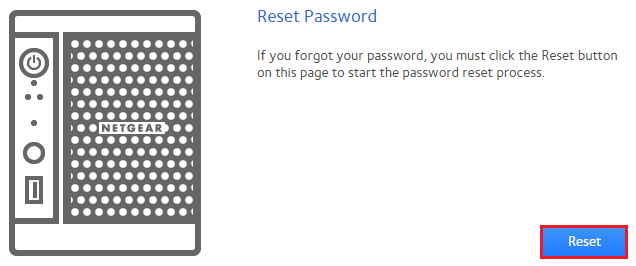
- A prompt appears instructing you to press the reset button on your ReadyNAS within the next five minutes. This is the physical reset button on your ReadyNAS system.
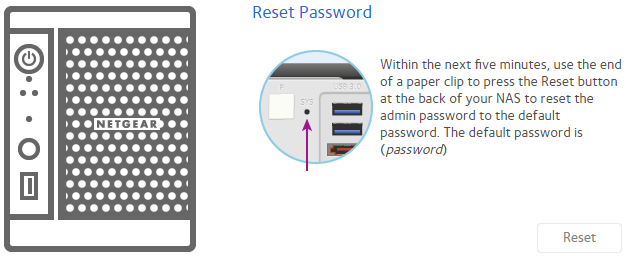
Note: The location of the reset button varies depending on the model of ReadyNAS you have. Refer to the hardware manual of your ReadyNAS if you are unsure where the reset button is. - When the reset button is pressed within the five minute time limit, the admin password is reset to the default of password. This is confirmed in your web browser:

- Click OK.
- You are returned to the login prompt where you can login using the default credentials of:
- Username: admin
- Password: password
- Now that you have recovered the admin password, you may wish to set a new password.
Method 3: OS Re-install
Things to note before performing an OS re-install:
- The admin password and network settings will be reset to their default settings.The default settings for the admin account are:
- Username: admin
- Password: password
- The default network settings are reset to DHCP client (the ReadyNAS will look to a DHCP server to obtain an IP address). If you can no longer access your ReadyNAS by IP address after the OS re-install use the RAIDar tool to find the new IP address.
- The data volume is not affected by performing an OS re-install.
The steps to perform an OS re-install are dependent on the model of your ReadyNAS.
For detailed guide on boot menu options, please select your ReadyNAS model below. |
|
|
Desktop Models |
Rackmount Models |
|---|---|
If Password Recovery is not configured, we recommend to do so - How do I configure password recovery on my ReadyNAS OS 6?
Last Updated:07/07/2025
|
Article ID: 29760