

This article describes how to configure a ReadyNAS OS 6 system to allow for recovery of the admin password. Password recovery is useful when the admin password has been lost or forgotten.
Not what you're looking for? Return to the ReadyNAS Not Accessible FAQ.
There are two methods of password recovery available for configuration. You can only enable one method.
- Password recovery by email.
- Password recovery using the physical reset button on the ReadyNAS.
To configure password recovery by email:
Note: If you do not have email alerts configured, you cannot complete the email based setup. If you need to set up email alerts, see Manage my email alert contacts on my ReadyNAS OS 6 storage system, then return to this article to complete the setup of password recovery.
- On the ReadyNAS Admin Page, click Admin Password.

The properties window for the admin user appears. - Select the Enable Password Recovery checkbox.
- Select the Email me new password radio button.
- Enter a Password Recovery Question and corresponding Password Recovery Answer.
- Enter your email address in the Recovery Email Address field. During the password recovery procedure, a new password is sent to this email address.
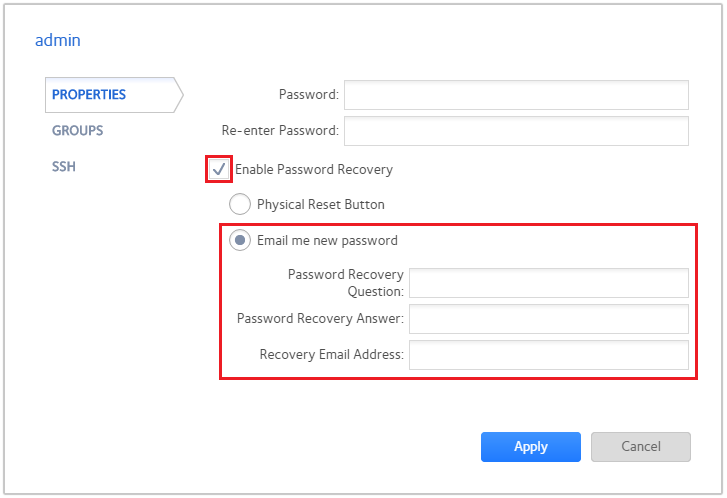
- Click Apply.
Emailed based password recovery is now configured.
To configure password recovery using the physical reset button on the ReadyNAS:
- On the ReadyNAS Admin Page, click Admin Password.

The properties window for the admin user appears. - Select the Enable Password Recovery checkbox.
- Select the Physical Reset Button radio button.
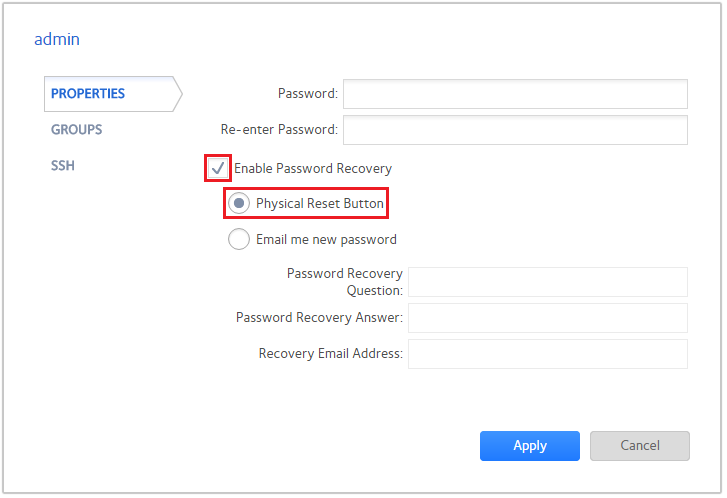
- Click Apply.
Password recovery using the physical reset button is now configured.
Last Updated:07/08/2025
|
Article ID: 29761