

You need to create a remote genie account before you can register your router with remote genie.
For more information about using your remote access genie account, see the following support articles:
- How do I create a remote access genie account with the Windows desktop genie app?
- How do I remotely access my NETGEAR router from a Windows computer?
To register your router with remote access genie account using the Windows desktop genie app:
- Connect your computer to the router’s WiFi network.
- Click the genie icon
 on your desktop or in the Windows taskbar.
The Home screen displays. - Select Router Settings.
The Router Login window displays.
If you already logged into the router, select the Wireless Settings tab and click the Logout button. - From the Login as menu, select Remote Access.
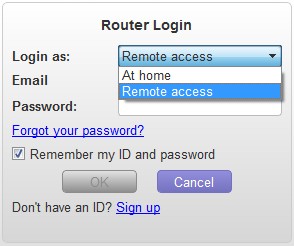
- Type your remote genie email and password and click the OK button.
The Wireless Settings window displays. The genie app detects if the router has been registered with remote genie. If the router has not been registered, a note displays asking you to register the router. - Click the OK button to register the router.
Your router is registered with remote genie.
After the router registration, a note displays informing that the cloud icon displays on the Router Settings windows indicating that you can remotely manage the router.
 - Click the OK button.
You are can now access your router anywhere from your computer. For more information, see How do I remotely access my NETGEAR router from a Windows computer?
Last Updated:07/07/2025
|
Article ID: 26255