

To use the remote access feature with the genie app on your Windows computer, you need to set up a remote access genie account and register your router with your account.
Note: Remote access using the genie app is currently only supported for some NETGEAR routers.
To create a remote access genie account with the Windows desktop genie app:
- Update your router firmware to the latest version.
For more information on how to update your router firmware, see your router user manual. You can get the user
manual online at http://downloadcenter.netgear.com. - Visit www.NETGEAR.com/genie and download and install the latest Windows desktop genie app.
- Connect your computer to the router Wi-Fi network with Wi-Fi or a wired Ethernet connection.
- Click the genie icon
 on your desktop or in the Windows taskbar.
The Home screen displays. - Select Router Settings.
The Router Login window displays.
If you already logged into the router, select the Wireless Settings tab and click the Logout button. - From the Login as menu, select Remote Access.
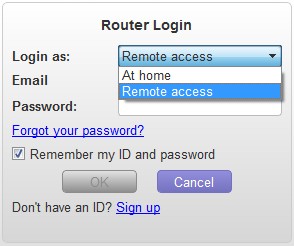
- Click the Sign up link.
The New Account window displays. - Complete the New Account fields and click the Create button.
A window displays that confirms your account was successfully created and a confirmation email is sent to your email
account. - Click the OK button.
- Open your confirmation email and click the Confirm Email link.
Your email address is confirmed and you are now ready to register your router with your remote genie account. For
more information, see How do I register my NETGEAR router with my remote access genie account using the Windows desktop genie app?
Last Updated:07/08/2025
|
Article ID: 26254