
Enterprise AV Home WiFi Mobile Wifi Support Shop Deals
Create an Optional User Account

Milestone Arcus does not provide a default user account or password and anyone can log in. After you create a user account and specify a password, log in security is enabled and you must enter your user name and password when you log in.

By default, the first user account that you create is an administrator account. After you create the first user account, you can select whether a user account is an administrator account or a standard user account (see What Types of Optional User Accounts Are Supported by Milestone for ReadyNAS?).

To create a user account:

  1. Log in to the ReadyNAS.
  2. In the Apps section of the Overview page, click the Milestone Arcus Surveillance link.

    If the link does not display, click the Apps section heading.

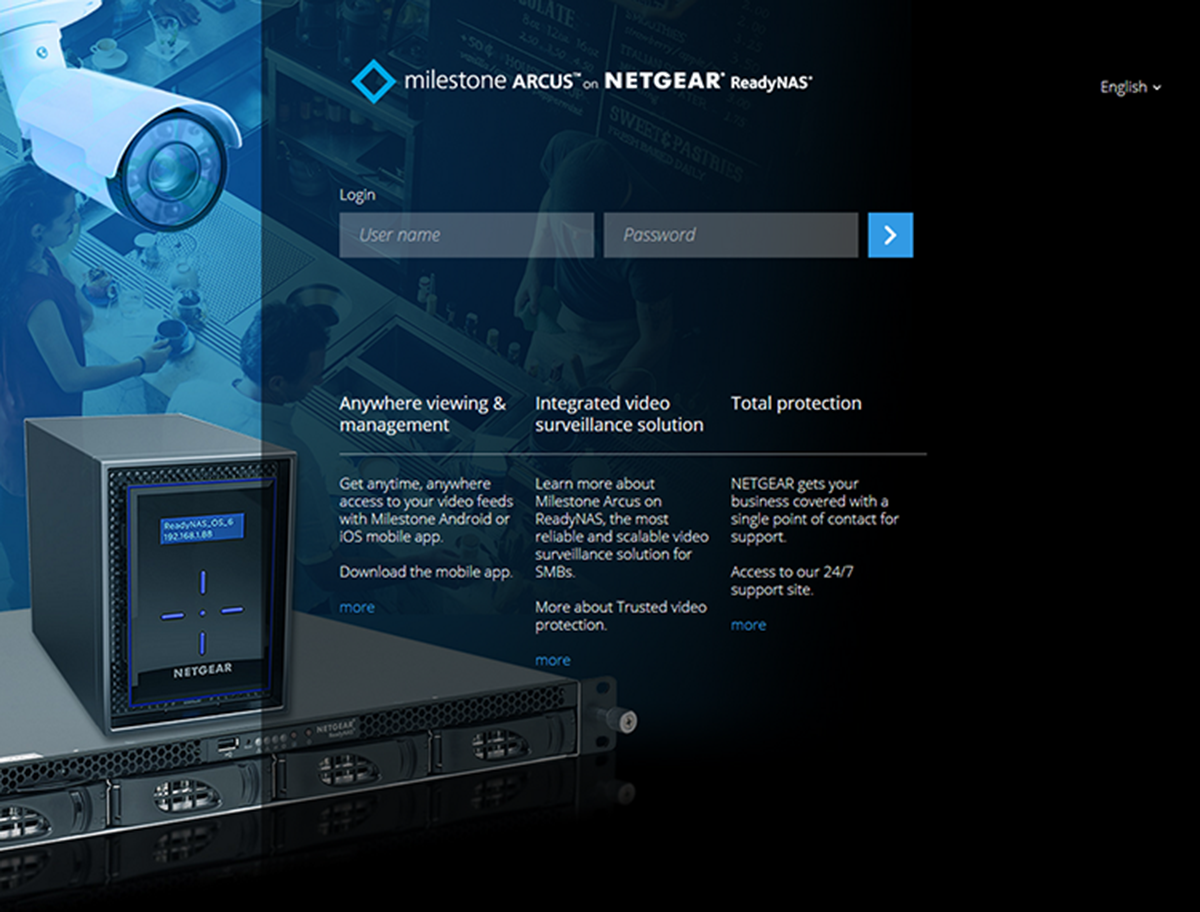
    The Milestone Arcus login page displays.

  3. Log in by doing one of the following:
    • No user account exists. Click the Log in button.

    • A user account exists. Do the following:

      1. Enter your user name and password in the user name and password fields.
      2. Click the arrow button.

    The Home View page displays.

  4. Select Settings > Users.

    The Users page displays.

  5. Click the + Add new user button.

    If this is the first user account that is being added, a pop-up window opens, stating that security will be enabled.

  6. Click the OK button.

    The pop-up window closes.
  7. In the User name field, type a new user name, in the Password field, specify a password, and reenter the password in the Retype password field.
  8. Click the OK button.

    If this the first user account that you created, a pop-up window opens, stating that the server security was changed and that you must log in again. Continue withHow Do I Create an Optional User Account in Milestone for ReadyNAS?.

    If this is not the first user account that you created, continue withHow Do I Create an Optional User Account in Milestone for ReadyNAS?.

  9. Click the OK button.

    The pop-up window closes.


    The page now displays User name and password fields.

  10. Enter the user name and password that you just created.
  11. Click the arrow button.The Users page displays.
  12. To add more information to your user account or change some information of your user account, do the following:
    1. Next to the user account that you want to change, click the Edit button.

      The Edit user page displays.

    2. Specify your email address, full name (as opposed to user name), and preferred language.

      If this is not the first user account that you created, you can also change the user type.

    3. Click the X button.

      Your settings are saved.

Last Updated:07/07/2025 | Article ID: 000058859

This article applies to:

Recently Viewed Articles

    Our team is here to help!

    Phone
    Chat
    Email