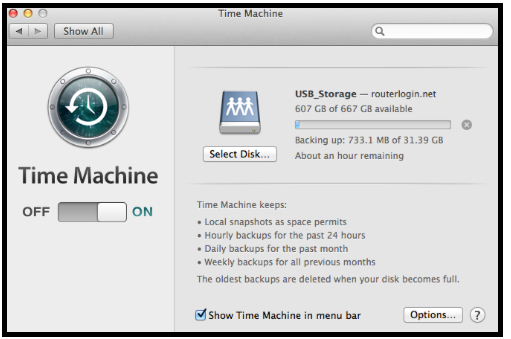
Time Machine is no longer supported on certain NETGEAR routers. For more information about this feature removal, see Which older features are discontinued for my NETGEAR router?
Prerequisite:
- MAC OS computer
- External USB HDD
Symptoms:
- Unable to use Time Machine with NETGEAR Nighthawk AC router
Overview:
This article will provide steps on how set up Time Machine to back up file to your external USB HDD that is connected to your NETGEAR Nighthawk AC router.
Process:
1. Format your external USB HDD to MAC OS compatible format and partitions. Click here
2. Connect your external USB HDD to the USB port. Blue USB port is the USB 3.0.
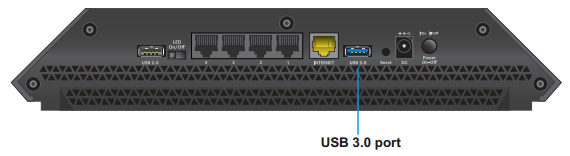
3. Wait for the USB LED to turn on. You can also open the router’s GUI to check if the router detects the external USB HDD.
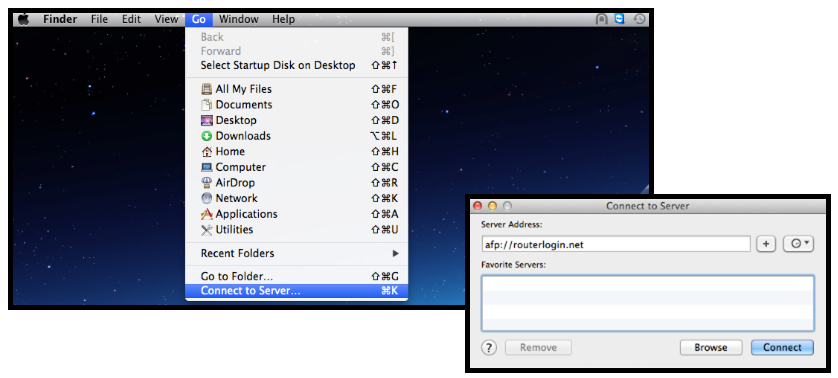
4. On your MAC OS computer, click on Go and select Connect to Server.
5. Type afp://routerlogin.net then click Connect.
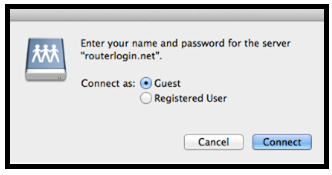
6. When prompted for a username and password; select Guest and click on Connect.
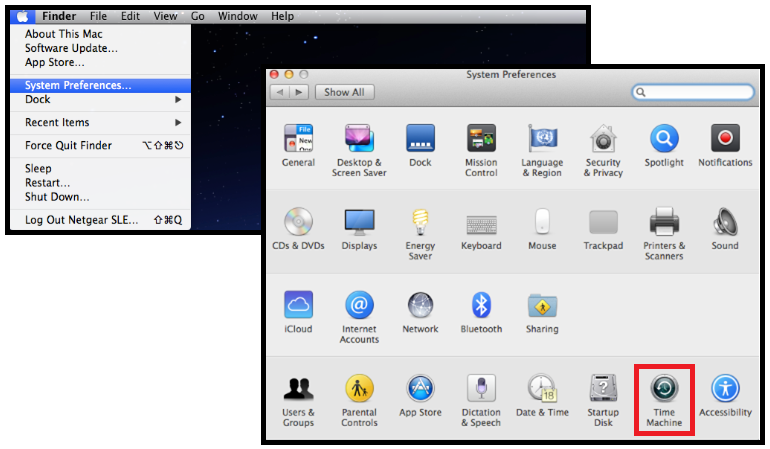
7. Click on the Apple icon and select System Preferences.
8. Click on Time Machine.
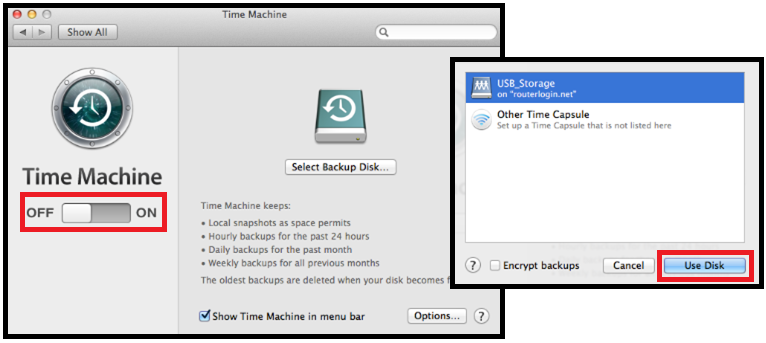
9. Turn on Time Machine and select the drive from the list. Click on Use Disk afterwards.
Note: You can also click on Select Backup Disk to select the disk drive that you want to use.
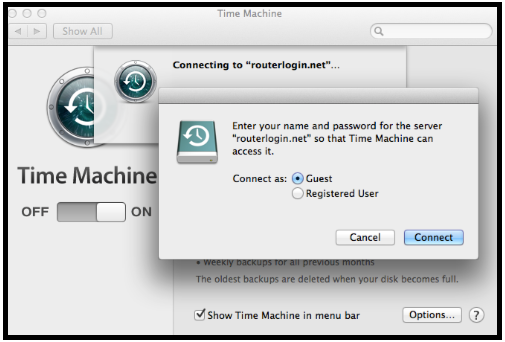
10. When prompted for a username and password; select Guest and click on Connect.
11. Time Machine is now properly set.