

You can reconfigure a Flex-RAID volume, split it into multiple volumes, specify a different RAID level, or specify a larger reserved space for snapshots. The process involves these high-level steps:
- Delete the volume that you want to reconfigure.
WARNING!
The process of deleting a volume erases all data stored on that volume. That data cannot be recovered. - Create the replacement volume.
- Specify RAID settings.
These steps are explained in more detail in the following section.
To reconfigure a Flex-RAID volume, follow these steps:
- If the volume that you intend to delete contains any data that you want to keep, back up that data.
For more information, see the How do I back up data stored on my ReadyNAS Ultra series, Ultra Plus series, NVX Pioneer, or Pro Pioneer storage system? - Select Volume > Volume Settings from the FrontView main menu.
The Volume Settings screen displays. If your system is configured with multiple volumes, click the tab for the volume that you want to delete.

In this example, the ReadyNAS system has just one volume, Volume C. - Click the Delete Volume button.
A dialog box displays asking you to confirm the delete volume command.
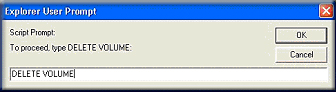
- Enter DELETE VOLUME in the field and click the OK button.
The volume is deleted.
- Click the Add Volume tab.
The Add Volume screen displays.
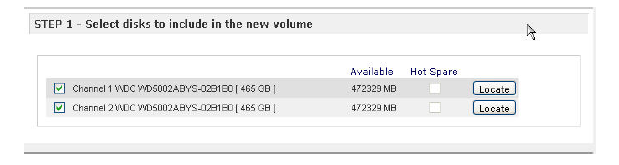
- In the STEP 1 pane, select the check boxes for the disks you want to include in the new volume.
- (Optional) Select the Hot Spare check box for any disk that you want to specify as a hot spare.
- In the STEP 2 pane, using the Select RAID level drop-down list, assign a RAID level to this volume.

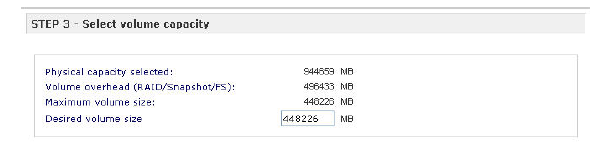
- In the STEP 3 pane, enter the maximum size for this volume in the Desired volume size field.
- Click the Apply button.
You are prompted to reboot your system.
- Reboot your system.
Use RAIDar to reconnect to your ReadyNAS system.
For more information, see the What is RAIDar and how do I use it to discover my ReadyDATA storage system? support article.
- Restore any backed-up data to the reconfigured volume.
Last Updated:07/07/2025
|
Article ID: 21239