

RAIDar is a software application that you use to discover ReadyDATA systems on the network. RAIDar is included on the Resource CD that came with your system. It includes versions for Windows, Mac, and Linux operating systems. RAIDar is also available at www.netgear.com/readydata.
RAIDar displays the discovered ReadyDATA units with their status LED icons. The volume, disk, UPS, and fan LED icons are not operational for the ReadyDATA.
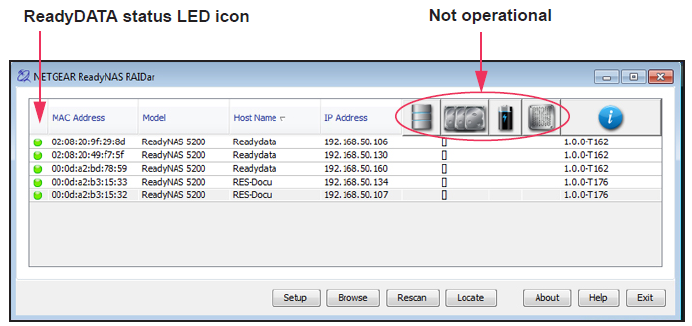
You can use the following buttons to learn more about the ReadyDATA units on the network:
-
Setup. Launches Dashboard for the highlighted ReadyDATA.
-
Browse. Displays the shares available on the highlighted system (LUNs are not displayed). This feature works on a Windows platform only.
-
Rescan. Updates the list of ReadyDATA systems on the network, and updates the status of each system that is discovered.
-
Locate. Nonfunctional button.
-
About. Displays RAIDar information.
-
Help. Displays the help screen.
-
Exit. Closes RAIDar.
To discover the ReadyDATA system and launch Dashboard:
1. Install the appropriate version of RAIDar on a computer that is connected to the same LAN as the ReadyDATA.
Note: If you are using Windows XP before SP2, disable the Internet connection firewall.
2. Launch the RAIDar utility.
RAIDar displays a screen that lists the systems on the network and provides details about the status of each system it discovers.
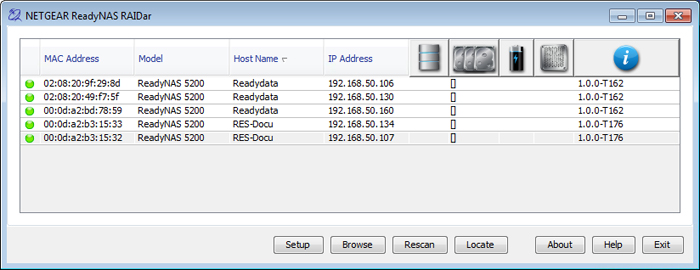
By default, the virtual NICs (VNICs) of the ReadyDATA are DHCP enabled for IPv4, and the RAIDar utility should be able to discover the ReadyDATA.
Note: The ReadyDATA requires a DHCP server for initial discovery.
If the ReadyDATA is not detected, check the following and click Rescan to try again:
-
Make sure the ReadyDATA is turned on and is connected to your network.
-
Make sure the client computer that is running RAIDar is on the same subnet as the ReadyDATA.
-
If you are running RAIDar on Windows XP before SP2, disable the Internet connection firewall.
3. Highlight the ReadyDATA and click the Setup button.
RAIDar opens your default browser and prompts you to log in to the ReadyDATA.

4. Log in to the ReadyDATA using the default login credentials:
-
As the default user name, enter admin (case-sensitive).
-
As the default password, enter password (case-sensitive).
The Dashboard home screen displays:

The Dashboard has two main bars:
-
Navigation bar. Located across the top of the screen, the navigation bar helps you navigate through Dashboard. You can also configure the language for the system and the administration password, and access help. To return to the Dashboard home screen, select System, or if you are in a system configuration screen, select Overview.
-
System configuration bar. Located below the navigation bar, the system configuration bar helps you to navigate through the four configuration screens that you access from the System menu. To return to the Dashboard home screen, select Overview.
Some screens show section headings on the left side. When you select a section heading, settings are displayed that let you configure the ReadyDATA.
The configuration procedures in this manual indicate the selection from the navigation bar, and, if applicable, the selection from the system configuration bar and the section heading on a screen. For example, to configure the global file-sharing protocols, select System > Settings > Services. System is the selection from the navigation bar, Settings is the selection from the system configuration bar, and Services is the section heading on the Settings screen.