
Enterprise AV Home WiFi Mobile Wifi Support Shop Deals
Set Up Email Notifications

If you set up a user account, you can set up the application to send email notifications when system changes occur, for example, when a camera is disabled or removed.

Your user account must include an email address so that you can receive email notifications (see How Do You Change or Delete a User Account in Milestone for ReadyNAS?).

To set up email notifications:

  1. Log in to the ReadyNAS.
  2. In the Apps section of the Overview page, click the Milestone Arcus Surveillance link.

    If the link does not display, click the Apps section heading.

    The Milestone Arcus login page displays.

  3. Log in by doing one of the following:
    • No user account exists. Click the Log in button.

    • A user account exists. Do the following:

      1. Enter your user name and password in the user name and password fields.
      2. Click the arrow button.

    The Home View page displays.

  4. Select Settings > Notifications.

    The Notifications page displays.

  5. Click the + Add new notification button.
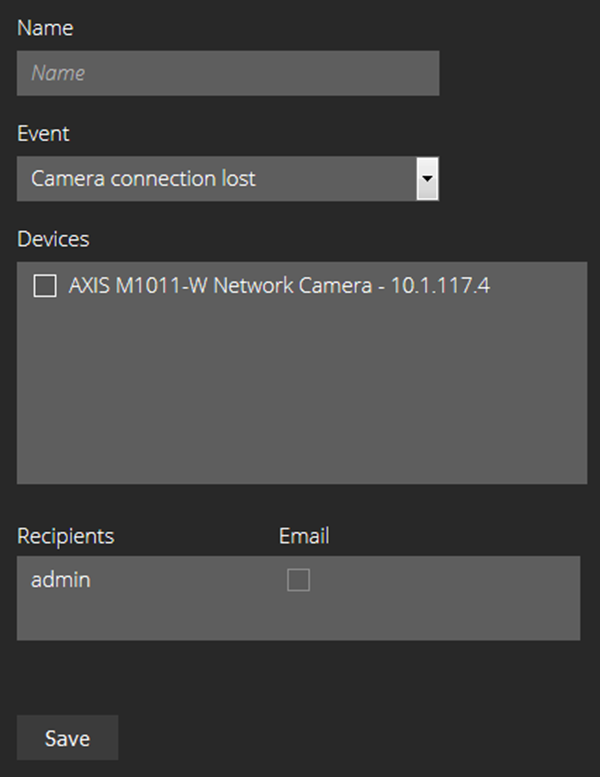

  6. Specify the following settings:
    • Name. Specify a name for the event.

    • Event. From the menu, select the event type.

    • Devices. Select one or more cameras.

      For camera-related selections from the Event menu, check boxes for cameras display.

    • Recipients. Select one or more email check boxes.

  7. Click the Save button.

    Your settings are saved.

Last Updated:07/07/2025 | Article ID: 000058855

This article applies to:

Recently Viewed Articles

    Our team is here to help!

    Phone
    Chat
    Email