

This article talks about troubleshooting speed problems on NETGEAR wireless WG311T and WPN111 adapters. This article applies if your PCI adapter is using the NETGEAR Smart Configuration Utility. This article does not cover USB adapters.
Symptoms:
- adapter is slow
- adapter not getting advertised speed
Follow these troubleshooting steps when you are unable to connect at maximum speed with your NETGEAR adapter:
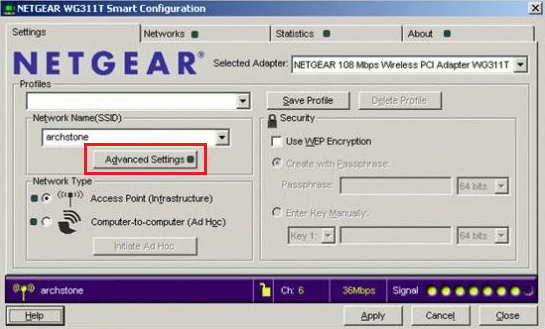
- Open the utility for your NETGEAR adapter and go to the Settings tab.
- Click Advanced Settings.
- In Advanced settings, make sure the maximum wireless speed options (in this case, 108 and 54 ) are enabled under Wireless mode.
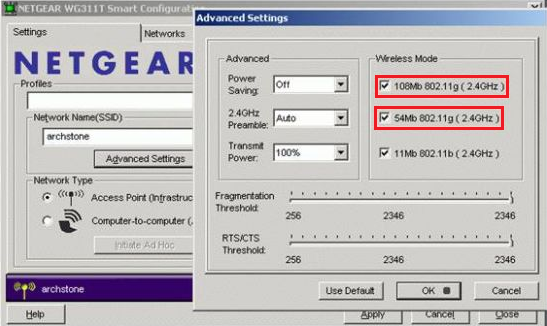
- Click OK to apply the settings.
Your adapter is now configured to connect at the highest wireless mode.
Important Notes:
- In order to connect at maximum speed of your adapter, you must use a compatible router. (For instance, WG311T adapter is recommended for use with the WGT624v4 for optimal performance. The WPN111 adapter is recommended for use with the WPN824v3.)
- Make sure you have the latest version of drivers for your adapter. Visit the NETGEAR Download Center for updates.
If you have a non-NETGEAR adapter, you can follow the guide below but check with the manufacturer for configuration assistance and updated drivers to achieve optimal performance for your adapter.
- Right-click My Computer and select Properties.
- Go to Hardware tab and click Device Manager.
- Under Network adapters list, double-click on your wireless adapter.
- Go to Advanced tab and select Wireless mode under Property field.
- Select the highest value your adapter is capable of.
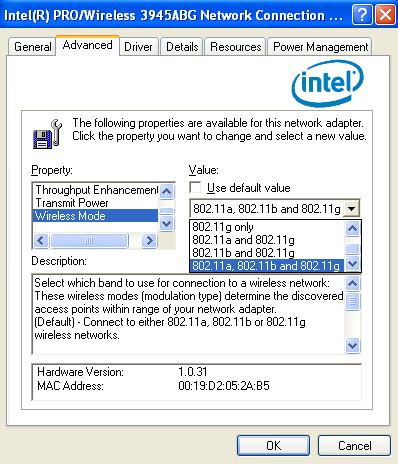
- Click OK and try the new settings.
Last Updated:07/07/2025
|
Article ID: 62