

For information about the ACL Wizard, see the “What is the ACL Wizard on a smart switch
The following procedure provides one example of how to create and apply an ACL by using the ACL Wizard. However, not all smart switches have the same type of ACL Wizard. The ACL Wizard on your smart switch might provide a different configuration order and other configuration options.
To use the ACL Wizard to create an ACL that is based on a destination MAC address and apply it to selected ports:
- Open a web browser.
- In the browser address field, type the IP address of the smart switch.
The default IP address is 192.168.0.239 and the default subnet mask is 255.255.255.0.
You are prompted to enter your password.
- Type the password in the Password field.
The default password is password. Passwords are case-sensitive.
- Click the Login button.
After the system authenticates you, the System Information screen displays.
- Select Security > ACL > ACL Wizard.
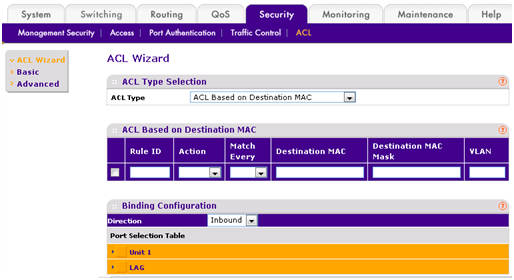
- From the ACL Type menu, select one of the following ACL types:
- ACL Based on Destination MAC. Creates an ACL based on the destination MAC address, destination MAC mask, and VLAN.
- ACL Based on Source MAC. Creates an ACL based on the source MAC address, source MAC mask, and VLAN.
- ACL Based on Destination IPv4. Creates an ACL based on the destination IPv4 address and IPv4 address mask.
- ACL Based on Source IPv4. Creates an ACL based on the source IPv4 address and IPv4 address mask.
- ACL Based on Destination IPv6. Creates an ACL based on the destination IPv6 prefix and IPv6 prefix length.
- ACL Based on Source IPv6. Creates an ACL based on the source IPv6 prefix and IPv6 prefix length.
- ACL Based on Destination IPv4 L4 Port. Creates an ACL based on the destination IPv4 layer4 port number.
- ACL Based on Source IPv4 L4 Port. Creates an ACL based on the source IPv4 layer4 port number.
- ACL Based on Destination IPv6 L4 Port. Creates an ACL based on the destination IPv6 layer4 port number.
- ACL Based on Source IPv6 L4 Port. Creates an ACL based on the source IPv6 layer4 port number.
- In the table, specify the following settings:
- Rule ID. Enter a number in the range from to 10. This number identifies the rule.
- Action. Select the action that the smart switch must take if a packet matches the rule criteria:
- Permit. Packets that meet the rule criteria are forwarded.
- Deny. Packets that meet the rule criteria are dropped.
- Match Every. Specify whether all packets must match the rule:
- True. All packets must match the rule. Other rules are not considered.
- False. Not all packets need to match the rule. Other rules are also considered.
- Destination MAC. Specify the destination MAC address that the smart switch must compare against an Ethernet frame.
The format for the destination MAC address is xx:xx:xx:xx:xx:xx. If you use the Spanning Tree Protocol (STP) with Bridge Protocol Data Units (BPDUs), you can specify a destination MAC address in the format 01:80:C2:xx:xx:xx. - Destination MAC Mask. Specify the destination MAC address mask that determines which bits in the destination MAC the smart switch must compare against an Ethernet frame.
The format for the destination MAC mask is xx:xx:xx:xx:xx:xx. If you use the Spanning Tree Protocol (STP) with Bridge Protocol Data Units (BPDUs), you can specify a destination MAC mask address in the format 00:00:00:ff:ff:ff. - VLAN. Specify the VLAN ID or VLAN range that the smart switch must compare against an Ethernet frame.
You can specify a single VLAN ID from 1 to 4095 or you can specify a VLAN range.
In the Binding Configuration section, the selection from the Direction menu is fixed at Inbound.
Packet filtering occurs for inbound packets only and you cannot change the direction. - In the Port Selection Table, specify the ports (that is, non-routing physical interfaces) and link aggregation groups (LAGs) to which the ACL must apply.
- To add another rule that is based on a destination MAC address to the same ACL, select the check box next to the Name field, click the Add button, and specify the settings.
- Click the Apply button.
The ACL is activated for the selected ports and LAGs.
NOTE: The ACL Wizard lets you create an ACL but does not let you modify it. To modify an ACL, access the basic or advanced ACL screens.