

For information about protected ports, see the “What are protected ports on a smart switch
To configure ports as protected ports:
- Open a web browser.
- In the browser address field, type the IP address of the smart switch.
The default IP address is 192.168.0.239 and the default subnet mask is 255.255.255.0.
You are prompted to enter your password.
- Type the password in the Password field.
The default password is password. Passwords are case-sensitive.
- Click the Login button.
After the system authenticates you, the System Information screen displays.
- Select Security > Traffic Control > Protected Port.
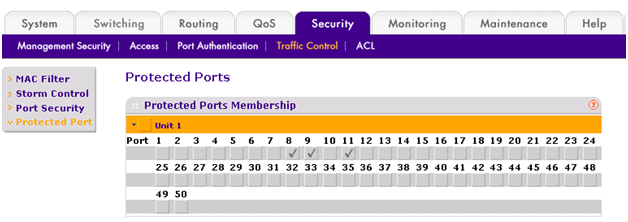
However, on our new Switch interfaces, it will look like this:

- Select the check boxes that correspond to the ports that must become protected ports.
- Click the Apply button.
The selected ports are now protected.
Last Updated:10/17/2025
|
Article ID: 24703