

For information about the Smart Control Center feature, see the “What is the Smart Control Center on a smart switch
To upgrade the firmware of a smart switch through the Smart Control Center:
- On the computer on which the Smart Control Center is installed, turn off the firewall temporarily.
The firewall might prevent the Smart Control Center from discovering the smart switch.
- Start the Smart Control Center by double-clicking the Smart Control Center icon on your desktop or by clicking the icon in the Windows Start menu.
The Network screen displays and the Smart Control Center discovers the smart switch and other devices in the network.
For more information, see the “How do I use the Smart Control Center to discover a smart switch
- From the Smart Control Center main menu, select Maintenance > Firmware.
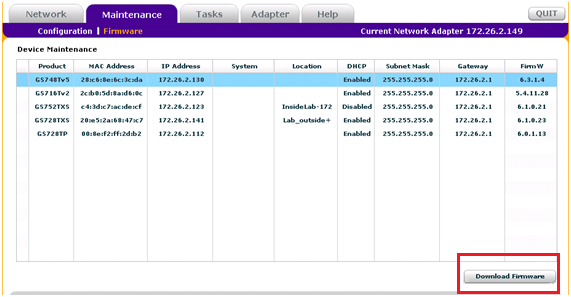
- On the Maintenance screen, click the Download Firmware button.
Follow the instructions of your web browser to navigate to the file’s location and select the file.
- In the Current Password field, type the existing password of the smart switch.
The default password for the smart switch is password.
WARNING: During a firmware upgrade, do not try to go online, turn off the smart switch, shut down the computer, or do anything else to the smart switch until the smart switch finishes rebooting! Failing to do so might corrupt the firmware of the smart switch.
- Click the Apply button.
The firmware is downloaded to the smart switch and the smart switch restarts.