

To create a QoS policy for applications and online games:
- Launch an internet browser from a computer or wireless device that is connected to the network.
- Type http://www.routerlogin.net or http://www.routerlogin.com.
A login screen displays.
- Enter the router user name and password.
The user name is admin. The default password is password.
The user name and password are case-sensitive.
If you need assistance with router login, see How do I login to my NETGEAR home router?.
NETGEAR genie displays.
- Click ADVANCED > Setup > QoS Setup.
- Click Upstream QoS > Setup QoS rule.

The QoS Priority Rule list displays. - To add a priority rule, scroll down to the bottom of the QoS Setup screen and click Add Priority Rule.
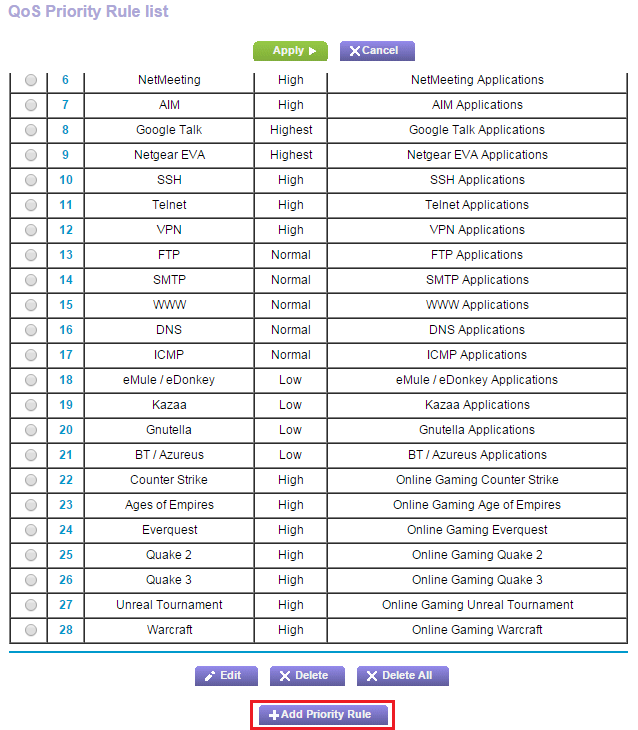
- In the Priority Category list, select either Applications or Online Gaming.
- Select Add a new application, or Add a new game, as applicable.
- If prompted, in the Connection Type list, select either TCP, UDP, or TCP/UDP.
- Specify the Starting Port number and Ending Port number that the application or game uses.
- From the Priority list, select the priority for internet access for this traffic relative to other applications and traffic. The options are Low, Normal, High, and Highest.
- Click Apply.
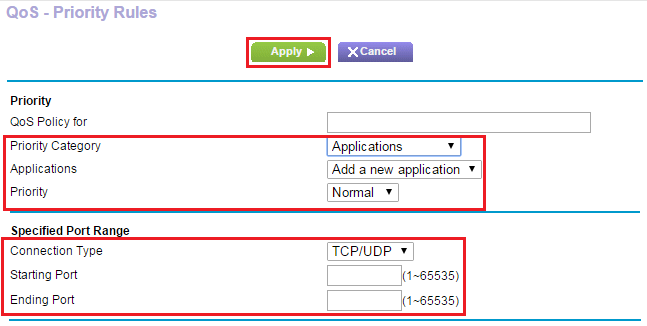
The rule is saved.
Last Updated:07/07/2025
|
Article ID: 24299