What is Mode Config?
Mode Config is a VPN feature available on the NETGEAR ProSAFE/ProSECURE business routers.
It allows the router to act as a DHCP server for the VPN clients.
This can be useful if the network design requires that the clients are in a known subnet. It can also be used to eliminate the possibility of the VPN not working due to the client being in the same subnet as the router.
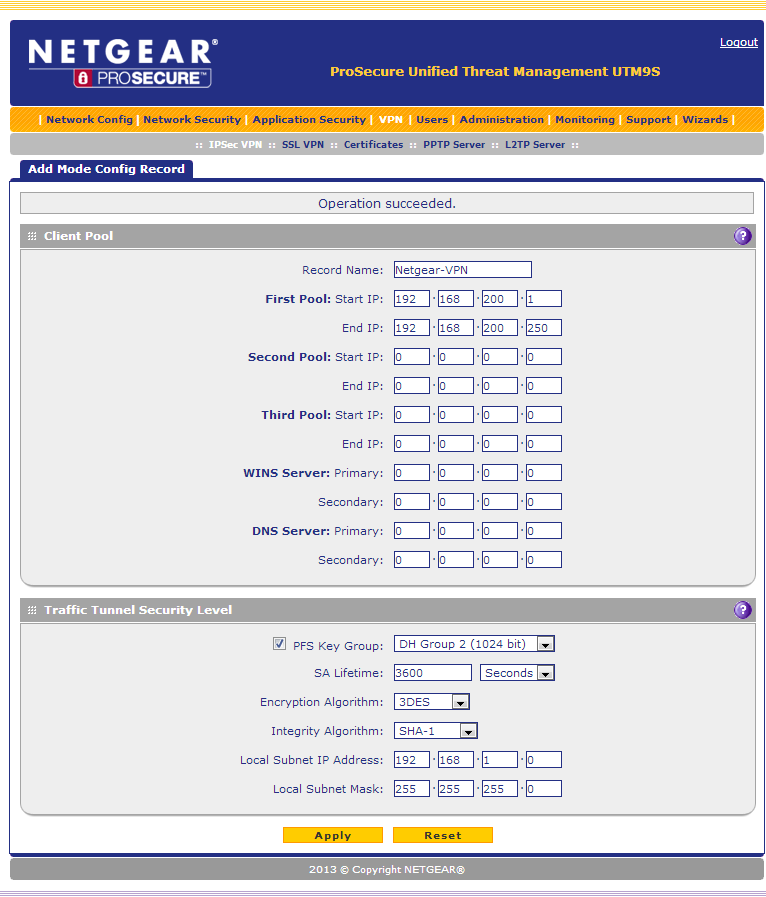
Creating the Mode Config Record.
- Give the policy a name.
- Specify an IP range that the clients will acquire when they connect.
- You can specify up to 3 pools of IP addresses. When the first pool of address’ are full, addresses from the second pool will be used. Likewise when the second pool is full, addresses will be used from the third pool.
- You can specify WINS and DNS servers for the client virtual adapters.
- Specify the Local IP Address and Local Subnet Mask of your ProSAFE/ProSECURE router.
- Click 'Apply'.
Note: Do not add IP addresses that are currently in use in any of the networks at either side of the VPN tunnel – Use completely different subnets.
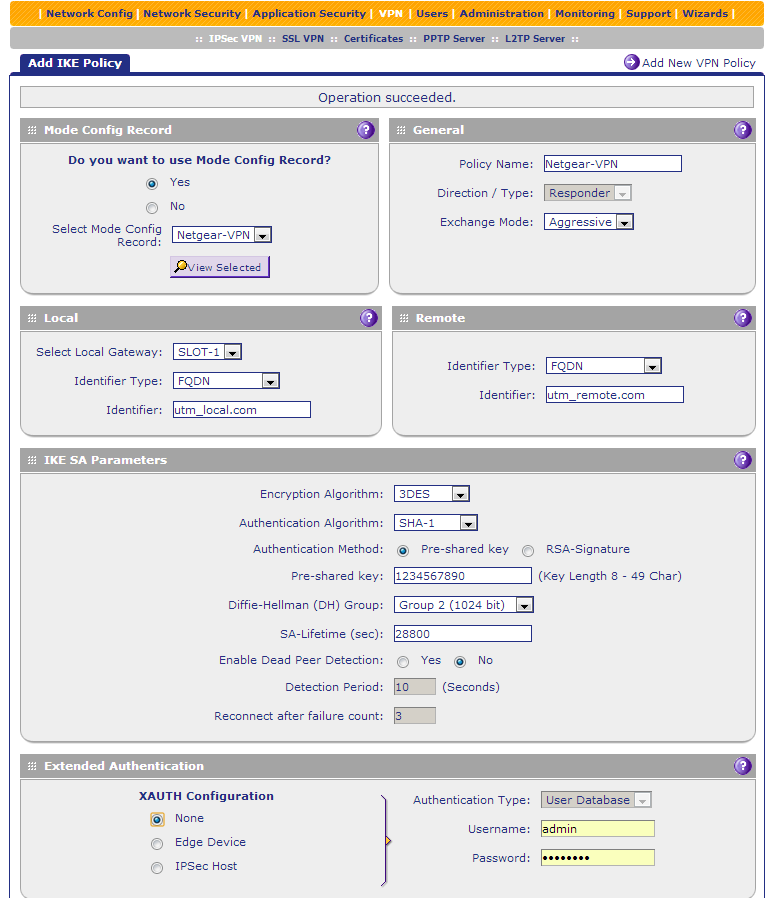
Creating the IKE Policy:
- Give the policy a name.
- Select Yes to use a Mode Config Record, Select the Mode Config record you have just created.
- Select the Local Gateway where the VPN connection will be incoming. (only for dual WAN units)
- Set the Local identifier type – for this example we are using FQDN.
- Set the Remote identifier type – for this example we are using FQDN.
- Specify a Pre-shared key - Note: The pre-shared key could be any alphanumeric string.
- Click Apply.
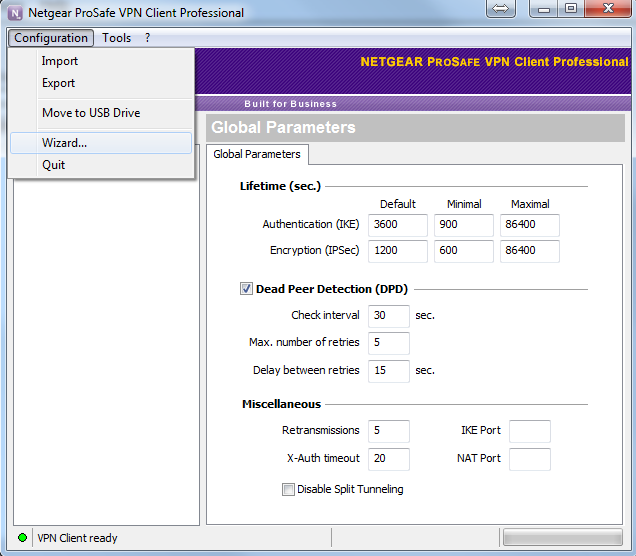
Create client side Policy:
- Open NTGEAR VPN Client and select Configuration – Wizard.
- Select A router or a VPN gateway
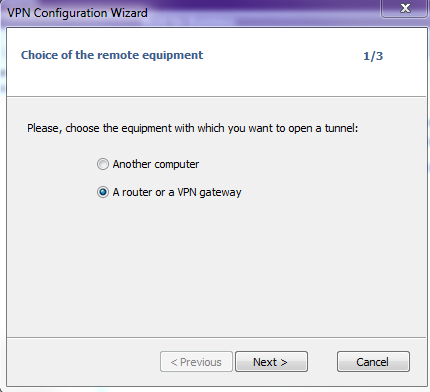
- Enter the relevant information to connect to your ProSAFE/ProSECURE device and select 'Next'.
- WAN IP or DNS Public (external address)
- Preshared-key
- LAN IP address
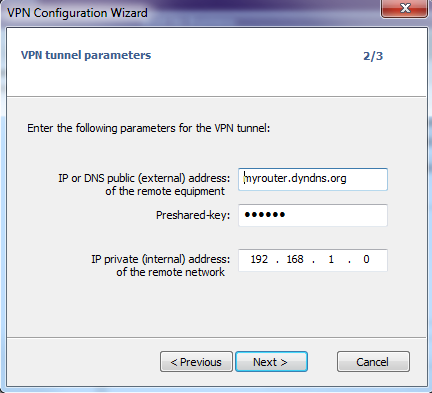
- Review your details and select 'Finish'.

- Go to the newly created Policy and select Advanced
- Select “Mode Config”
- For Local and Remote ID
- Select DNS and Enter the Local ID (it will be remote ID from the IKE policy)
- Select DNS and Enter the Remote ID (it will be remote ID from the IKE policy)
- The screenshots show defaults, and are examples.
- You can have any text values eg Local " England567" and Remote "France234"
- Click "Save".

Connect using the New Policy
- Right-click on 'Tunnel '.
- Select "Open tunnel ".
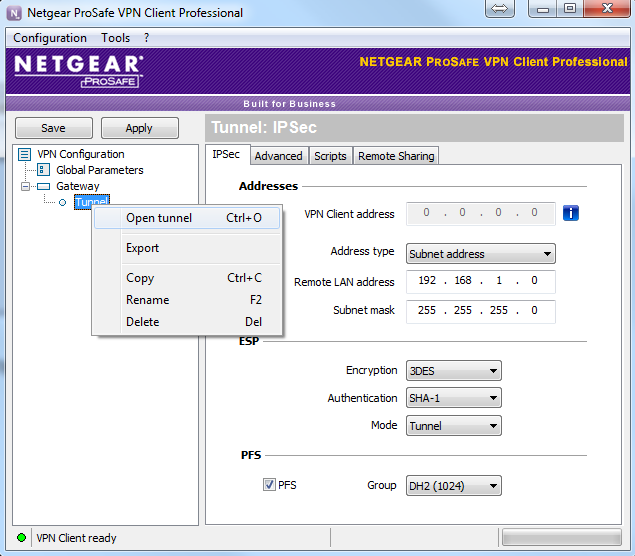
VPN tunnel is now connected
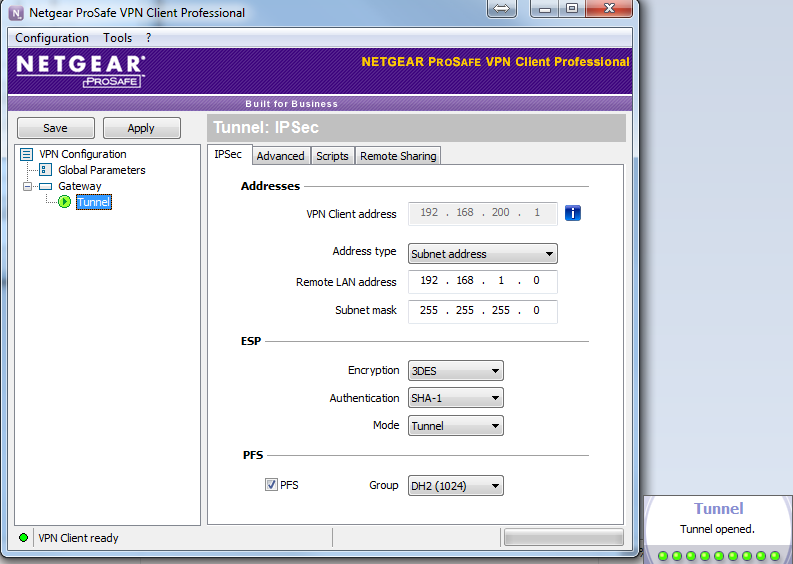
The NETGEAR VPN client has assumed an IP address from the Mode config record