

Objective: To show how to configure a Client to Box VPN policy between the NETGEAR VPN Client Lite/Professional and the remote device.
VPN client (VPNG01L), revision V5.04.002 is used.
The DGFV338 router is in use here, but the same process applies for other NETGEAR ProSAFE Routers (such as SRX5308, FVS336, FVS318G, FVS318N, and ProSECURE UTMs).
Router Setup:
- Log into the router.
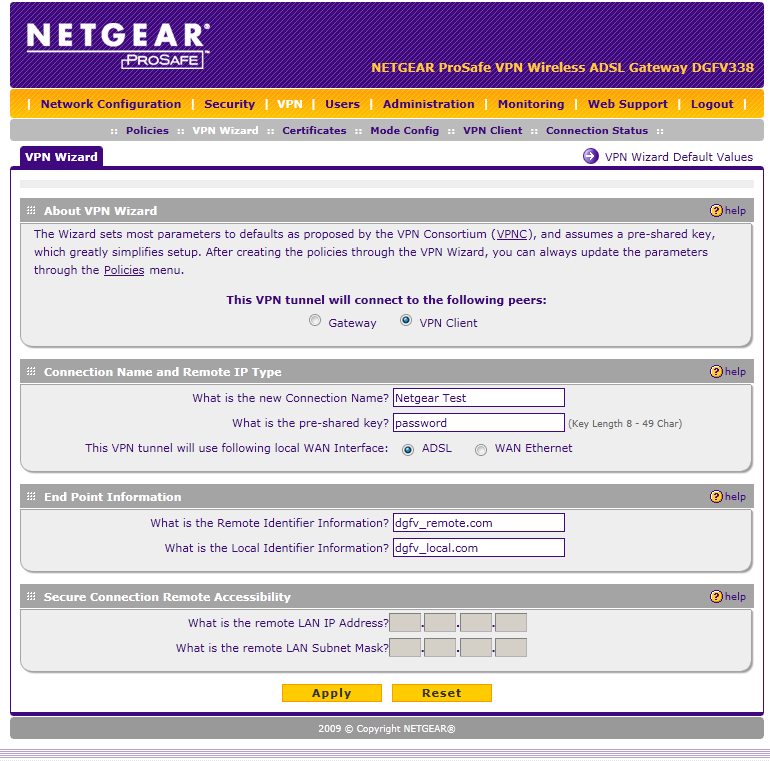
- Click on VPN > VPN Wizard.
- Select 'VPN Client' under'. This VPN tunnel will connect to the following peers:.
- Enter in a connection name, this can be anything you want and will identify this policy locally.
- Enter the pre-shared key you want to use.
- Enter the Remote Identifier (this will be how the router of VPN gateway identifies your VPN client).
- Enter the Local Identifier (this will be how the VPN client identifies the VPN gateway).
- Click on 'Apply'.
- Check the router or VPN Gateway’s Public IP address under 'Monitoring' as you will need this to connectyour client to the router.
VPN Client
Installing
- Run the VPN client installation.
- After installing the VPN client, the first time you run the program it will ask you to activate.
- Activate your VPN client with your license key.
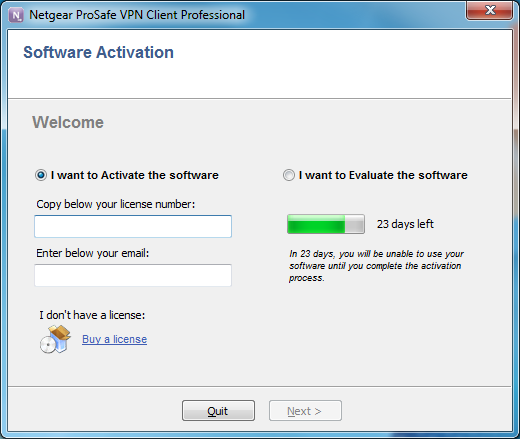
- Enter your licence key.
Configuring
- Click on VPN Configuration > Wizard...
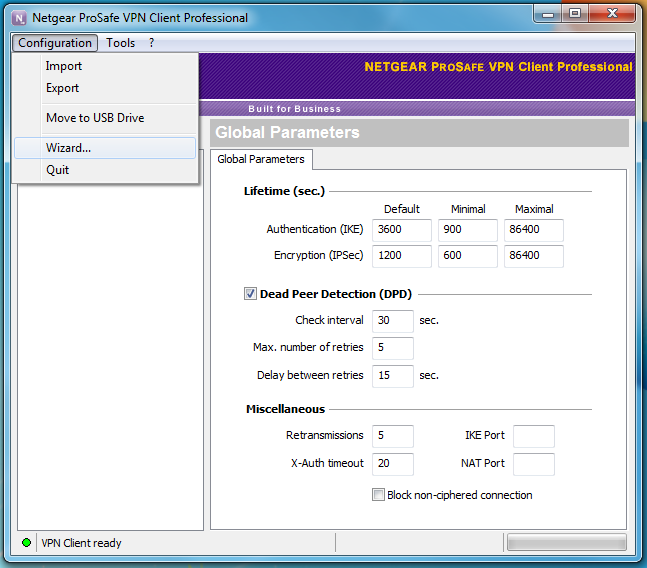
- In this case you are connecting to a router, so select 'A Router of VPN Gateway'.

- Enter the FQDN (or WAN IP address) of the router or VPN gateway you want to connect to.
- Enter the pre-shared key that you setup on the router or VPN gateway.
- Enter the Private IP address of the network the router or VPN gateway is on (eg. 192.168.1.0 or 192.168.0.0).
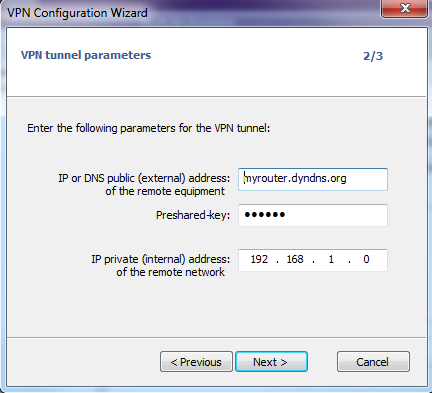
- Click 'Next'.
- Click 'Finish'.
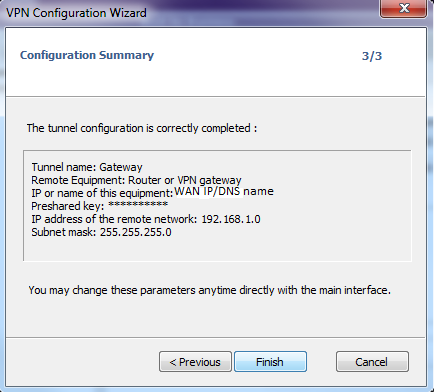
- Once your Policy is created, you will need to edit it to enter the Local and Remote Identifier. Highlight thegateway (VPN Policy) you created and click on the 'Advanced' Tab.
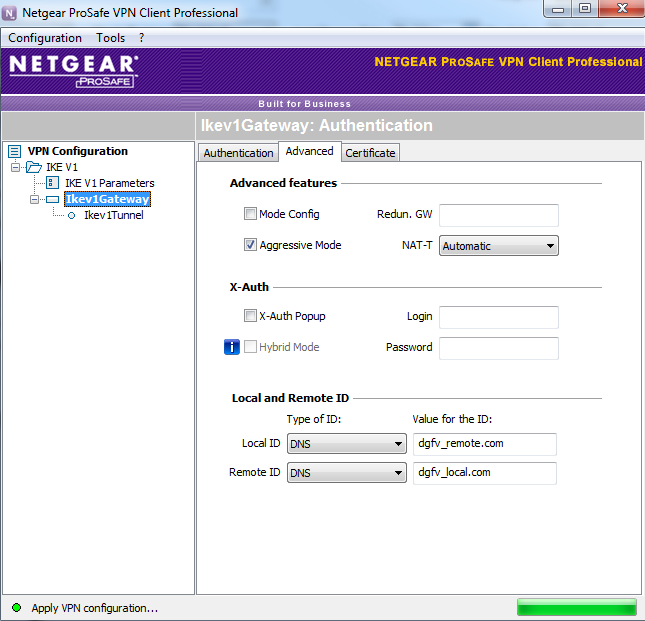
- Enter the Local ID as the Remote ID on the router and enter the Remote ID as the Local ID on the router.
This is like a password. It must be exactly the same text but opposite, and is case sensitive.
- Then go to the Phase 2 section, underneath the current selection on the left. You may need to click the plus sign to expand the list.
- On the IPSec tab, you need to select the version of PFS, that the router has selected.
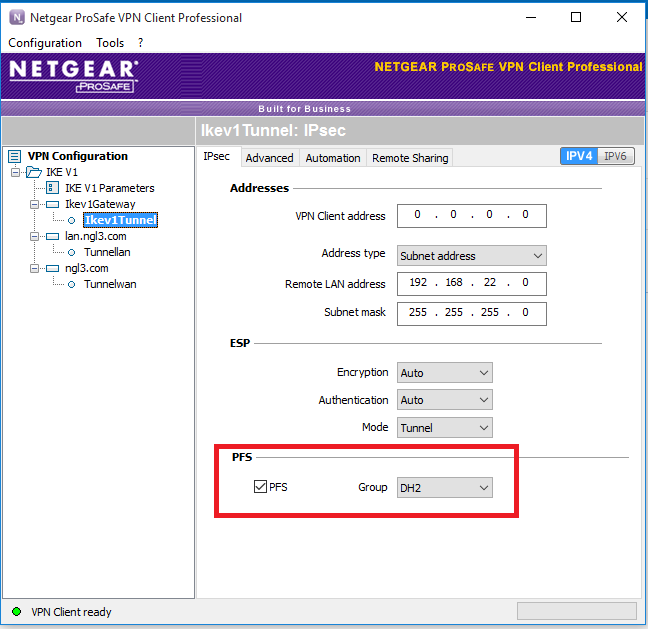
- You are now setup and can open the VPN tunnel to the router or gateway VPN.
References:
Index of VPN KB Articles: click here.
Ref: -JJM-VPN2 Doc # 24245 Rev 1.1 November 2013.
Last Updated:07/07/2025
|
Article ID: 24245