

To set up FTP access through the Internet:
- Launch an Internet browser from a computer or wireless device that is connected to the network.
- Type https://www.routerlogin.net or https://www.routerlogin.com.
A login screen displays. - Enter the router user name and password.
The user name is admin. The default password is password. The user name and password are case-sensitive.
The BASIC Home screen displays. - Select ADVANCED > USB Storage > Advanced Settings.
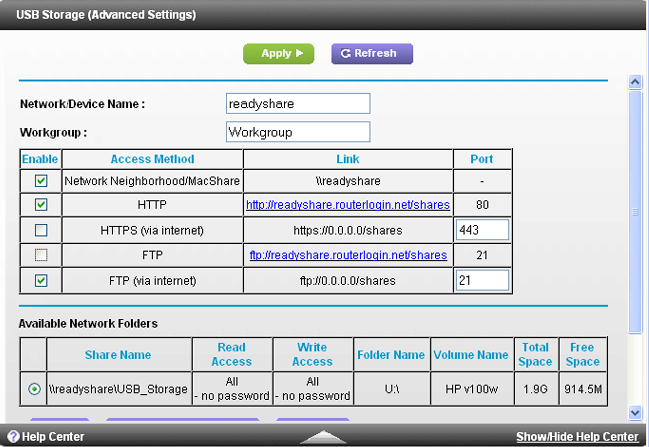
- Select the FTP (via Internet) check box.
- Click the Apply button.
Your changes are saved. - To limit access to the admin user, click the Edit button.
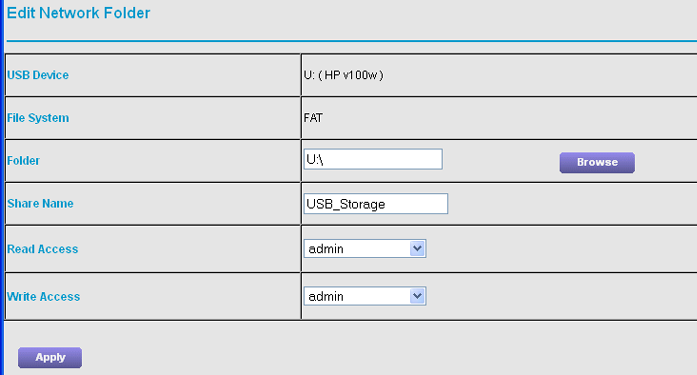
- In the Read Access list, select admin.
- In the Write Access list, select admin.
- Click the Apply button.
Your changes are saved.
You can now access the USB drive attached to your Nighthawk R7000 router.
For more information about how to access the USB drive, see the "How do I access the USB drive attached to my Nighthawk router through the Internet with FTP?
You can also set up a personal FTP server.
For more information about setting up a personal FPT server, see the "How do I set up my personal FTP server on my Nighthawk router?
Last Updated:07/07/2025
|
Article ID: 23942