The following procedure uses the Microsoft iSCSI Software Initiator, which is freely available online and is integrated in Windows 7.
Note: If you use another operating system than Windows, the steps are different, but the basic tasks remain the same.
To configure LUN access through an iSCSI initiator:
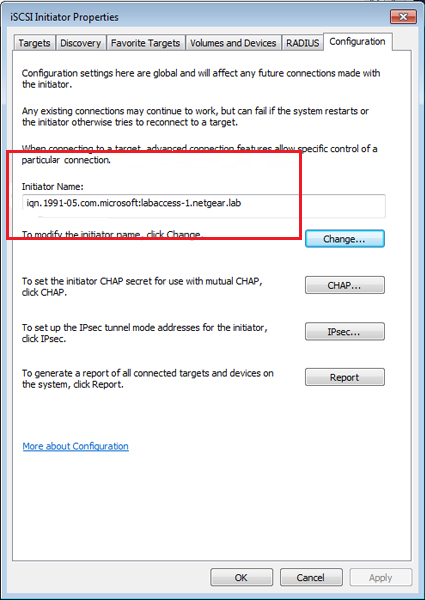
1. Open the iSCSI initiator and click the Configuration tab.
2. Copy the default name from the Initiator Name field.
3. On the ReadyDATA Dashboard, click SAN.
The SAN screen displays:
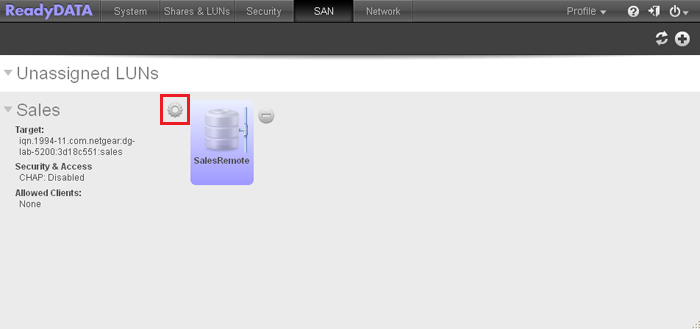
4. Click the gear icon to the right of the LUN group to which you want to connect the server.
A pop-up menu displays.
5. Select Properties.
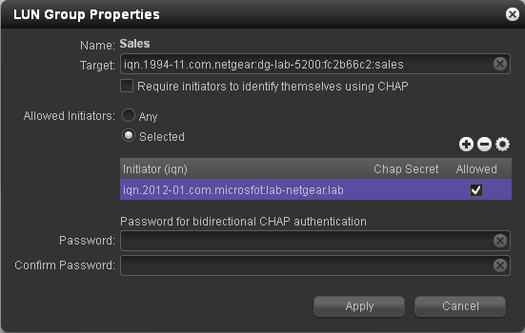
The LUN Group Properties pop-up screen displays:
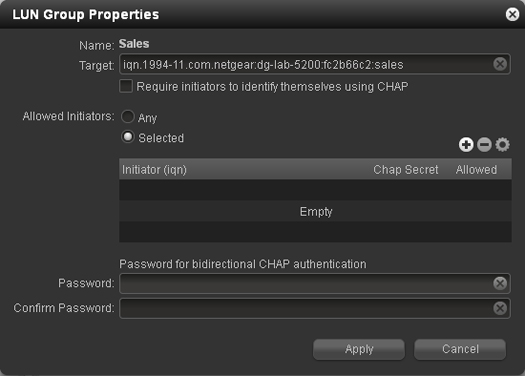
6. Next to Allowed Initiators, select the Selected radio button.
7. Click the + button to the right of the empty table.
The Create initiator pop-up screen displays:
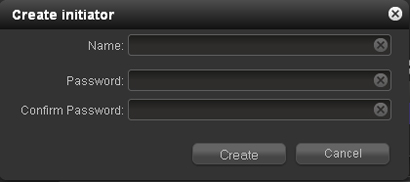
8. Paste the default iSCSI initiator name in the Name field.
9. Click Create.
The LUN Group Properties pop-up screen displays again and the initiator is added to the table on the LUN Group Properties pop-up screen.
10. On the LUN Group Properties screen, next to the iSCSI initiator name, select the Allowed check box:
11. Click Apply.
12. On the iSCSI Initiator Properties screen, click the Targets tab:

13. In the Target field, enter the IP address of the ReadyDATA.
14. Click Quick Connect.
The server connects to the LUN group on the ReadyDATA, but the LUNs in the LUN group cannot yet be displayed in Windows Explorer.
15. Open the Windows Disk Management application.
Each LUN in the LUN group displays as an unallocated disk that needs to be initialized and formatted.
Tip: If the disks do not display, select Action > Refresh from the Disk Management menu.

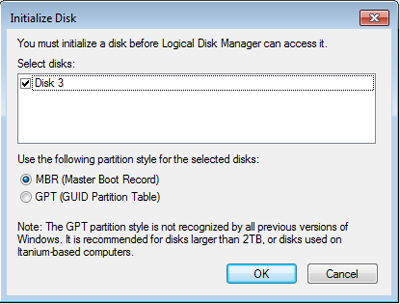
16. Initialize each new disk by selecting Action > All Tasks > Initialize Disk from the Disk Management menu.
17. Format each new disk.
a. Select the disk that you want to format.
b. Select Action > All Tasks > New Simple Volume from the Disk Management menu.
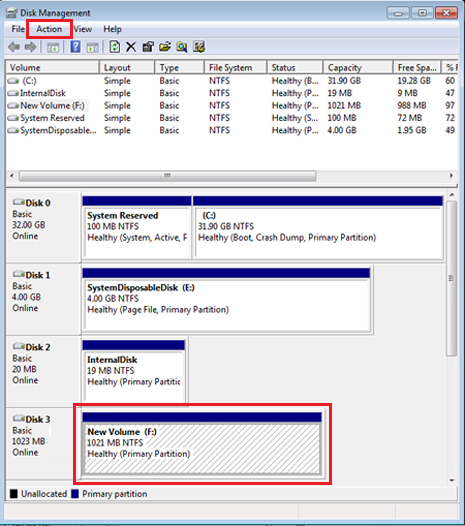
The New Simple Volume Wizard pop-up screen displays.
c. Follow the default wizard formatting steps.
Alternately, you can give the volume label for the new disk that represents the LUN the same name as the LUN.
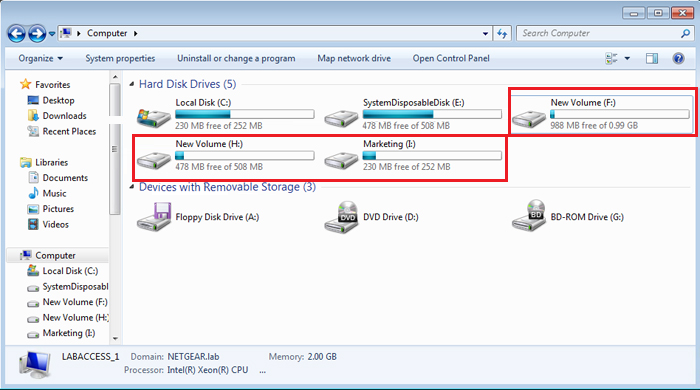
The LUNs are now accessible as hard disk drives (referred to as new volumes if you kept the default volume label) through Windows Explorer.
The following figure shows three LUNs: New Volume (F:), New Volume (H:), and Marketing (I:):