

The user and group access settings let you set access rights to an individual share for groups and users. The host access settings let you set access rights to an individual share for users on a host.
The table in the Network section displays either the groups and users that you defined in the local database or the ones that are downloaded from the Active Directory server.
The following figure shows the Network section on the Properties pane of a share (in this example, the SMB protocol is shown):
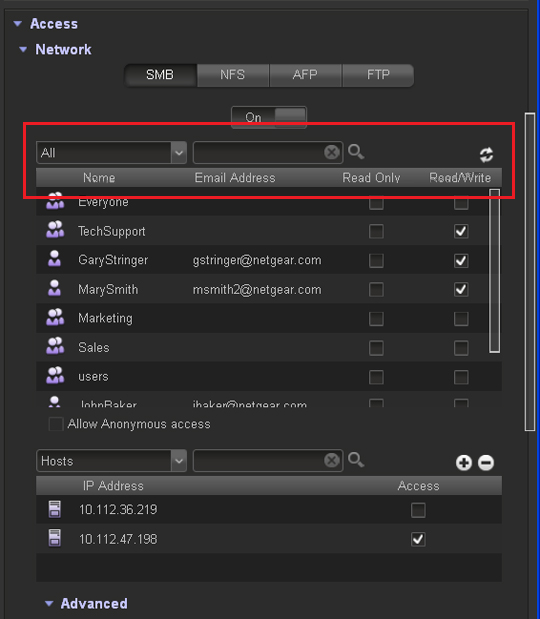
For SMB, AFP, and FTP, you can configure access rights for groups and individual users. User and group settings do not apply to NFS.
To configure user and group access settings:
1. From the All drop-down list, make one of the following selections to specify the information that you want to display onscreen:
-
All. The default group Everyone and all groups that you configured on the Security screen or that were downloaded from the AD server are displayed. This is the default setting.
-
Users. Only the individual users that you configured on the Security screen or that were downloaded from the AD server are displayed.
-
Groups. Only the groups that you configured on the Security screen or that were downloaded from the AD server are displayed.
To search for a particular user or group, use the search field on the right.
To update the user and group information, click the Refresh button ( ).
).
2. For each group and individual user to which you want to grant access to the share, select one of the following check boxes:
-
Read Only. The selected user or group is permitted to only read files on the share.
-
Read/Write. The selected user or group is permitted to read, edit, create, and delete files on the share.
Note: If the ReadyDATA uses the local database, you can select the default group Everyone and set read-only or read/write access for everyone.
3. (Optional for SMB and AFP). Allow anonymous access to the share.
If the ReadyDATA uses the local database and you have granted the default group Everyone access, you can select the Anonymous check box to allow anonymous access to the share. In this situation, users are not required to provide access credentials.