

You can access shared folders on your ReadyNAS system using a network-attached OS X device.
Not what you're looking for? Return to the ReadyNAS Share and Permission FAQ.
To access a shared folder using a network-attached OS X device:
1. Ensure that the AFP or SMB file-sharing protocol is enabled on your ReadyNAS system.
For more information, see the How do I set Network Acccess Rights to Shared Folders on my ReadyNAS OS 6 storage system?
2. In Finder, select Go > Connect to Server.
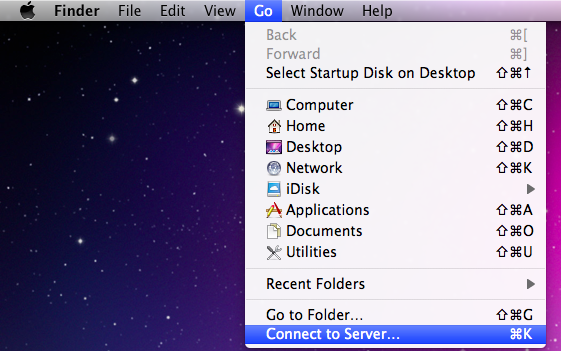
The Connect to Server dialog box displays.
3. Connect to your ReadyNAS system as follows:
-
If you are using the AFP file-sharing protocol, enter the following command in the Server Address field:
afp://<hostname>
-
If you are using the SMB file-sharing protocol, enter the following command in the Server Address field:
smb://<hostname>
In both cases, <hostname> is the name that you assigned to your ReadyNAS system or the default host name if you did not change it.
Note: If you cannot access the ReadyNAS using its host name, try entering afp://<ReadyNAS IP address> or smb://<ReadyNAS IP address> instead. <ReadyNAS IP address> is the IP address of the ReadyNAS.
4. Click the Connect button.
You are prompted to log in to your ReadyNAS system.
5. Enter a user ID and password.
You can log in with administrator or user credentials. If you log in as a user, your access is limited by the settings configured by the ReadyNAS system administrator.
You are prompted to select a volume. Mac OS X calls your ReadyNAS shared folders volumes.

6. Select the volume or volumes (shared folder or folders) you want to access and click the OK button.
Finder displays the volume contents.
This article applies to the following ReadyNAS and EDA storage system models:
-
ReadyNAS 102
-
ReadyNAS 104
-
ReadyNAS 312
-
ReadyNAS 314
-
ReadyNAS 316
-
ReadyNAS 516
-
ReadyNAS 2120
-
ReadyNAS 3220
-
ReadyNAS 4220
-
EDA 500