

The ReadyNAS automatically generates email alert messages when certain system events occur. You can determine which optional system events generate alerts. NETGEAR recommends that you keep all alerts enabled. However, if you are aware of a problem, you can disable an alert temporarily.
To manage alert event settings:
1. Select System > Settings > Alerts.
2. In the Alert Events section, select the check box next to each event that you want to trigger an alert.
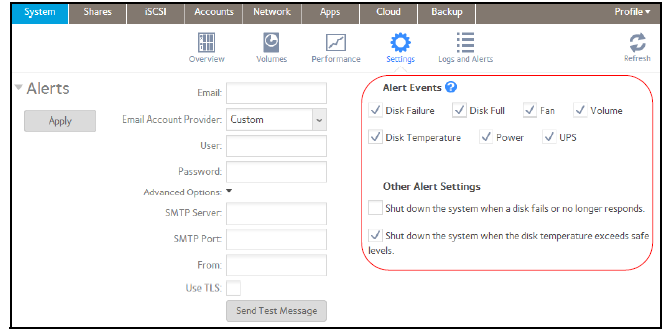
If you do not want an event to generate an alert, clear its check box.
Dimmed events (Disk Failure, Volume, Power, and UPS) always generate email alerts.
3. In the Other Alert Settings section, select the check box next to each response that you want ReadyNAS system to execute in case of emergency.
• Shut down the system when a disk fails or no longer responds. When this check box is selected, if a disk fails, your ReadyNAS system powers off.
• Shut down the system when disk temperature exceeds safe levels. When this check box is selected, if disk temperature exceeds safe levels, your ReadyNAS system powers off.
4. Click the Apply button under the Alerts heading.
Your changes are saved.
This article applies to the following ReadyNAS and EDA storage system models:
-
ReadyNAS 102
-
ReadyNAS 104
-
ReadyNAS 312
-
ReadyNAS 314
-
ReadyNAS 316
-
ReadyNAS 516
-
ReadyNAS 2120
-
ReadyNAS 3220
-
ReadyNAS 4220
-
EDA 500