

- Create VLAN 500.
- Select Switching > VLAN > Basic > VLAN Configuration.
A screen similar to the following displays.
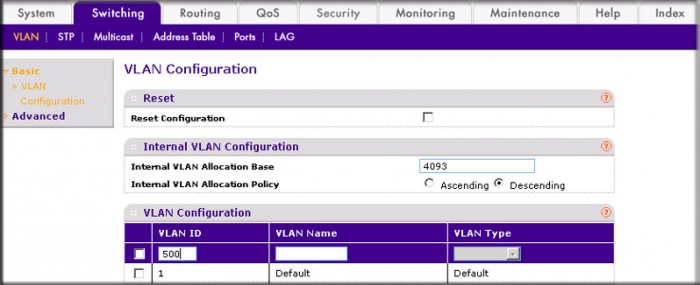
- In the VLAN ID field, enter 500.
- In the VLAN Type field, select Static.
- Click Add.
- Select Switching > VLAN > Basic > VLAN Configuration.
- Add ports to VLAN 500.
- Select Switching > VLAN > Advanced > VLAN Membership.
A screen similar to the following displays.
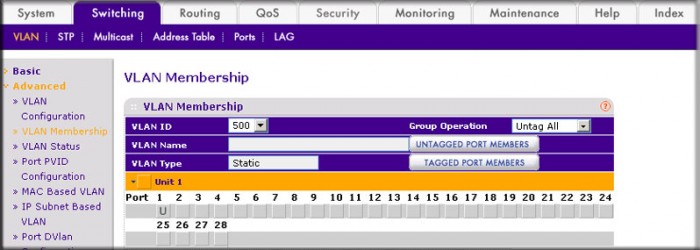
- In the VLAN ID list, select 500.
- Click Unit 1. The ports display.
- Click the gray box under port 1 until U displays, indicating that the egress packet is untagged for the port.
- Click Apply.
- Select Switching > VLAN > Advanced > VLAN Membership.
- Specify the PVID on port 1/0/1.
- Select Switching > VLAN > Advanced > Port PVID Configuration.
A screen similar to the following displays.
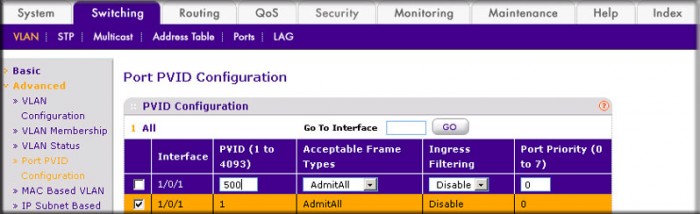
- Under PVID Configuration, scroll down and select the Interface 1/0/1 check box.
- In the PVID (1 to 4093) field, enter 500.
- Click Apply to save the settings.
- Select Switching > VLAN > Advanced > Port PVID Configuration.
- Enable IPv6 forwarding and unicast routing on the switch.
- Select Routing > IPv6 > Basic > Global Configuration.
A screen similar to the following displays.
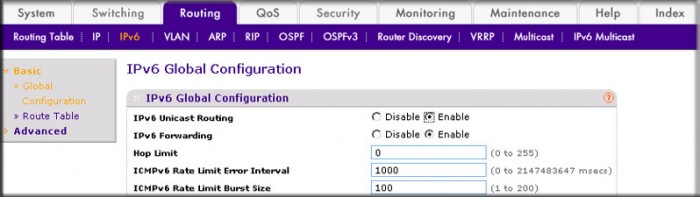
- For IPv6 Unicast Routing, select the Enable radio button.
- For IPv6 Forwarding, select the Enable radio button.
- Click Apply.
- Select Routing > IPv6 > Basic > Global Configuration.
- Enable IPv6 routing on the VLAN.
- Select Routing > IPv6 > Advanced > Interface Configuration.
A screen similar to the following displays.
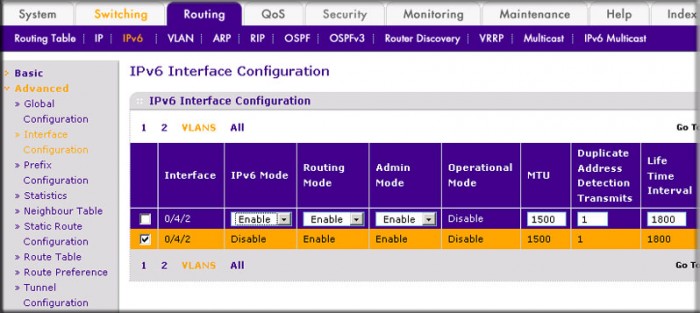
- Click VLANS. The logical VLAN interface 0/4/2 displays.
- Select the 0/4/2 check box.
- Under IPv6 Interface Configuration, in the IPv6 Mode field, select Enable.
- Click Apply.
- Select Routing > IPv6 > Advanced > Interface Configuration.
- Assign an IPv6 address to the routing VLAN.
- Select Routing > IPv6 > Advanced > Prefix Configuration.
A screen similar to the following displays.
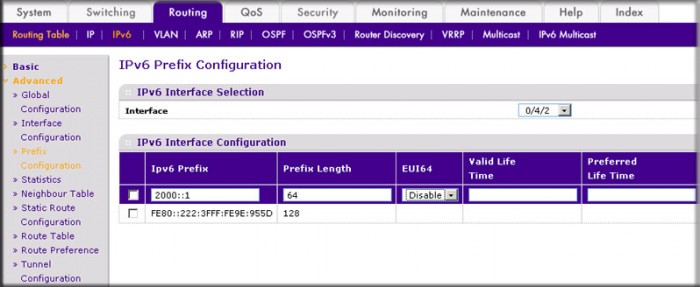
- In the Interface field, select 0/4/2.
- In the IPv6 Prefix field, enter 2000::1.
- In the Length field, enter 64.
- In the EUI64 field, select Disable.
- Click Add.
- Select Routing > IPv6 > Advanced > Prefix Configuration.
For more information see the How do I create an IPv6 routing VLAN using CLI commands on my managed switch? support article.
This article applies to the following managed switches and their respective firmware:
- M5300 - firmware version 10.0.0.x
-
- M5300-28G (GSM7228S)
- M5300-5G (GSM7252S)
- M5300-28G3 (GSM7328Sv2h2)
- M5300-52G3 (GSM7352Sv2h2)
- M5300-28G_POE+ (GSM7228PSv1h2)
- M5300-52G-POE+ (GSM7252PSv1h2)
- M5300-28GF3 (GSM7328FSv2)
- XSM7224S - firmware version 9.0.1.x (license required to support the feature described in this article)
Last Updated:07/07/2025
|
Article ID: 21971