

- Add an IPv6 address to the network interface.
- Select System > Management > Network Interface > IPv6 Network Configuration.
A screen similar to the following displays.
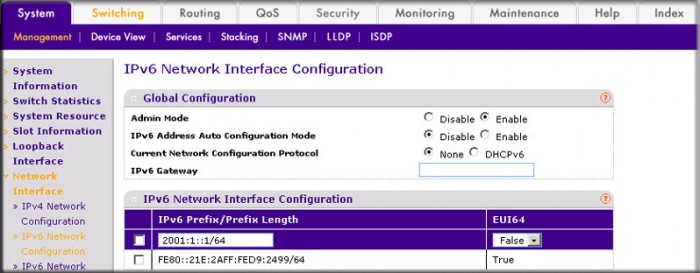
- For Admin Mode, select the Enable radio button.
- In the IPv6 Prefix/Prefix Length field, enter 2001:1::1/64.
- In the EUI64 field, select False.
- Click Add.
- Select System > Management > Network Interface > IPv6 Network Configuration.
- Add an IPv6 gateway to the network interface.
- Select System > Management > Network Interface > IPv6 Network Configuration.
A screen similar to the following displays.

- In the IPv6 Gateway field, enter 2001:1::2.
- Click Apply.
- Select System > Management > Network Interface > IPv6 Network Configuration.
For more information, see the following support articles:
This article applies to the following managed switches and their respective firmware:
- M5300 - firmware version 10.0.0.x
-
- M5300-28G (GSM7228S)
- M5300-5G (GSM7252S)
- M5300-28G3 (GSM7328Sv2h2)
- M5300-52G3 (GSM7352Sv2h2)
- M5300-28G_POE+ (GSM7228PSv1h2)
- M5300-52G-POE+ (GSM7252PSv1h2)
- M5300-28GF3 (GSM7328FSv2)
- M4100 - firmware version 10.0.1.x
-
- M4100-26G (GSM7224v2h2)
- M4100-50G (GSM7248v2h2)
- M4100-26G-POE (GSM7226Pv1h1)
- M4100-50G-POE+ (GSM7248Pv1h1)
- M4100-26G-POE (FSM7226Pv1h1)
- M4100-50-POE (FSM7250Pv1h1)
- M4100-D12G (GSM5212v1h1)
- M4100-D10-POE (FSM5210Pv1h1)
- M7100 - firmware version 10.0.1.x
-
- M7100-24X (XSM7224)
- XSM7224S - firmware version 9.0.1.x
Last Updated:07/07/2025
|
Article ID: 21968