

- On Switch A, configure a stack port as an Ethernet port.
- Select System > Stacking > Advanced > Stack Port Configuration.
A screen similar to the following displays.
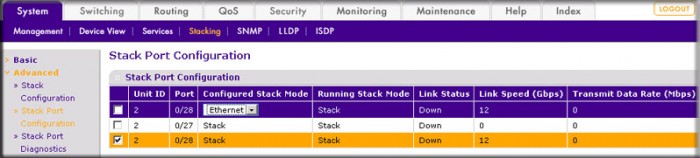
- Under Stack Port Configuration, scroll down and select the 2/0/28 check box.
- In the Configured Stack Mode list, select Ethernet.
- Click Apply to save the settings.
- Select System > Stacking > Advanced > Stack Port Configuration.
- Reboot the switch.
- Select Maintenance > Reset > Device Reboot.
A screen similar to the following displays.
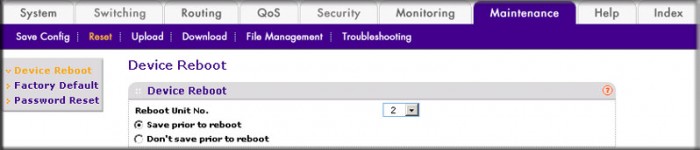
- In the Reboot Unit No. list, select 2.
- Click Apply.
- Select Maintenance > Reset > Device Reboot.
- On Switch B, configure a stack port as an Ethernet port
- Select System > Stacking > Advanced > Stack Port Configuration.
A screen similar to the following displays.
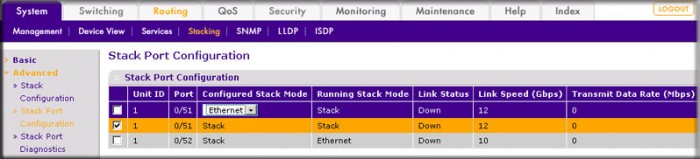
- Under Stack Port Configuration, scroll down and select the 1/0/51 check box.
- In the Configured Stack Mode list, select Ethernet.
- Click Apply to save the settings.
- Select System > Stacking > Advanced > Stack Port Configuration.
- Reboot the switch.
- Select Maintenance > Reset > Device Reboot.
A screen similar to the following displays.
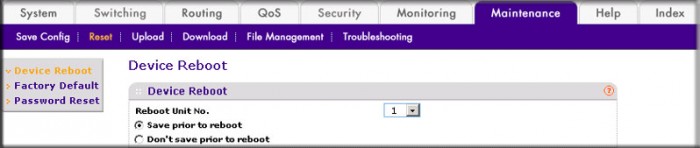
- In the Reboot Unit No. list, select 1 .
- Click Apply.
- Select Maintenance > Reset > Device Reboot.
For more information, see the following support articles:
This article applies to the following managed switches and their respective firmware:
- M5300 - firmware version 10.0.0.x
-
- M5300-28G (GSM7228S)
- M5300-5G (GSM7252S)
- M5300-28G3 (GSM7328Sv2h2)
- M5300-52G3 (GSM7352Sv2h2)
- M5300-28G_POE+ (GSM7228PSv1h2)
- M5300-52G-POE+ (GSM7252PSv1h2)
- M5300-28GF3 (GSM7328FSv2)
- XSM7224S - firmware version 9.0.1.x
Last Updated:07/07/2025
|
Article ID: 21898