

NETGEAR‘s ProSafe VPN firewalls are completely equipped, broadband-capable firewall routers that reduce your operating costs and maximize the security of your network with business-class protection. Using the Remote Management menu, you can allow a user on the Internet to configure, upgrade and check the status of your ProSAFE VPN firewall.
Why you might use remote management:
- You want help, where somebody remote wants to administer your router configuration.
- You are troubleshooting someone else's router.
- You are an administrator for a remote network.
- You want to configure the router via the Internet.
Remote management is off by default. Because a hacker might try to break your router password, it is best to turn remote management off after use, so that the router cannot be administered from the WAN.
To set the router password:
Never use remote management unless the router password is changed from the default! To change the password:
- Type http://192.168.0.1 (On some router models, http://192.168.1.1) in a browser. The router login screen appears.
- The username is always admin, and the default password is password. (On some older routers, it's 1234.) The router logs you in.
- Click Maintenance > Set Password.
- In the Old Password box, type the default password.
- In both the New Password and Repeat New Password boxes, type your new password. Write it down where you won't misplace it, such as on your router installation instructions or your ISP configuration sheet.
(If you've lost your password, see Default web interface password for NETGEAR devices) - Click Apply.
To turn on remote management:
- Log in to the router, if you haven't already done so.
- Click Advanced > Remote Management.
- Select Turn Remote Management On.
- Decide whether to give router access to one computer, or several computers in a range of IPs. (You probably shouldn't give access to everyone, unless you have a dial-up connection and a dynamic IP.)
- If giving access to only one computer, select Only This Computer, and type the computer's IP.
- If, instead, you want access to a range of IPs select IP Address Range and type the beginning and the end of the range in the From and To boxes. In this example, the starting IP is 68.205.2.56, and the ending IP is 68.205.2.65.
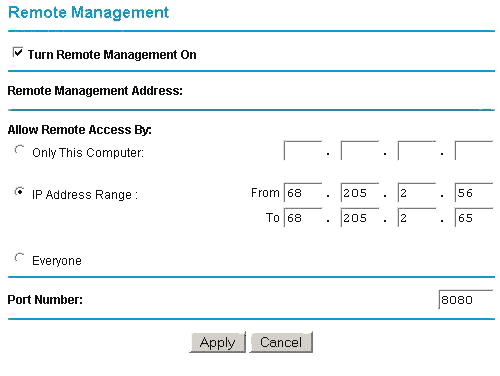
- Leave Port Number at the 8080, unless behind a corporate firewall that blocks some ports. Ports that are not typically blocked are for HTTP and HTTPS outbound traffic, port numbers 80 and 443.
- Click Apply.
- Write down the IP shown in the Remote Management Address box. This is the address, followed by the port number, that gives remote access to the router. E.g., in this example http://68.203.2.57:8080.
To access your router from the Internet, type your router's WAN IP into the browser, followed by a colon (:) and the port number. E.g, if your external IP is 134.177.0.123 and you use port 8080, enter http://134.177.0.123:8080.
This is a general article, and cannot cover the specific details of every ProSAFE router. For specific product queries, enter your model number at https://www.netgear.com/support/ and refer to the PDF product manual.