

This help sheet shows how data can be copied between USB drive and an OS6 unit. This can be done both by web GUI, and through Windows Explorer. In this example, a USB memory stick is inserted into a RN314.
- This is the view under System> Overview, with no USB drive plugged in. Labels and screenshots are for example use.

- This is the view after a USB drive is inserted into the rear upper USB 2.0 port.
-

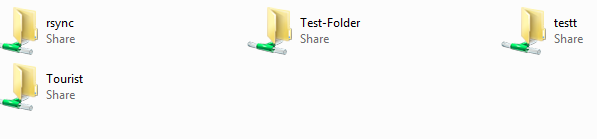
- This is an example view in Windows before insertion. The USB drive is not shown.
-
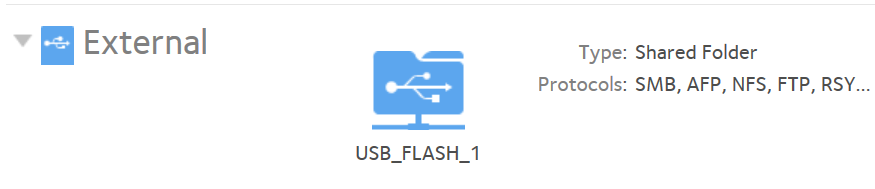
- This is the screenshot showing the USB drive at the base of the Shares > Shares screen on GUI user interface.
-
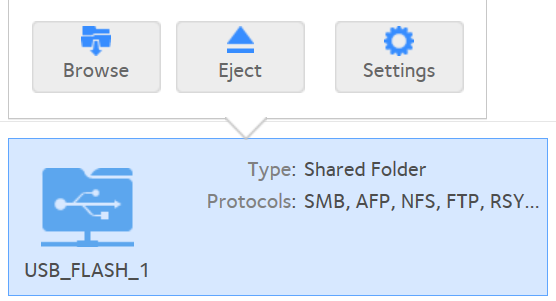
- A left mouse click,on the folder opens the following menu.
-
- On Windows explorer, the USB drive now appears.
-

- Copying data through Web GUI.
This Web GUI screen displays the folders on the USB drive through the NAS web interface. Chrome is the browser used here. I had a little difficulty viewing the same folders through IE10. Firefox displayed the Shares as normal.- On the USB drive, I select a folder called 'Alpha', left-click, and hit Copy.
-
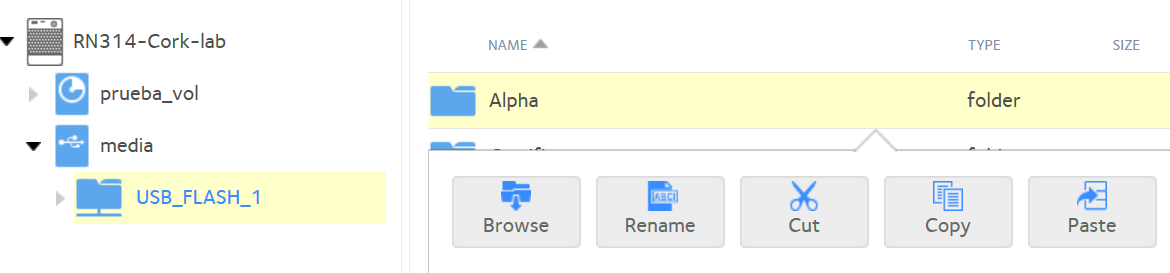
- I now go to a 'Demo' share on the NAS, and click on 'Paste' . The 'Alpha' folder is now copied from the USB drive to the NAS.
-
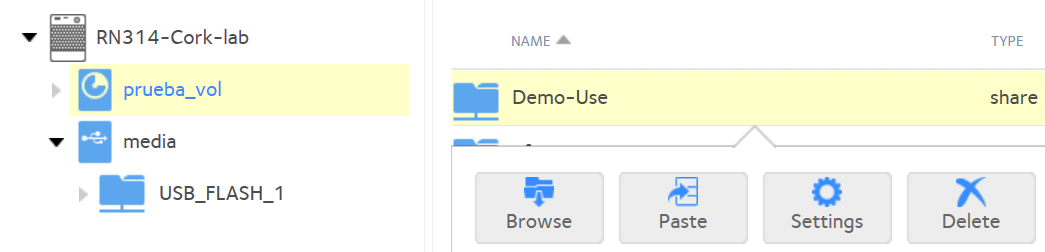
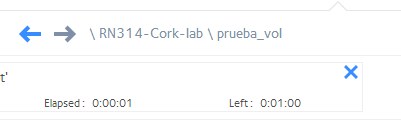
- This pop up appears very briefly. While 1 minute may be shown, in this example, the transfer was less than 10 secs for 160kB file.
-
- Permissions: At one point, I could not access the USB drive, which was plugged into through Windows Explorer, and got a permission error. What cleared this was ticking the 'Anonymous' check box for the USB drive as shown.
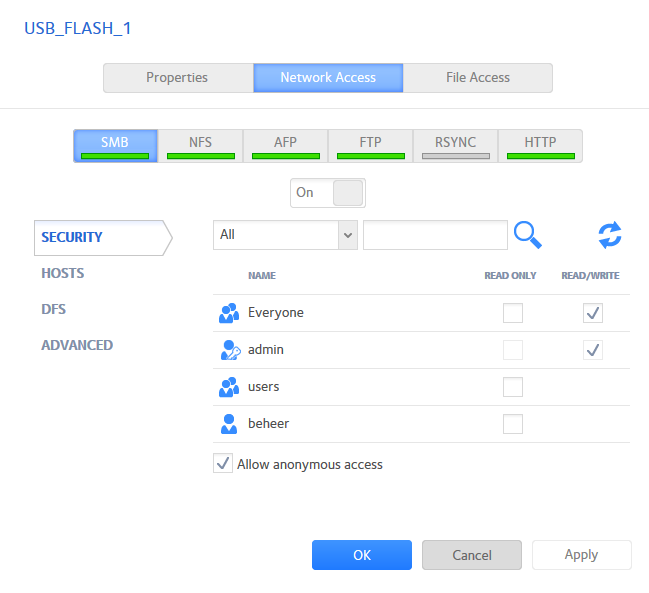
- Once checked, I was able to view folders on USB drive.
-
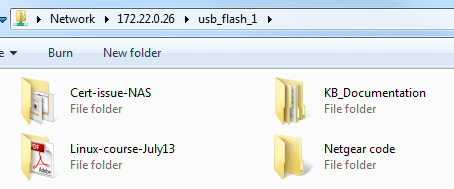
- Copying using explorer: While you can move, copy, cut and paste files through the web interface, you can also do so in Windows Explorer. Default SMB would need to be enabled.
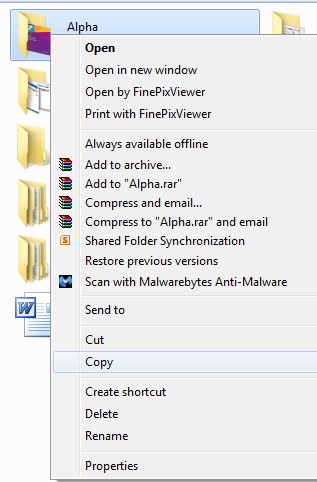
Here, I right click on the 'Alpha' folder on USB drive, and right-click, and copy.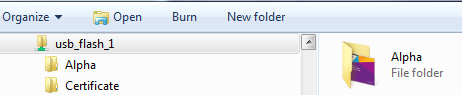
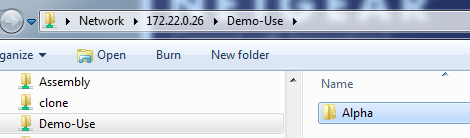
- I click on Demo-use folder on NAS. Right-click and Paste.
-
Notes:
This article is for example use, and will never be an exact copy of a customers equipment or needs.
Last Updated:07/07/2025
|
Article ID: 7015