

Objective: This article shows how to assign a Static IP on an ReadyNAS OS 6. The advantages for setting a non changing address, are that it is easier to bookmark on your browser, to map drives to Shares, and avoids having to regularly run a Discovery program.
Introduction: The NAS out of the box, is set to be DHCP client, which means it usually obtains a IP address from the router at the location.
Equipment setup:
For this to work, both PC and NAS should be plugged, hard-wired into the same switch / router, or be reachable over the network in larger businesses.
RAIDar or ReadyCLOUD Discovery will tell you the 192.168.xx.yy IP address of the NAS.
Instructions:
- On the Web interface, go to Network.
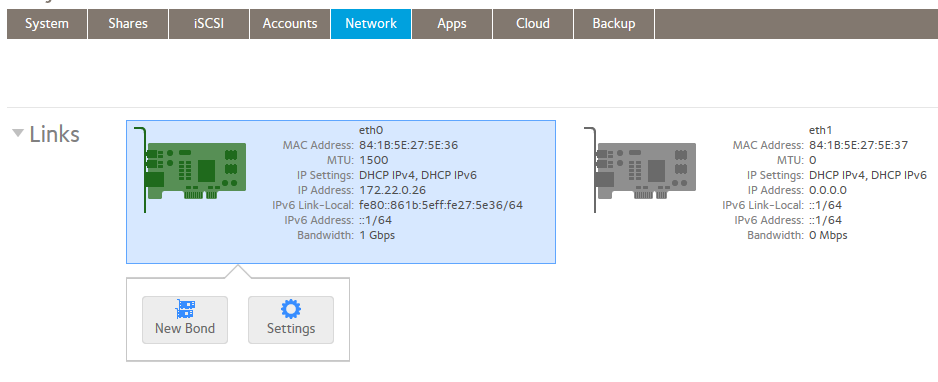
- The card with an Active Ethernet connection will be coloured green as shown. We are only concerned with the 3rd line here. Ignore MAC address, MTU, and IP version 6.
- Left-mouse click on the green card icon. Click on 'Settings', which will show the screen below.
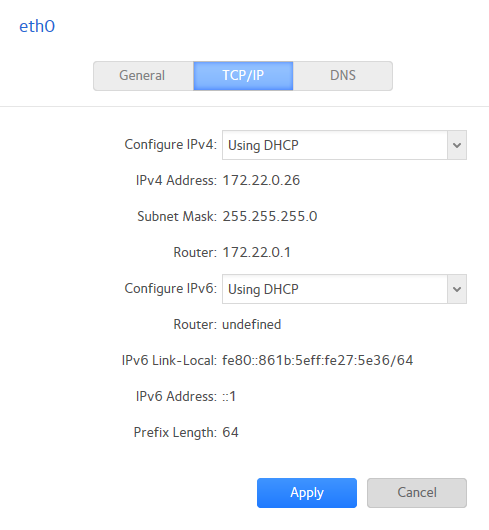
- Select TCP/IP. Observe the drop down menu as shown.
Change from 'Using DHCP' to 'Static'. This will make the 3 fields below editable.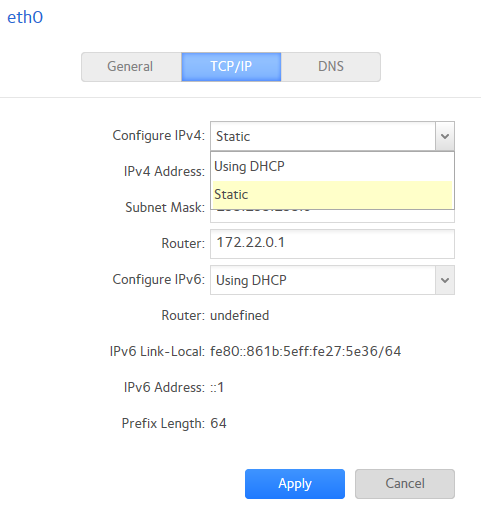
- It is simplest keep the same IP, but users may have their own specific IP preference.
You should not have to alter Subnet Mask, or Router settings here. The numbers shown here are for example use.
You would in general, only be altering the 4th octet, and the first 3 octets, 192.168.xx. yy should not change.
Click ' Apply' to complete.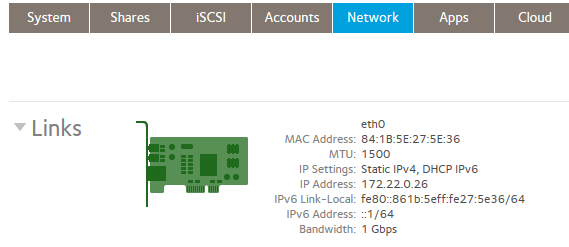
- Observe 'Static' on the 3rd line as shown.
If the IP digits, have been changed, you will need to log out, and log in using the new Static address.
DNS:
When a Static IP address is applied, the DNS (Domain name Server) must be specified also. For most users, the IP address of the router can be entered in the DNS field. This is detailed in this answer. Click > here.
What is DNS? When you look for any webpage, DNS converts the web page name to an IP address, which is needed for data communication.
Notes:
It is assumed that the Static IP address chosen, is not the same as any other device IP on the network.
Revision of Firmware V6.1.xx does not matter.
Ref JJM7 Doc # 7001 Rev 1.3March 2014