

This document explains how to troubleshoot Code 10 error (on device manager) after you install the network adapter.
To identify the problem, follow these steps:
- Click Start.
- Right-click My Computer and select Properties.
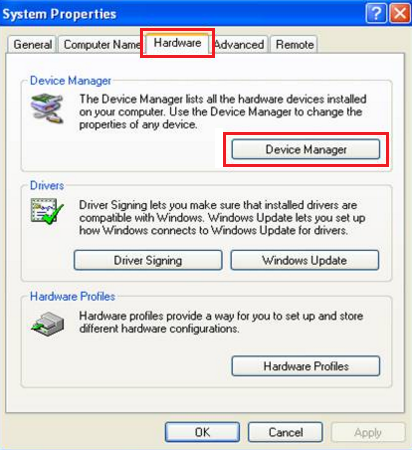
- Under System Properties, select Hardware tab and select Device Manager.
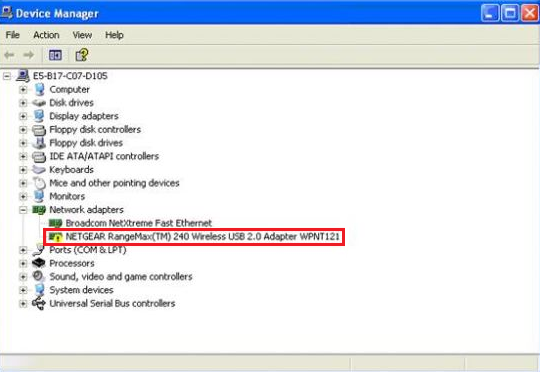
- In the Device Manager you will see the NETGEAR adapter (For ex: WPNT121T) with a Yellow Exclamation listed in Network adapters category.
- Double click NETGEAR Adapter and check the device status under General tab.
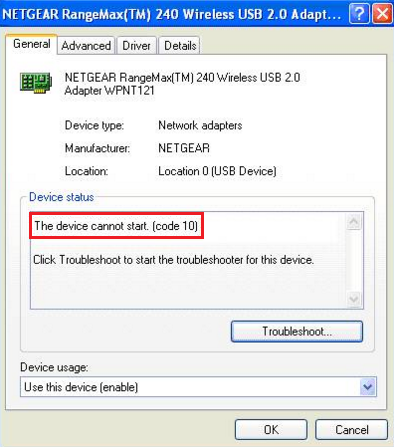
Causes for Code 10:
- IRQ conflict
- Adapter not plugged in properly
- Wrong/Incorrect driver installed
To uninstall adapter drivers:
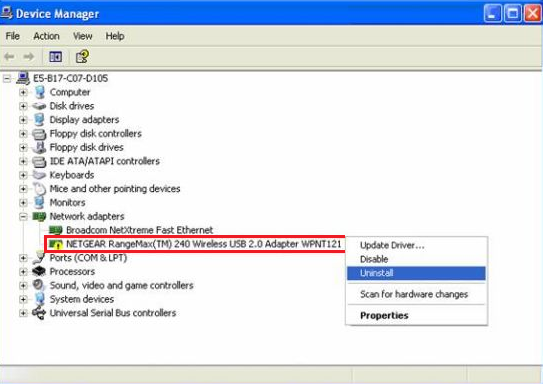
- Uninstall adapter drivers by right-clicking the NETGEAR Adapter and select Uninstall.
- Turn off computer and remove adapter from the computer.
- Turn on computer and install drivers again by using the CD or the software you downloaded for the adapter from the support site.
- When you are prompted to plug in or insert the adapter, insert the adapter on a different slot to avoid any conflict with existing devices.
- If the issue persists, uninstall the drivers from the system.
- Download the latest drivers for your adapter from NETGEAR Download Center and follow installation instructions.
Note: Make sure to download the correct model and version for your adapter.
Doc ID: N101730.asp Dec.11, 2007
Last Updated:07/07/2025
|
Article ID: 56