

Symptoms:
- NETGEAR wireless configuration utility will not open.
- When you click the adapter utility, it opens then closes right away.
Causes:
- Corrupted device driver.
- System does not recognize the presence of the wireless adapter.
Note: This article applies to Windows machines only.
To terminate the wireless configuration utility process:
- Check that your adapter is plugged in securely into the slot.
- You can try to remove and re-insert the adapter into the slot.
- Try plugging in a different slot to avoid conflict or possible bad slot.
- Terminate the wireless configuration utility process using the Windows Task Manager and re-launch the same.
- Press the Ctrl+Alt+Delete keys to open Windows Task Manager.
- Click the Processes tab.
- Look for wireless configuration process in the list.
Note: NETGEAR utility will be similar to wlancfg.exe or wlan111t.exe or the model of the adapter like
wn511t.exe.
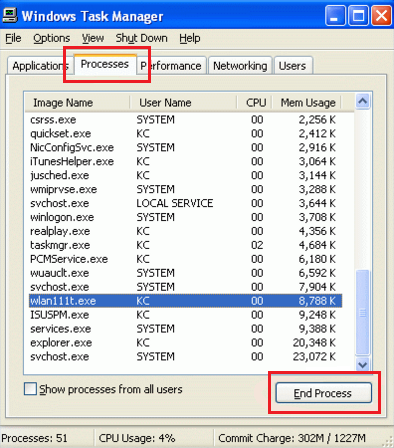
- Click End Process button.
- Click Yes to terminate the process.
- Close the Task manager window.
- Relaunch the wireless utility from the Start>Programs menu.
- If the above solutions do not solve the problem, try uninstall and reinstall adapter drivers. Also make sure you are using the latest drivers.
N101741.asp Feb 7, 2008
Last Updated:07/07/2025
|
Article ID: 48