

Using your NETGEAR genie Desktop, you can now turn on or off your powerline adapter’s LEDs. You just need to install the latest NETGEAR genie Desktop on your Windows computer and you can now manage the powerline LEDs. This article provides steps on how to turn off your powerline adapter’s LEDs using NETGEAR genie Desktop.
To turn off powerline adapter’s LEDs using NETGEAR genie Dekstop:
- Use a computer or laptop that is connected to your existing powerline network.
- Open your NETGEAR genie Desktop. If you don’t have the latest NETGEAR genie Desktop, click here.
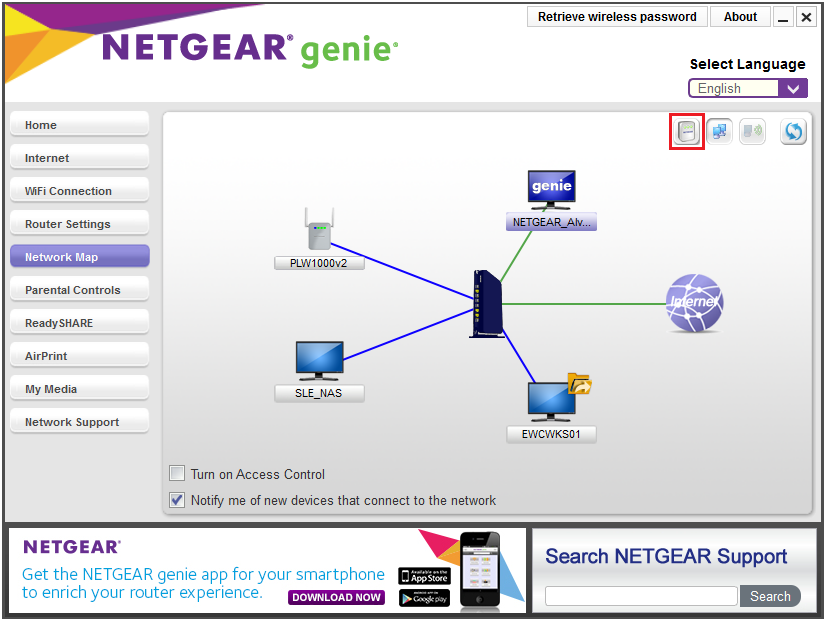
- Click Network Map.

- Click powerline icon.
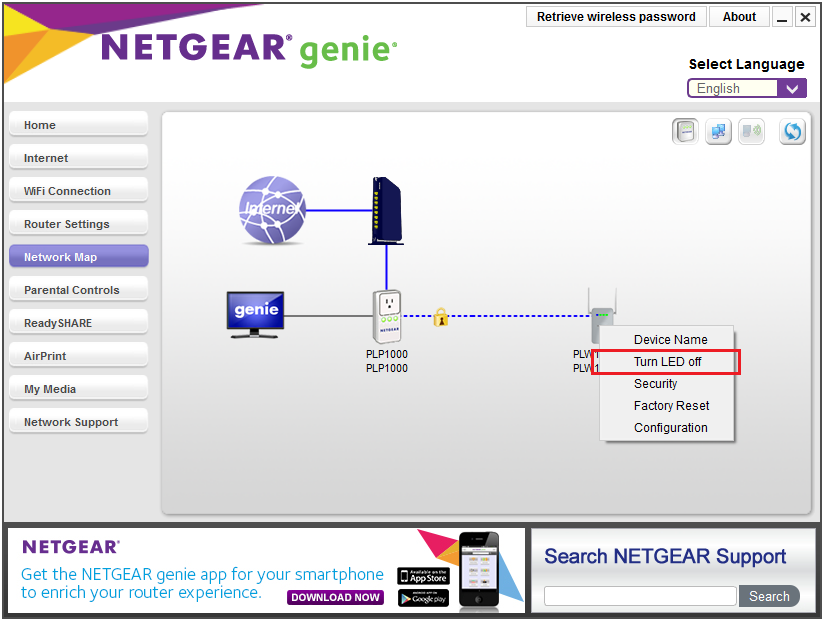
- Right-click the powerline adapter that you would like to turn off the LEDs and select Turn LED off.
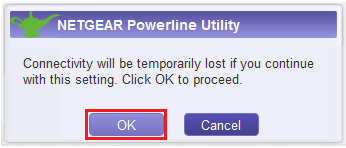
- Click OK to apply the settings.
- LEDs are now turned off. Click OK to proceed.
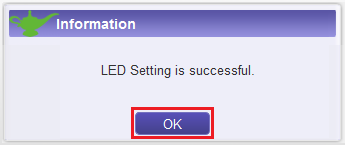
Your powerline adapter’s LEDS are now turned off.
Last Updated:07/07/2025
|
Article ID: 31524