

To make your powerline network secured, you can set an encryption key on your powerline adapters. You can use the default encryption key or create your own keys. This article provides steps on how to set an encyption key on your powerline WiFi adapter.
To enable powerline WiFi adapter encryption key:
- Use a computer or a WiFi device that is connected to your PLW1000.
- Open your preferred browser (i.e. Safari, Internet Explorer, Mozilla Firefox, Google Chrome etc).
- Type http://www.mywifiext.net in the web browser address bar.
- When prompted to log in, enter admin for username and password for password.
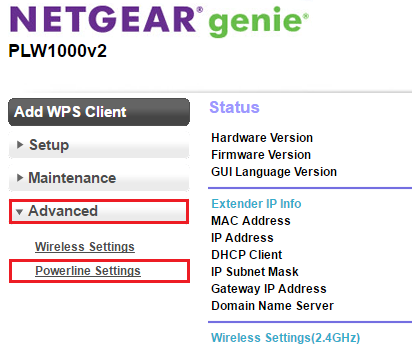
NETGEAR genie displays. - Click ADVANCED then Powerline Settings.
- To create your own encryption key, select Create new encryption key and enter your desired password.
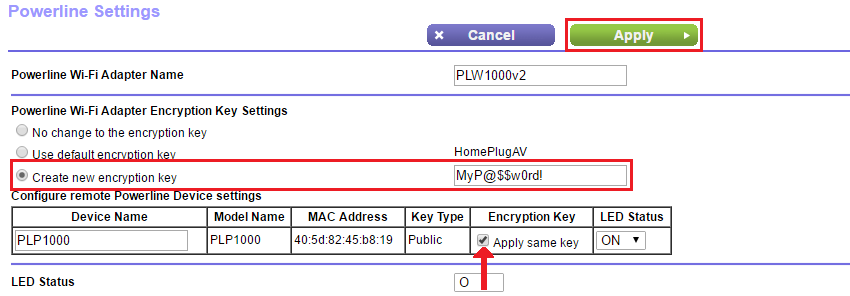
Note: To apply the same encryption key on your remote powerline device, select Apply same key. - After applying the settings, the Key Type is now set to Private. It means that your powerline network is now secured.
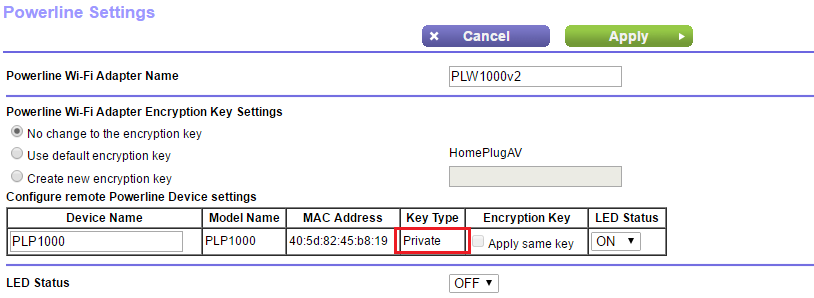
You have successfully set an encryption key on your powerline network.
Last Updated:07/07/2025
|
Article ID: 31522