

This article outlines steps to analyze what channels are in use in your wireless environment and what channel to set on your ProSAFE access point. This information is relevant if you are installing your access point for the first time, if you are experiencing wireless connection/disconnection issues or are experiencing a wireless performance issue.
As wireless networks are extremely common in the home and in the workplace it can often lead to congeston in the wireless environment which can lead to wireless connection and disconnection issues and also be the root of wireless performance issues. This is due to interference coming in many forms, notably physical interferences butalso interferences from other radios broadcasting on the same wireless channel and frequency.
Here we will discuss interferences from wireless networks that are broadcast from a neighbours wireless router or a neighbouring companies access point. In these scenarios the wireless networks are not under your control so you must analyze the wireless environment to find which channels are currently in use and which channel you should set your access point to.
On a 2.4Ghz wireless radio there is up to 14 Channels to choose from, however some channels are only allowed in certain regions, for instance; channel 1 to 11 in Unites States and channel 1 to 13 in Europe. You should ensure the Country/Region setting is configured correctly on your access point to ensure you can only choose from the allowed channel allocation for your region.
In 2.4Ghz each channel operates at 20Mhz channel width, yet there is only 5 MHz spacing between each channel, this means that some channels overlap each other with only three channels non overlapping, these are channels 1, 6 and 11.
This diagram illustrates the layout of channels and their frequencies in the 2.4Ghz band

Image source: https://en.wikipedia.org/wiki/List_of_WLAN_channels
As most major wireless router and access point manufacturers use channels 1, 6 or 11 as the default channel, you need to analyze your wireless environment to choose the best channel for your access point.
Analyzing tool for Windows
A useful wireless channel analyzing tool for Windows is InSSIDer, this utility will scan all available networks in your environment. Using the tool to Select your wireless network it will display how many other wireless networks are operating on that channel and how many are operating on an overlapping channel. Sorting the list by channel, you can count to see how many wireless networks in total are operating on which channels. Try to find the least used channel and set the channel on your access point accordingly.
While the best channels to use are 1, 6 and 11, as they are the non overlapping channels, deciding which channel to set on your access point really boils down to what channels are being used in your wireless environment. Even if there is only two wireless networks operating, if they are both broadcasting on the same channel they can interfere with each other. You also need to bear in mind that channels overlap, so if a neighbour is using channel 1 then ideally you would set your channel to 6 or 11, as these channels do not overlap with channel 1. Setting your channel to 2, 3 or 4 would not help with interference while your neighbour continues to use channel 1.
Screenshot from InSSIDer
Analyzing tool for Android
Another useful tool is Netgear Wi-Fi analytics for Android. It is available in the Google Play store.
This tool is similar to InSSIDer in that it displays all other wireless networks, their signal strength and the channel each of those wireless networks are operating on.

The Channel Interference tab displays the current network you are connected to, the channel it is operating on and the summary of other wireless networks operating on the same channel.

Changing the channel on ProSAFE access point
When the wireless environment has been analyzed and a decision is made on which channel to use, the next step is to configure your access point to broadcast on that channel.
ProSAFE access points operate on Auto by default, this allows the access point to try pick the most suitable channel, but in the event of a highly congested wireless environment it is necessary to set a defined channel.
Go to Configuration - Wireless - Basic - Wireless Settings.
Select a channel from the Channel / Frequency drop down list

Note: If you use adjacent access points, use different radio frequency channels to reduce interference.
What can I do if all channels are already used?
If your access point is operating in a heavily congested wireless environment there are some tweaks that can be made to your access point to help reduce interference.
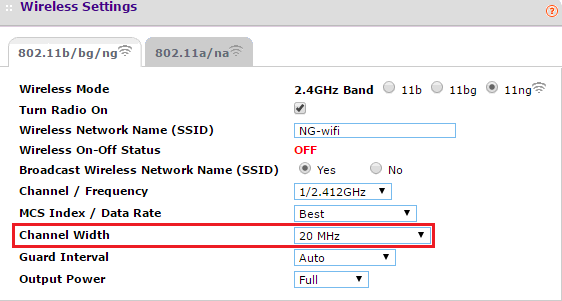
1. Configure channel width as 20Mhz.
The channel width can be configured to either 20Mhz or 40 Mhz, 40Mhz provides a greater throughput however if the wireless environment is heavily congested you will not see any benefit of operating your access point on 40Mhz channel width. Reducing the channel width will help to eliminate interference with other wireless networks
Go to Configuration - Wireless - Basic - Wireless Settings.
Set the Channel Width to 20Mhz.
2. Reduce the output power
The default output power on ProSAFE access points is Full, as this provides the greatest performance. However in a congested wireless environment operating on full power can cause interfernce when two or more wireless radios are operating on the same channel.
Go to Configuration - Wireless - Basic - Wireless Settings.
Finding the right power can be tricky when operating in a congested wireless environemnt, setting the output power can be trial and error. It is recommended to drop the power one level at a time until you find the setting that is most suitable to your environment.

3. Using the 5Ghz band
This option is only applicable to ProSAFE dualband access points that support both the 2.4Ghz and 5Ghz band. If you are currently operating with an access point that supports only the 2.4Ghz band and are experiencing wireless conectivity or performance issues due to a heavily congested wireless environment you may wish to consider a ProSAFE dualband access point.
ProSAFE access points with concurrent 2.4Ghz and 5Ghz
WAC730
WAC720
WNDAP660
WND930
WNDAP360
WNDAP350
ProSAFE access points with selectable 2.4Ghz and 5Ghz - Only one band can operate at a time
WNDAP620
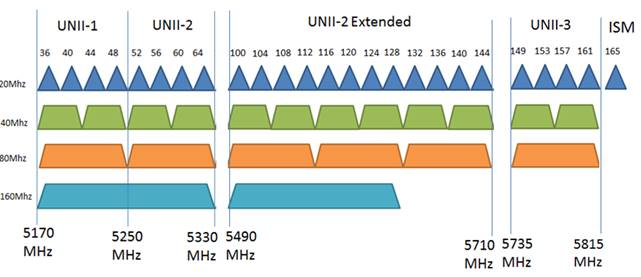
The wireless signal broadcast on 5Ghz is generally shorter than on the 2.4Ghz band but it offers improved performance due to higher transmission rates of data in the higher frequency (more bandwidth). The 5Ghz band has 23 available non overlapping channels as opposed to the 3 non overlapping channels on the 2.4Ghz band allowing far more operating channels with less interence from other 5Ghz radios. Also, most other wireless devices like wireless keyborads, games controllers, baby monitors, cordless phones all operate on the 2.4Ghz band leaving the 5Ghz band free from most external interferences.
Some disadvantages to note:
If all of your wireless clients are not 5Ghz enabled, you may still need to operate the 2.4Ghz radio on your access point to support those wireless clients.
The range of signal is shorter than on the 2.4Ghz range.
5Ghz channel spacing
Enabling the 5Ghz radio
Go to Configuration - Wireless - Basic - Wireless Settings.
Click the 802.11a/na tab. It is 802.11 a/a-na-ac on AC compatible access points.

Note: When setting a channel or output power on a radio make sure that you comply with the regulatory requirements for channel selection and total radio frequency (RF) output power in your country.