

This article describes how to configure VLANs on a ProSAFE S3300 Stackable Smart Switch with shared access to the internet.
Note: For this type of configuration, the internet router used must be VLAN aware. The devices in each VLAN are not allowed to communicate with devices in other VLANs because inter-VLAN routing is disabled on the router.
In this example, we configure three VLANs:
- VLAN 10 / Network 192.168.10.0 (mask 255.255.255.0)
- VLAN 20 / Network 192.168.20.0 (mask 255.255.255.0)
- VLAN 30 / Network 192.168.30.0 (mask 255.255.255.0)
We configure the switch ports as follows:
- Port 1 connects to port 1 on the router. This is known as the trunk port.
- Ports 2 - 10 in VLAN 10.
- Ports 11 - 20 in VLAN 20.
- Ports 21 - 27 in VLAN 30.
Below is a simple diagram presenting an overview of the network.
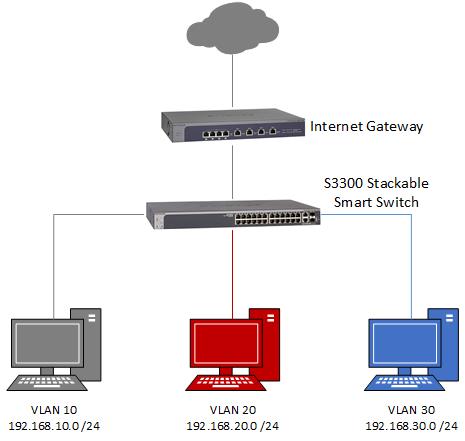
Create the VLANs:
- Open a web browser.
- In the address bar of the web browser, type the IP address of the switch and press Enter.
- Type the admin password of the switch (the default password is password) and click Login.
- Go to Switching - VLAN - Advanced - VLAN Configuration.
- In the VLAN ID field, type the ID of the VLAN you wish to create and click Add. Here we add VLAN 10.

- Repeat step 5 to create VLANs 20 and 30.
Add ports to the VLANs:
- Go to Switching - VLAN - Advanced - VLAN Membership.
- In the VLAN ID drop down menu, select VLAN 10.
- Port 1 connects to the router and must be marked as tagged in VLAN 10. Click on port 1 until a T appears in the port.
Ports 2 - 10 connect to client devices and must be marked as untagged in VLAN 10. Click on ports 2 - 10 until a U appears.

- Click Apply.
- In the VLAN ID drop down menu, select VLAN 20.
- Mark port 1 as tagged and ports 11 - 20 as untagged.

- Click Apply.
- In the VLAN ID drop down menu, select VLAN 30.
- Mark port 1 as tagged and ports 21 - 27 as untagged.

- Click Apply.
- In the VLAN ID drop down menu, select VLAN 1.
- Remove ports 2 - 27 from VLAN 1. Click on each port until there is neither a U or a T inside it.
Note: If you are managing the switch through a port in VLAN 1, be careful not to re-configure the port through which you are managing the switch. Here, we are managing the switch through port 28 and therefore we keep port 28 in VLAN 1. - Click Apply.
Configure port PVID settings for untagged ports:
- Go to Switching - VLAN - Advanced - Port PVID Configuration.
- For each port marked as untagged above, set the PVID of that port to the VLAN ID of the VLAN it was assigned to.
Select ports 2 - 10 and type 10 in the PVID field.

- Click Apply.
- Select ports 11 - 20 and type 20 in the PVID field.
- Click Apply.
- Select ports 21 - 27 and type 30 in the PVID field.
- Click Apply.
- When done the PVID configuration should look like below:

Create VLANs on the internet router:
Note: Here we demonstrate the configuration on a NETGEAR FVS336Gv3 firewall router. The method to configure your internet router may not be the same but the same principles will apply. Refer to the vendor of your internet router if you are unsure how to complete the configuration of the router.
- In the address bar of the web browser, type the IP address of the router and press Enter.
- Enter the admin username (default = admin) and password (default = password).
- Click Login.
- Go to Network Configuration - LAN Settings - LAN Setup.
- Under VLAN Profiles, click Add:

- Enter the details for VLAN 10 as shown below and click Apply:

- When you are returned to the LAN Setup page, add another VLAN Profile by clicking Add.
- Enter the details for VLAN 20 as shown below and click Apply:

- Click Add again.
- Enter the details for VLAN 30 as shown below and click Apply:

- Click Add.
- The LAN Setup page should now look similar to the below screenshot:

Testing:
- Connect a PC to a port on the switch in VLAN 10 (e.g. port 2).
- Connect a PC to a port on the switch in VLAN 20 (e.g. port 11).
- Connect a PC to a port on the switch in VLAN 30 (e.g. port 21).
- Disable the wireless connection on each PC.
- Verify that the PCs cannot access each other.
- Verify that the PCs can access the internet.