

This article applies to older NETGEAR routers. For newer models and Nighthawk routers, use the Nighthawk app to install your router and connect to the Internet. The NETGEAR Nighthawk app is available for iOS and Android mobile devices.
For more information, see How do I install my router using the NETGEAR Nighthawk app?.
To install your older NETGEAR router using a wireless device:
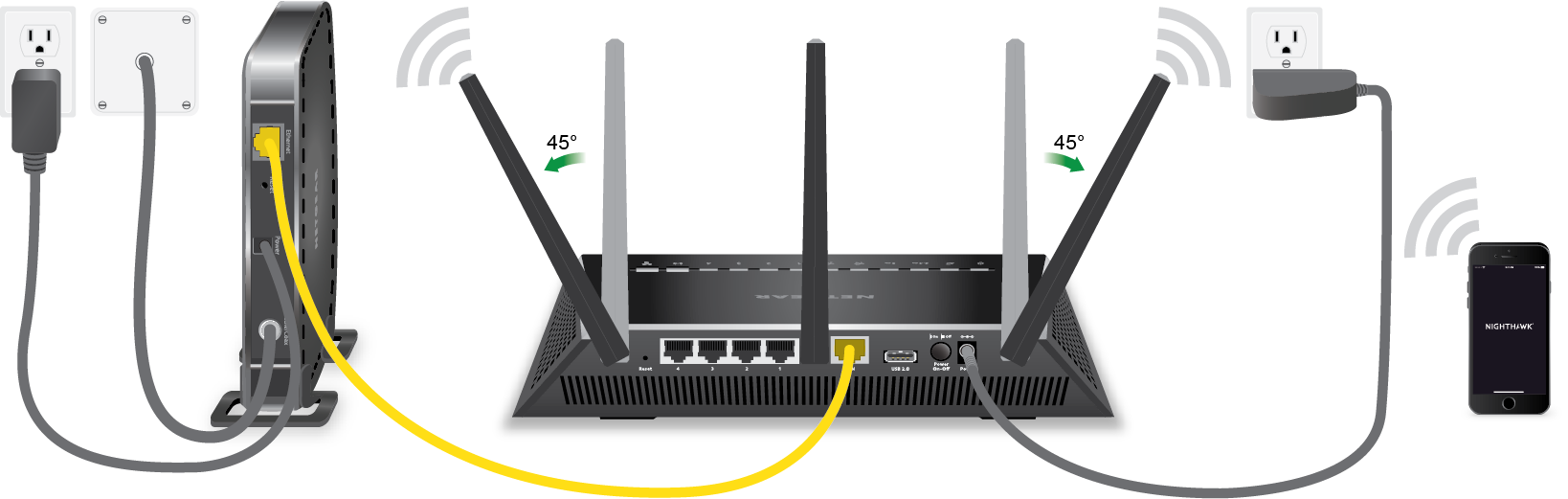
- Power off your DSL or cable modem.
- Using an Ethernet cable, connect the yellow LAN port of your DSL or cable modem to the yellow Internet port of your NETGEAR router.
- Power on your DSL or cable modem and wait for the LEDs to light solid green.
- Power on your NETGEAR router and wait for the LEDs to light solid green.
- On your wireless device, open the WiFi connection manager and find the default WiFi network name of your NETGEAR router.
Note: The WiFi network name and password are located on a sticker on your router. - Connect to your router’s WiFi network.
- Launch an Internet browser and visit http://www.routerlogin.com or http://www.routerlogin.net.
- Enter the default user name and password.
The default user name is admin and the default password is password. - Follow the on-screen instructions to complete the installation.
Note: If you have DSL service, you might need to get your credentials (user name and password) from your Internet Service Provider (ISP) before you can configure your NETGEAR router.
Last Updated:07/07/2025
|
Article ID: 30859