

This article explains how to configure a ProSafe switch and ProSafe access point (AP) for multiple SSID's servicing multiple VLAN's, this is shown in the first section. The second section explains how to configure the ProSafe AP to operate in a dedicated VLAN only.
1. Multiple SSID's on multiple VLAN's
In this scenario the AP broadcasts multiple SSID's and depending on which SSID the wireless client connects to decides which VLAN that wireless client is associated with.
COMPONENTS
Switch: S3300-52X-PoE+ Stackable Smart switch
Access Point: WNDAP620 Dual Band AP
- In this example we are using three SSID's, each servicing a different VLAN: VLAN 100 for Human Resources (HR), VLAN 200 for Accounting and VLAN 250 for Guest
- By default both the switch and access point use Management VLAN 1.
- Port 1/g28 uplinks the AP to the switch
Creating a VLAN
1. Go to Switching - VLAN - Basic - VLAN Configuration.
Enter a VLAN ID, a VLAN Name and click Add

2. Repeat step 1 to create all VLAN's required. The VLAN's display accordingly in the VLAN Configuration table

Assigning ports to a VLAN
Both the switch and AP are operating in management VLAN 1, the uplink port that connects the AP to the switch remains as Untagged 'U' member in VLAN 1. However later we see how the uplink port is added into other VLAN's to allow the SSID's service different VLAN's.
3.Go to Switching - VLAN - Advanced - VLAN Membership.
In VLAN ID select 1, this will show VLAN membership for VLAN 1.
Port 1/g28 is seen as an Untagged member of VLAN 1.

Setting Port PVID on a port
The port PVID is only relevant when a port is an Untagged member of a VLAN. The PVID of port 1/g28 is set to 1 accordingly. PVID's are not required to match the VLAN ID, but we recommend to keep them the same to simplify the configuration.
4. Go to Switching - VLAN - Advanced - Port PVID Configuration.

NOTE: Ports 1/g20, 1/g22 and 1/g24 are Untagged members of VLAN 200 and their PVID is changed accordingly.
Ports 1/g25, 1/g27 and 1/g29 are Untagged members of VLAN 250 and their PVID is changed accordingly.
Tagging the switchport in multiple VLAN's
Allowing an SSID to operate inside a specific VLAN reqires the switchport the AP is connected to be assigned to that VLAN, however in this instance the requirement is for the AP to broadcast multiple SSID's which operate in multiple VLAN's, it is necessary to Tag 'T' the AP switchport (1/g28) in each VLAN it is required to operate.
5. Go to Switching - VLAN - Advanced - VLAN Membership.
To add the AP switchport into a VLAN select the VLAN ID from the drop down list.
VLAN ID 200 for Accounting VLAN
In port 1/g28 set T on the port - click Apply
Here we see in VLAN 200 the uplink port (1/g28) is Tagged 'T'

6. Repeat step 5 and Tag port 1/g28 in each VLAN that has a requirement for an SSID.
Here we see the AP uplink port 1/g28 is a member of VLAN 1 (for Management), VLAN 100 for HR, VLAN 200 for Accounting and VLAN 250 for Guest.

NOTE: When a port is a Tagged member of a VLAN you do not need to edit the PVID setting for that port.
Remember that port PVID is only relevant to the VLAN ID where the port is an Untagged member, in this instance the management VLAN 1.
PVID Configuration of port 1/g28 now displays a PVID of 1, which allows it operate as an Untagged member of VLAN 1, however we also see the port 1/g28 is a Tagged member of VLAN's 100, 200 and 250 allowing it to operate as a Tagged port in those VLAN's.
Checking the port PVID is done by going to Switching - VLAN - Advanced - Port PVID Configuration.

The uplink port connecting the AP to the switch is ready to operate in multiple VLAN's, we move onto the configuration of the AP.
Configuring the Access Point with multiple SSID's for multiple VLAN's.
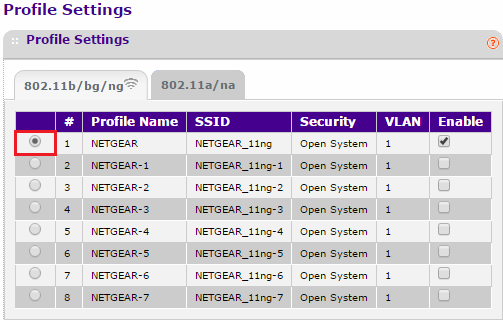
There are eight pre-configured profiles of which the first is enabled by default.
Changing the Security Profiles:
1. Go to Configuration - Security - Profile Settings. Select the Radio button of the profile you wish to edit and click Edit.
2. Edit the profile as desired. In this example we edit the SSID for Accounting wireless network, so VLAN 200 is set. Click Apply.
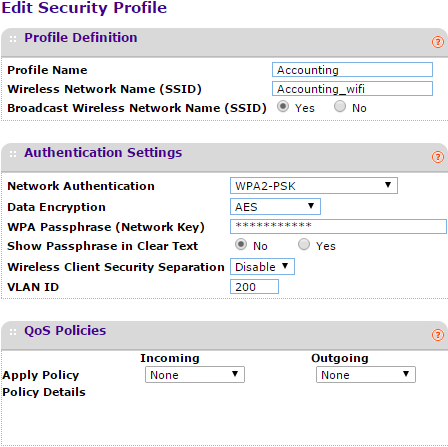
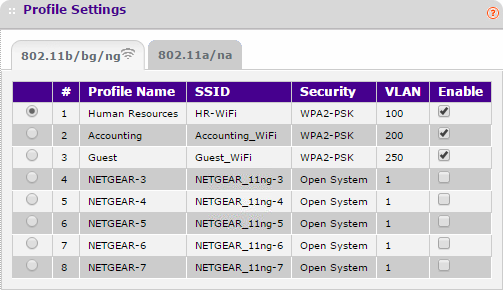
3. Repeat step 2 to edit more Security Profiles to provide enough SSID's required to match the respective number of VLAN's. Ensuring the VLAN ID in the security profile matches the VLAN ID configured on the switch.
4. Enable the SSID's by selecting the Enable check box and click Apply.
5. Confirm the correct SSID's and VLAN ID's are matching in the Profile Settings
2. Access Point servicing only one single VLAN
In this section we configure an AP for use in a single VLAN only and all wireless clients operate on the designated VLAN the AP is connecting to.
NOTE: The steps used to create a VLAN are the same as we saw earlier in this article. However the assigning of ports into VLAN membership changes.
Assinging ports to a VLAN
In this example the AP is only servicing the Accounting VLAN (VLAN 200).
1. Go to Switching - Advanced - VLAN Membership.
Select VLAN 200
Set Port membership to Untagged 'U' for port 1/g28. click Apply.

2. Assign the AP an IP address in the subnet used on VLAN 200. In this example we use 192.168.200.0/24 for VLAN 200 and set an IP address in that range onto the AP. The AP will be managed on that IP address.

Change PVID to match VLAN membership
3. As the end goal is for the AP to be a member of VLAN 200 only, we change the PVID of the port 1/g28 to PVID of 200
Go to Switching - VLAN - Advanced - Port PVID Configuration
Select 1/g28, enter PVID of 200 then click Apply.

4. Remove port g/128 from VLAN 1 membership
Go to Switching - Advanced - VLAN Membership.
Select VLAN 1
Click on port 1/g28 until it is empty. click Apply

Vlan status shows port 1/g28 is a member of VLAN 200 only.

PVID Configuration of port 1/g28 now displays a PVID of 200 to operate only as an Untagged member of VLAN 200.

The switchport connecting the AP is configured as a member of VLAN 200 only, all connecting wireless clients will all operate in VLAN 200.
Configuring the Access Point
When configuring the SSID you do not need to edit the VLAN ID field, this can be left at 1. This field is only relevant when the AP is connecting to a switch port in Tagged mode. In this example we use Untagged mode.
5. Go to Configuration - Security - Profile Settings. Select Radio button and click Edit.
