

To prevent unauthorized access to your connected USB HDD, NETGEAR recommends using one or more of the options below to secure your USB HDD:
Option 1: Use password access for HTTPS/FTP (via the Internet)
If you use HTTP and FTP (via the Internet) to access your ReadySHARE USB Storage, we recommend to setup password access your shares. By default, Readyshare USB storage access is set to "All - no password". By default, Readyshare USB storage access is set to "All - no password". The instructions below will guide you on how to setup password access:
1. Log in to your router.
2. Go to the Advanced tab > USB Functions > ReadySHARE Storage.
3. Under Available Network Folders, select the USB storage share name (i.e. \readyshareUSB_storage), and then click the Edit button.
4. For Read Access and/or Write Access, select admin from the drop-down list, and then click Apply.
Note: You will now use your router admin login and password to access your ReadySHARE USB HDD (the login information that you used in step 1). How do I change the admin password on my NETGEAR router?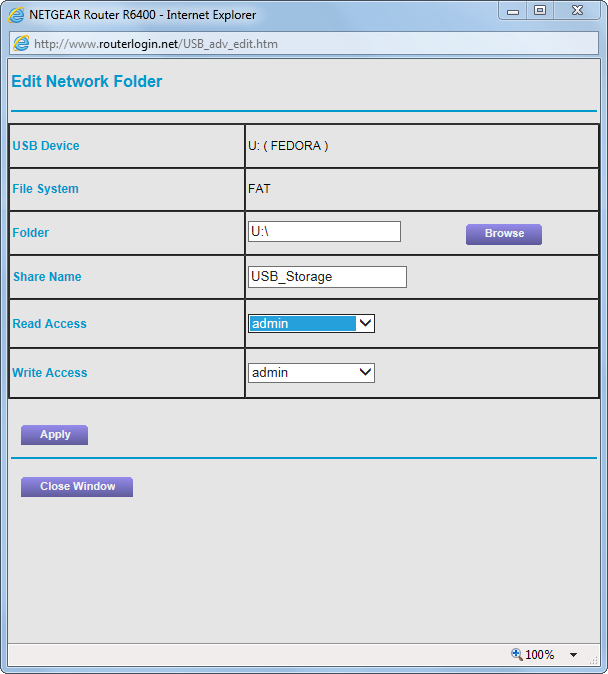
You should now see "admin" beneath the Read and/or Write Access columns. Note: At this time, using your router's admin login is the only option to use for securing your ReadySHARE USB HDD.
Option 2: Use ReadyCloud
Use ReadyCloud browser or app for easy and secured access to the USB storage connected to the NETGEAR router.
How do I remotely access my NETGEAR router using ReadyCloud?
Option 3: Use OpenVPN with Dynamic DNS
Use OpenVPN with Dynamic DNS to easily access your home network including the USB storage connected to the NETGEAR router.
How do I use the VPN service on my Nighthawk router with my Windows client?
What is Dynamic DNS and how do I set it up?