

Introduction: On the Firewall, it is sometimes necessary to upgrade the firmware; either to resolve an issue, add new features, or just to be up-to-date.
Best Practices
- Download a backup file of your configuration, or even better is taking screenshots of your configuration, in case the backup becomes corrupt / incompatible with newer firmware, and keep the file(s) saved somewhere safe
- Factory Default the device after upgrading
- Reconfiguring the device manually instead of using a configuration backup file
- Only upgrade if you need to. Or if you are having an issue, before contacting support, we recommend updating your firmware, as some issues may already be resolved in newer firmware
Steps
- Go to the Support Page and locate the device product page for your ProSAFE product
- Open the Release Notes in a new Tab/Window for the firmware you are downloading
- Download the firmware
- Login to the device
- Navigate to Administration > Settings Backup & Upgrade
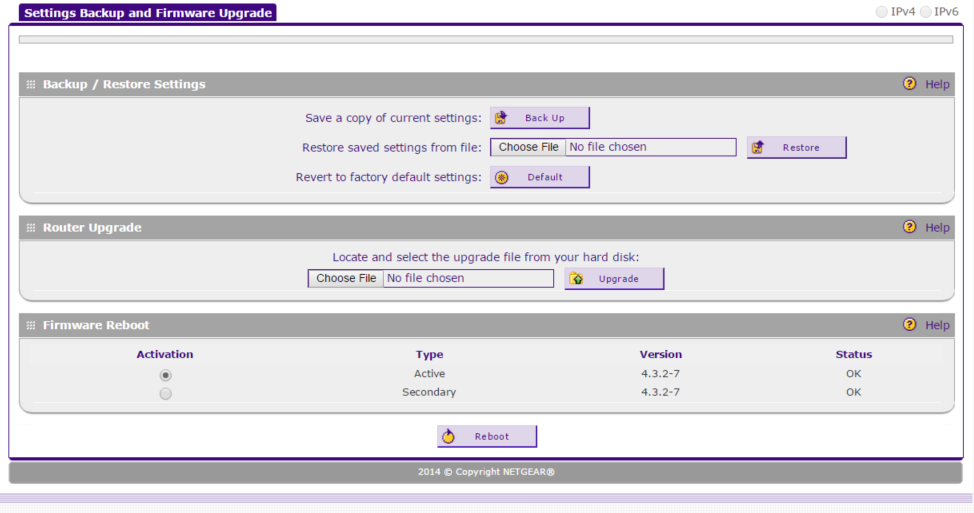
- Click choose file and browser to the file location where the firmware downloaded to on your PC
- Click Upgrade and your device will begin upgrading the firmware
- When this process finishes, your device will automatically reboot
- When it finishes booting, login, and under System Info, verify that the firmware upgrade was successful
Note: You need to read the relevant Installation Instructions for any specific details to the process that are unique to the firmware you plan on installing. Sometimes the device will need to be reconfigured manually, after an upgrade.


Other Info
If you take a look at the screenshot above, you can see how to switch to the primary and secondary firmware on the device. This will reboot the device when it is applied.
Also on that same screenshot you can see how to backup the configuration file, load a configuration file, and factory default the device from the interface.
Last Updated:07/08/2025
|
Article ID: 29982