

You can now access, download or view the files saved on your external USB hard drive connected to your NETGEAR router using ReadyCLOUD feature. Your NETGEAR router should be connected to the internet and the iOS device as well. This article helps you to set ReadyCLOUD and access its contents using an iOS device.
To access files remotely via ReadyCLOUD using an iOS device:
- Connect your external USB hard drive to your NETGEAR router.
- Wait for the USB LED on the router to turn on.
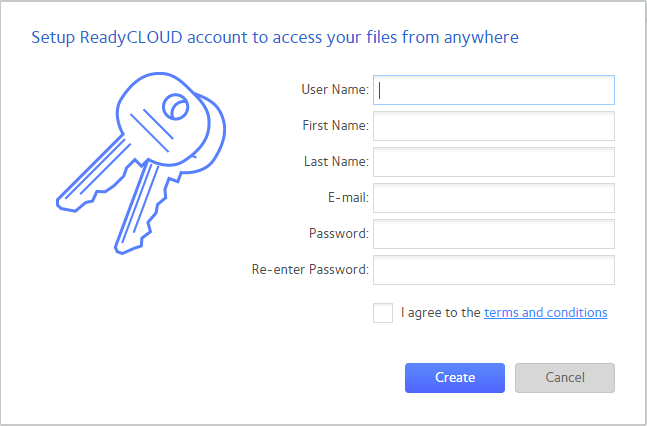
- Create a ReadyCLOUD account. Click here to create your account.
- Open an Internet browser such as Safari, Internet Explorer, Mozilla Firefox or Google Chrome.
- Go to the address bar and type http://www.routerlogin.com or http://www.routerlogin.net.
- Enter the default username admin and the default password of password.
The BASIC page displays. - Click the Advanced Tab, and then USB Functions. Click ReadySHARE Storage.
- Click ReadyCLOUD then enter your ReadyCLOUD username and password and click Register.
- Wait for the registration to finish.
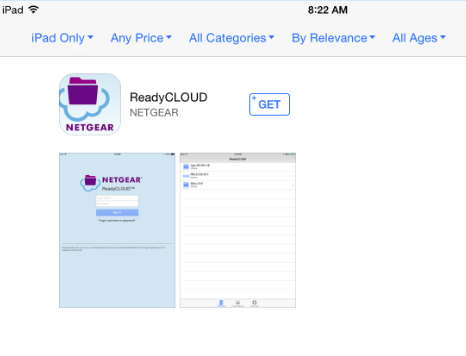
- Download and install the NETGEAR ReadyCLOUD app from the App Store on your iOS device.
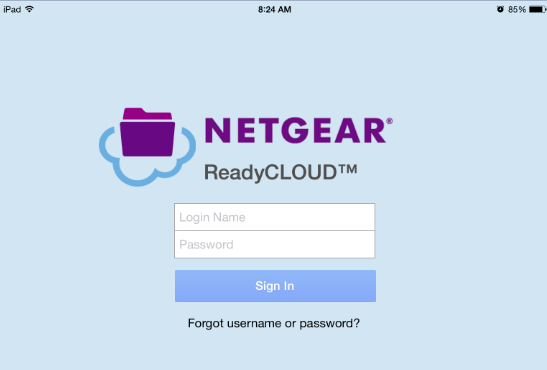
- Log into your ReadyCLOUD account.
- Tap Devices.
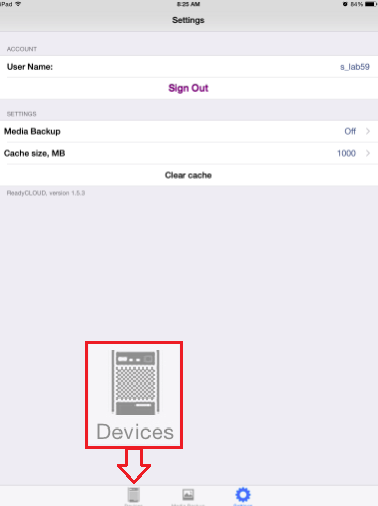
- ReadyCLOUD displays the available devices. Tap your device to connect.
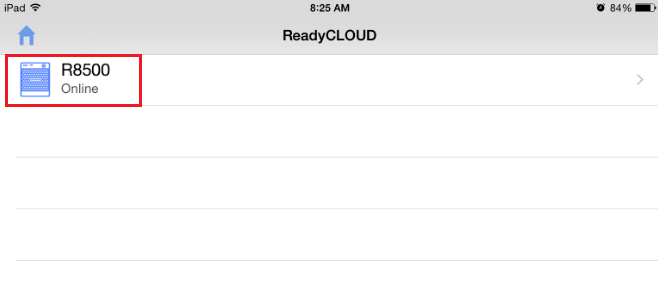
- Tap the external USB Storage to display the contents.

Note: It says Connected (VPN) because your iOS device is connected to a remote network. It will say Connected (Local) if your iOS device is connected to your own network. - Tap the files to download, share or open.
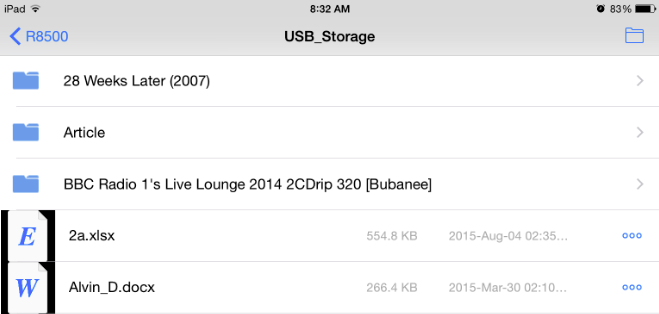
You can now access your files remotely via ReadyCLOUD.
Last Updated:07/07/2025
|
Article ID: 29908