This article explains how to diagnose backup job failures on a ReadyNAS OS 6 system.
Not what you're looking for? Return to the ReadyNAS Backup FAQ
When a backup job fails, the ReadyNAS notifies you through an alert in the logs:

If email alert settings are configured, then the ReadyNAS will also notify you by email.
To find the reason for the failure of the backup job:
- On the ReadyNAS admin page, go to the Backup tab.
- Locate the backup job that has failed.
- Click on the gear icon beside the failed backup job and then click Log:

- In the Backup Log window, the failure reason is seen beside the Backup Status:
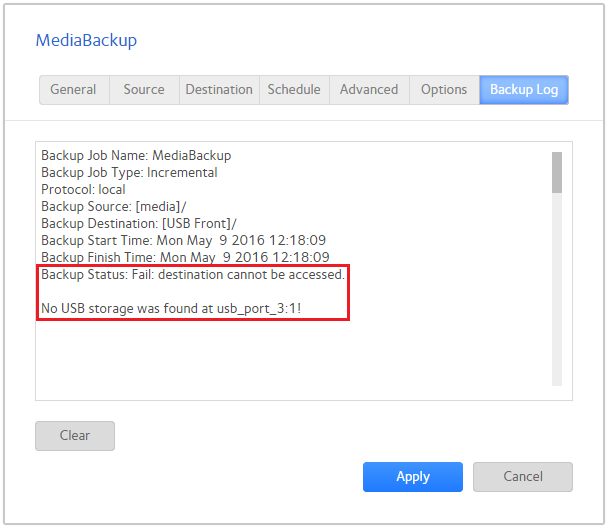
- Refer to the tables below for possible failure reasons. See Table 1 for USB backup jobs and Table 2 for all other types of backup jobs.
Table 1: Possible failure reasons for USB backup jobs.
|
Failure reason
|
Recommendations
|
| No USB storage was found at<USB_port_number>! |
- Verify that the USB disk is connected and that it is connected to the port specified in the backup job configuration.
- Cleanly eject the USB disk and reconnect it.
- Connect the USB disk to a PC, check that it is accessible, cleanly eject it and reconnect it to the ReadyNAS.
- Re-format the USB disk (EXT4 is preferable).
- Try an alternative USB disk.
|
| Path <USB_share_path> does not exist! |
- In the backup job settings, specify the physical USB port as the destination/source.
- Verify that the USB disk is connected.
- Cleanly eject the USB disk and reconnect it.
- Connect the USB disk to a PC, check that it is accessible, cleanly eject it and reconnect it to the ReadyNAS.
- Re-format the USB disk (EXT4 is preferable).
- Try an alternative USB disk.
|
| Cannot create directory<path_to_directory>! |
- Verify that the destination is not full or write protected.
- Connect the USB disk to a PC, check that it is accessible, cleanly eject it and reconnect it to the ReadyNAS.
- Re-format the USB disk (EXT4 is preferable).
|
| Failed to scan directory<path_to_directory>! |
- Check that the path listed is accessible and is a valid directory
- Rename/remove the directory
|
| Failed to get status of file <path_to_file>! |
- Check that the problem file is a normal file (e.g. not a Linux socket or device or other non-regular file item).
- Remove the problem file and run the backup again.
|
| Skip to copy <path_to_file>because it is not a regular file! |
- Check that the problem file is a normal file (e.g. not a Linux socket or device or other non-regular file item).
- Remove the problem file and run the backup again.
|
| Cannot create file <path_to_file>! |
- Verify that the destination is not full or write protected.
- Connect the USB disk to a PC, check that it is accessible, cleanly eject it and reconnect it to the ReadyNAS.
- Re-format the USB disk (EXT4 is preferable).
|
| Cannot get filesystem statistics of file <path_to_file>! |
- Verify that the problem file is accessible and not corrupt.
- Verify that there are no permission restrictions on the file.
- Check that the path to the file is not too long.
|
| Failed to copy file <path_to_file>! |
- Verify that the destination is not full or write protected.
- Check that the file is a normal file (e.g. not a Linux socket or device or other non-regular file item).
- Check that the file is not corrupted.
- Remove the file and run the backup again.
- Re-format the USB disk (EXT4 is preferable).
|
| Cannot read file <path_to_file>! |
- Verify that the file in the path specified is accessible and not corrupt.
- Verify that there are no permission restrictions on the file.
- Check that the path to the file is not too long.
|
| Failed to allocate space for file<path_to_file>! |
- Check that there is sufficient space on the USB disk or destination device.
- Re-format the USB disk (EXT4 is preferable).
|
| Cannot write file <path_to_file>! |
- Verify that the destination is not full or write protected.
- Connect the USB disk to a PC, check that it is accessible, cleanly eject it and reconnect it to the ReadyNAS.
- Re-format the USB disk (EXT4 is preferable).
|
Table 2: Possible failure reasons for all other types of backup jobs.
|
Failure reason
|
Recommendations
|
| Source cannot be mounted on the system. |
- In the backup job configuration, verify that the settings for the source of the job are valid.
- Use the Test Connection button to verify the settings.
- Check that the source can be accessed from another device using the same settings.
- Check settings and logs on the source system.
|
| Destination cannot be mounted on the system. |
- In the backup job configuration, verify that the settings for the destination of the job are valid.
- Use the Test Connection button to verify the settings.
- Check that the destination can be accessed from another device using the same settings.
- Check settings and logs on the destination system.
|
| Source path cannot be accessed. |
- In the backup job configuration, verify that the settings for the source of the job are valid.
- Use the Test Connection button to verify the settings.
- Check that the source can be accessed from another device using the same settings.
- Check settings and logs on the source system.
|
| Destination cannot be accessed. |
- In the backup job configuration, verify that the settings for the destination of the job are valid.
- Use the Test Connection button to verify the settings.
- Check that the destination can be accessed from another device using the same settings.
- Check settings and logs on the destination system.
|
| Source path does not exist. |
- Check on the source system that the path specified still exists.
- In the backup job configuration, verify that the settings for the source of the job are valid.
- Use the Test Connection button to verify the settings.
- Check that the source can be accessed from another device using the same settings.
- Check logs on the source system at the time of the failure.
|
| Failure during copy. |
- Ensure that there is no disruption to the connection between the source and destination during the backup job.
- Download the ReadyNAS system logs and check the detailed backup job logs.
- Check settings and logs on the remote system at the time of the failure.
|
| Authentication error during copy. |
- Verify that the account used in the backup job has sufficient privileges for access to the source/destination.
|
| No space is available on backup destination. |
- Ensure that there is sufficient free capacity on the backup destination. Make free space by removing data or snapshots or adding extra capacity.
- Use an alternative backup destination.
|
| Authentication error when connecting. Install public key on remote system. |
- Download the SSH key file from this system and install it on the remote system.
|
| Connection cannot be established. Check the connection and authentication, if required. |
- In the backup job configuration, verify that the settings for the remote system are valid.
- Use the Test Connection button to verify the settings.
- Check that the remote system can be accessed from another device using the same settings.
- Download the ReadyNAS system logs and check the detailed backup job logs.
- Check settings and logs on the remote system at the time of the failure.
|
| Cancelled by user. |
- Run the job again either manually or by waiting for the next schedule time.
- Ensure noone else has access to the ReadyNAS to cancel jobs.
|
| Error in data stream. Check remote rsync server settings. |
- Ensure that there is no disruption to the connection between the source and destination during the backup job.
- Check logs on the remote rsync server at the time of the failure.
|
| Destination is read-only or files/folders could not be created. Check if these files or folders meet the destination file system limitation. |
- Verify that the destination filesystem is read/write and that the account used by the ReadyNAS for accessing the remote system has write access.
- Check if there are file or folder names on the ReadyNAS that exceed the maximum allowed length on the destination filesystem.
|
| Unidentified error. Check settings and log. |
- Download the ReadyNAS system logs and check the detailed backup job logs.
- Check logs at the time of the failure on the other system involved in the backup job.
|
Last Updated:07/08/2025
|
Article ID: 29829

