

This article explains how snapshots on a ReadyNAS OS 6 system can be integrated seamlessly with the Previous Versions function in Windows.
There is no advanced or complex configuration required.
In this example, we have a share on a ReadyNAS with several snapshots:

In the settings of the share, Allow Snapshot Access is enabled. This is required for Previous Versions to be displayed in Windows.

On a Windows PC, browse to the share on the ReadyNAS, right click on the share (or any of the folders or files within the share) and click Properties.

Go to the Previous Versions tab where available snapshots are seen.
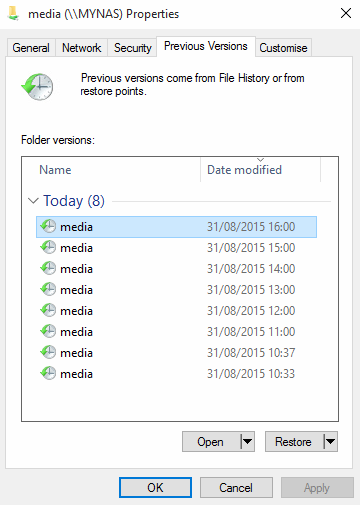
- Clicking the Open button launches an Explorer windows allowing you to browse the data inside the snapshot and copy out any needed files or folders. Access to the contents of the snapshot is read only.
- Clicking the Restore button replaces the current version of the folder/file with the version from the selected snapshot.
- Clicking the Copy button (if available) opens an Explorer window allowing you to choose a destination to copy the contents of the selected snapshot, based on where the Previous Versions tab was opened.
Points to note:
- The Windows Previous Versions function only shows previous versions of a folder/file if there are differences between the versions. The previous versions tab will be empty if the current version of the folder/file is identical to the one in the snapshots, or, if the folder/file did not exist at the time that previous snapshots were taken.
- The performance of open/restore/copy operations in the previous versions tab are dependent on the network in which the ReadyNAS is installed. The operations are done via SMB and are not just a local operation on the ReadyNAS.
- The restore operation can be destructive since it over-writes the present contents of the selected folder/file with the contents from the snapshot. Only users with write access to the share will be permitted to use a restore operation. Since the user has write access anyway, there is no added risk by allowing them to use the restore operation because they could delete the contents of the share if they so wished.
Last Updated:07/08/2025
|
Article ID: 29821