

This article walks you through how to configure Multipath Input/Output (MPIO) for iSCSI traffic with Windows Server 2012 and ReadyNAS OS 6 systems. MPIO configuration provides redundancy and load balancing.
Before proceeding, please ensure that your existing configuration meets these requirements:
- The Windows server has a minimum of 2 connected NICs.
- The ReadyNAS has a minimum of 2 connected NICs.
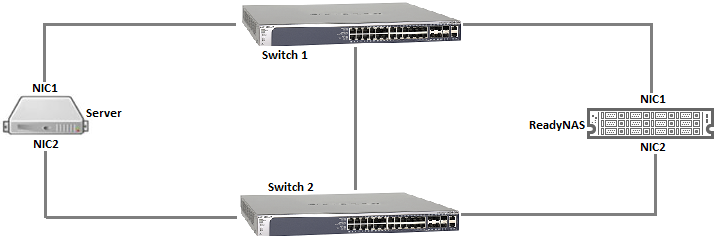
- Different subnets exist for the multiple paths between the server and the ReadyNAS (i.e. Server NIC1 connects to ReadyNAS NIC1 on one subnet, and, Server NIC2 connects to ReadyNAS NIC2 on a different subnet).
- An iSCSI LUN exists on the ReadyNAS and is placed in a LUN group with the correct access rights. See the following articles for further information on iSCSI configuration on ReadyNAS:
IP addresses and the network layout for these examples are as follows:
Server NIC1: 172.22.0.99
Server NIC2: 192.168.0.99
ReadyNAS NIC1: 172.22.0.41
ReadyNAS NIC2: 192.168.0.41
To add the MPIO feature:
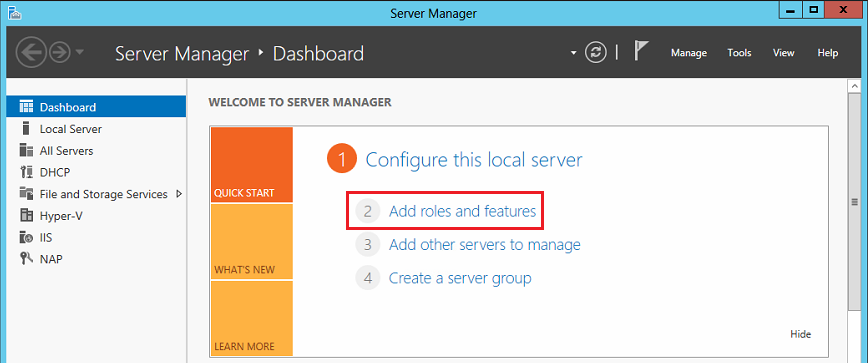
- In the Windows server, open Server Manager.
- Click Add roles and features.
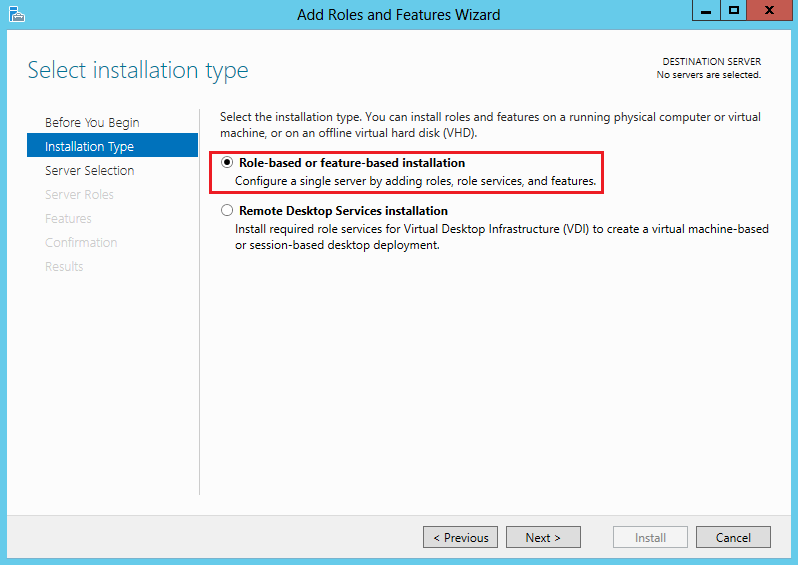
- Select Role-based or feature-based installation and click Next.
- Select the server and click Next. Click Next again.
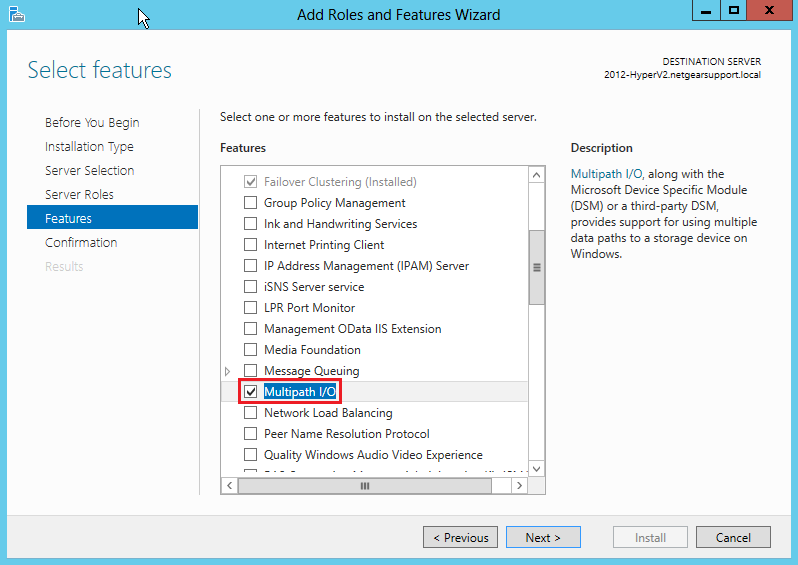
- In the Features page, select Multipath I/O and click Next.
- Click Install.
- When the installation is complete, click Close.
To connect the first iSCSI path:
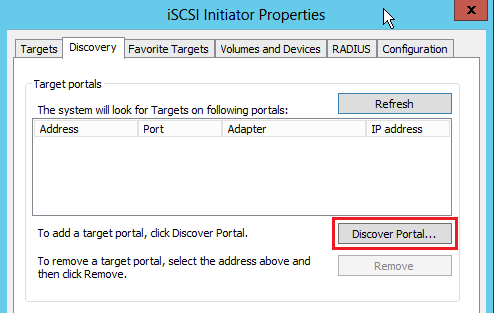
- In the Windows server, open the iSCSI Initiator, go to the Discovery tab and click Discover Portal.
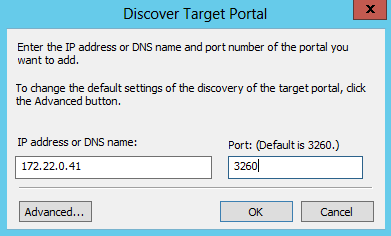
- Enter the IP address of ReadyNAS NIC1 and click OK.
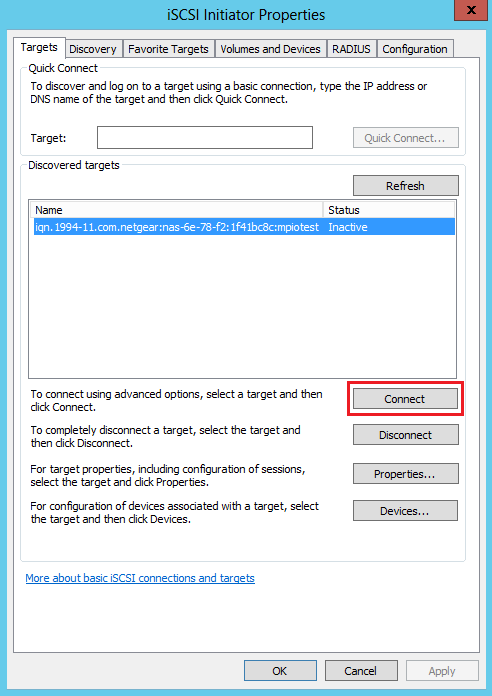
- Go to the Targets tab, highlight the relevant target, and click Connect.
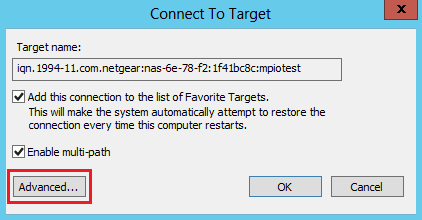
- Select Add this connection to the list of Favorite Targets and Enable multi-path, then click Advanced.
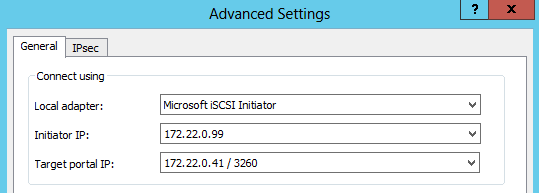
- Under Local adapter, choose Microsoft iSCSI Initiator. Under Initiator IP, choose Server NIC1 (172.22.0.99 in this case). Under Target portal IP, choose ReadyNAS NIC1 (172.22.0.41 in this case).
- Click OK, and then OK again.
Note: Here we have added the first path. We will next enable MPIO, and, then add the second path).
To enable MPIO:
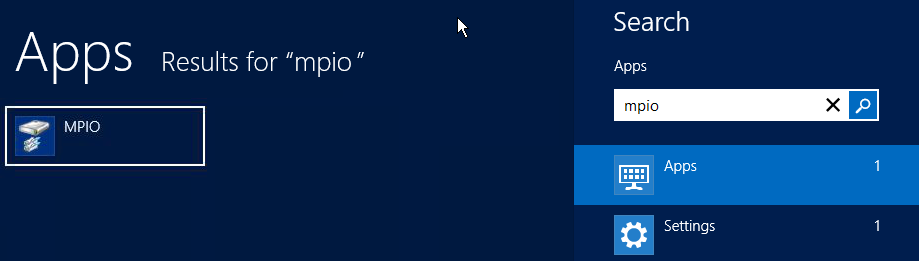
- In the Windows server, open MPIO.
- Go to the Discover Multi-Paths tab, select Add support for iSCSI devices and click Add.
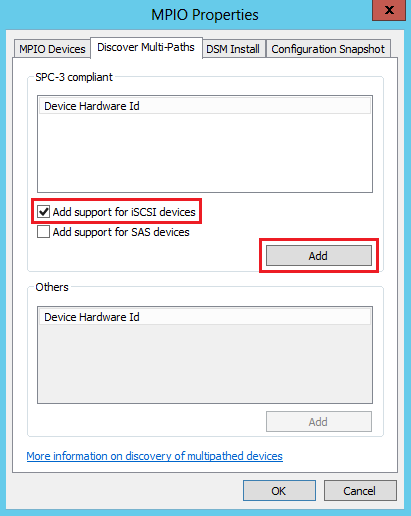
- You are prompted to reboot the server - this is necessary for iSCSI MPIO to be added.
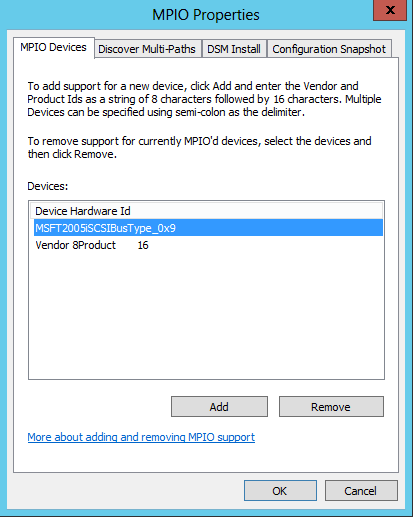
- After the server reboots, open MPIO again. Under the MPIO Devices tab, you should see that MSFT2005iSCSIBusType_0x9 has been added to the list of devices. Click OK once you have confirmed that it is present.
To connect the second iSCSI path:
- In the Windows server, open the iSCSI Initiator and go to the Targets tab.
- Highlight the relevant target and click Properties.
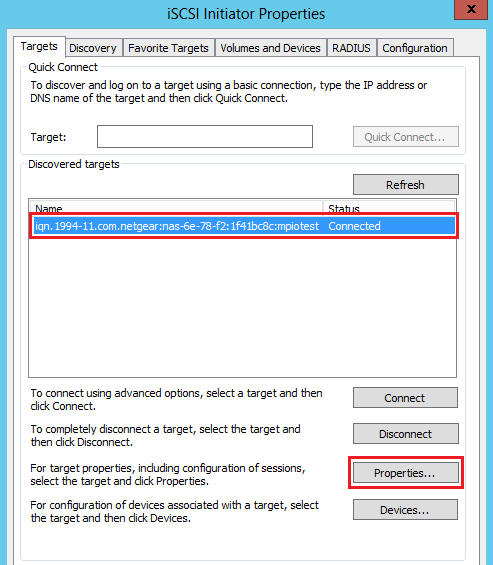
- In the Sessions tab, click Add session.
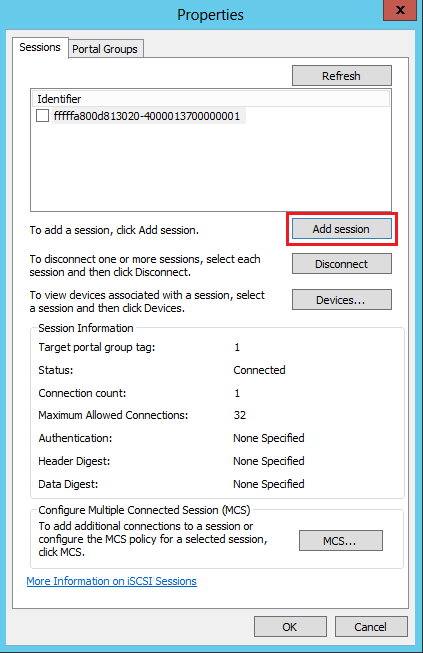
- Select Add this connection to the list of Favorite Targets and Enable multi-path, then click Advanced.
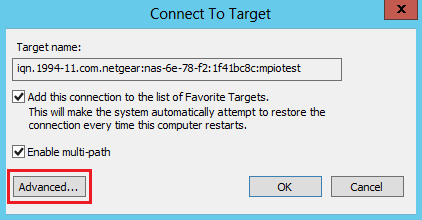
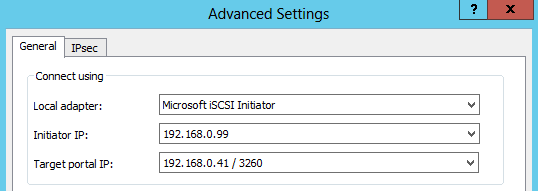
- Under Local adapter, choose Microsoft iSCSI Initiator. Under Initiator IP, choose Server NIC2 (192.168.0.99 in this case). Under Target portal IP, choose ReadyNAS NIC2 (192.168.0.41 in this case).
- Click OK, and then OK again. MPIO is now configured.
To verify that multiple paths exist:
- In the Windows server, open the iSCSI Initiator and go to the Targets tab.
- Highlight the relevant target and click Devices.
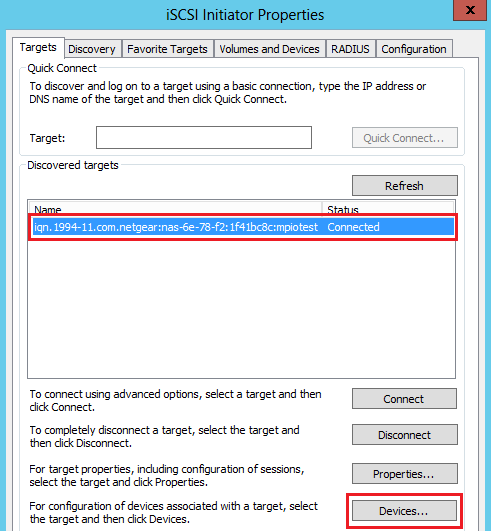
- In the Devices screen that appears, click on MPIO.
- The Device Details screen appears where you can see the two paths to the ReadyNAS and the load balancing policy used by the Windows server.
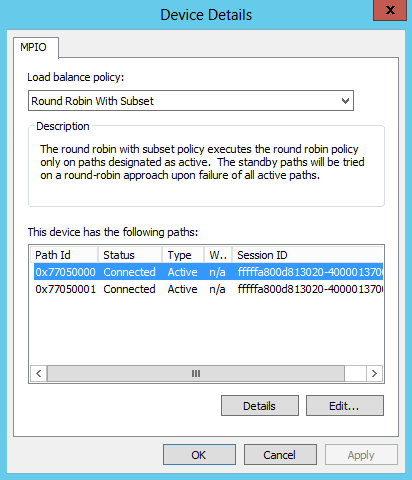
Finally, to verify that MPIO actually works, begin an operation on the iSCSI disk (e.g. format the disk or copy a large file to the disk). While the operation is still in progress, break one of the connections between the server and the ReadyNAS. After a brief delay, the disk operation will continue via the second path.