Symptoms:
You are unable to edit other users files and folders on RD5200 when accessing the share using AFP.
It is possible to work around this issue by manually resetting permissions on the share via the web gui, but this is only a temporary solution and the problem always returns. There is a more permanent solution that can be applied at the root of the share or to subfolders as necessary to suit your requirements.
To set inheritable permissions on ReadyDATA for AFP users (permanent solution):
1. Enable SMB on the affected share.
2. Go to Shares.
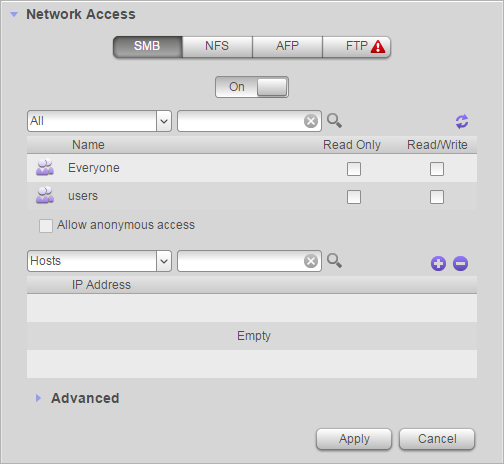
3. Open the Properties on the Share. Go to Network Access. In the SMB tab turn the On/Off switch to ON.
4. Click Apply.
(Once the steps are complete, SMB can be turned off by switching the On/Off slider back to Off)
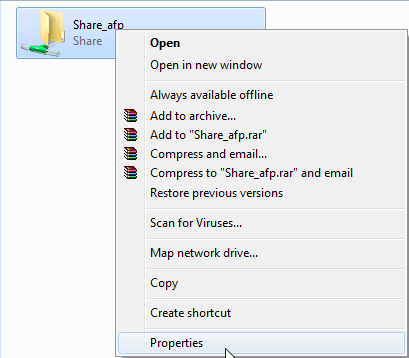
5. Browse to the share using Windows Explorer.
6. Right click on the share and click Properties
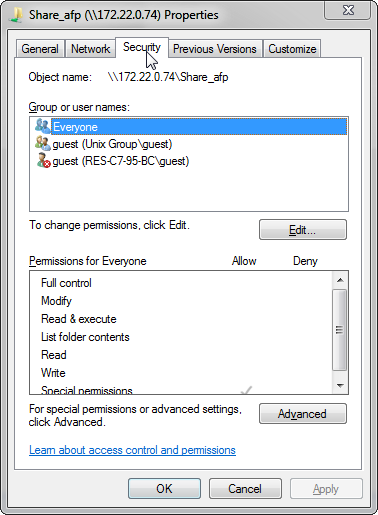
7. Click on Security tab and then Advanced
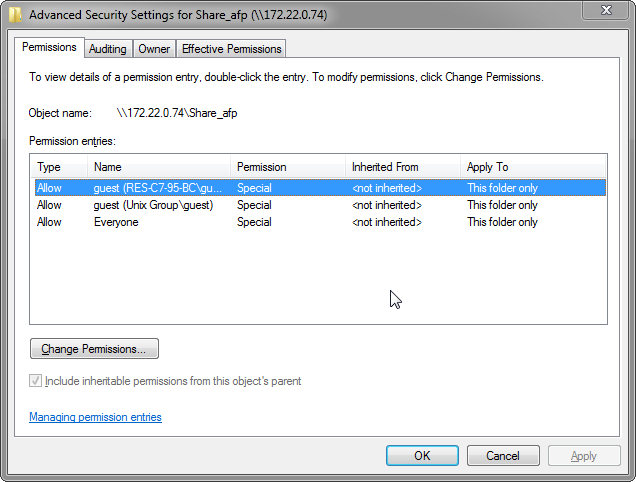
8. In the Advanced Security Settings page click Change Permissions.
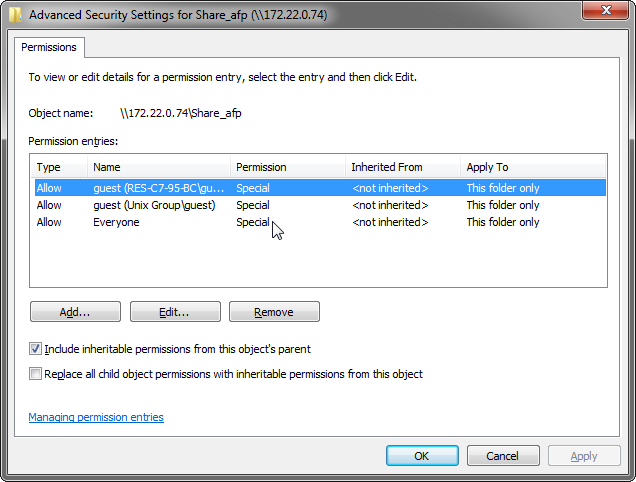
9. Click Add to add users or groups.
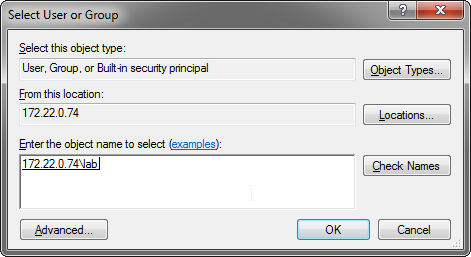
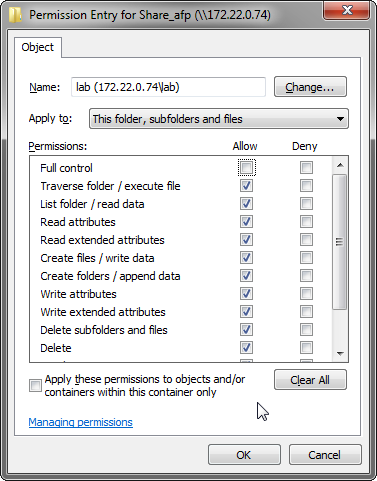
10. Add the required users or groups that should have permissions. In this example we are adding a group name lab. Click OK
11. Define the permissions you wish to apply to the user or group and click OK.
12. Select the check box 'Replace all child object permissions with inheritable permissions from this object' and click OK.
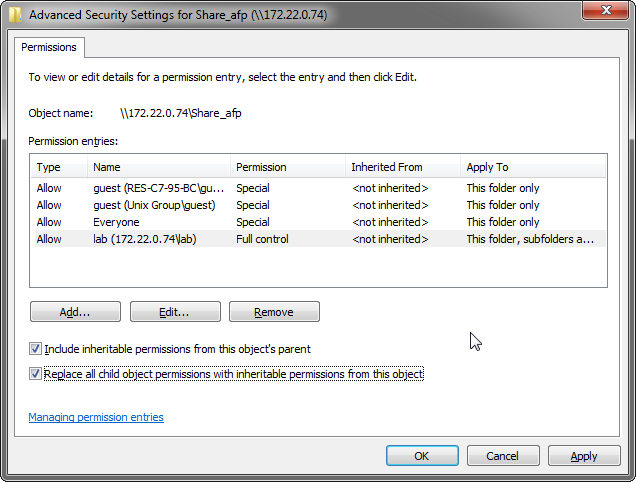
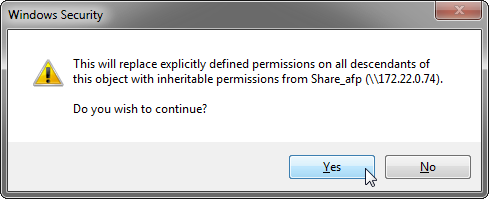
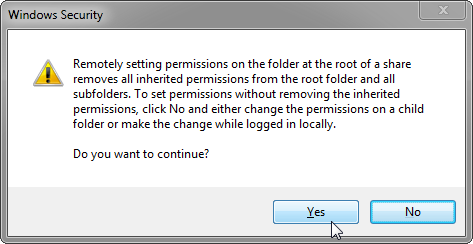
13. You will be presented with the following two warning messages. Click Yes on both to proceed.