

By default, D6220/D7000’s WAN Preference is set to Auto-Detect to automatically detect the Internet connection type. You can manually set which internet connection to use either ADSL port or WAN port.
Symptoms:
- Doesn’t know how to change the device’s WAN preference
- ADSL port doesn’t work
- WAN port doesn’t work
Procedure:
- Plug in the power adapter of your modem router to the power outlet.
- Turn on the modem router and wait for the power LED to become solid green or white.
- Open an Internet browser and go to http://www.routerlogin.com.
- Type its login credential. Default username is admin and default password is password.
- NETGEAR genie page opens. Click on Advanced tab and click on Setup.
- Click on WAN Setup.
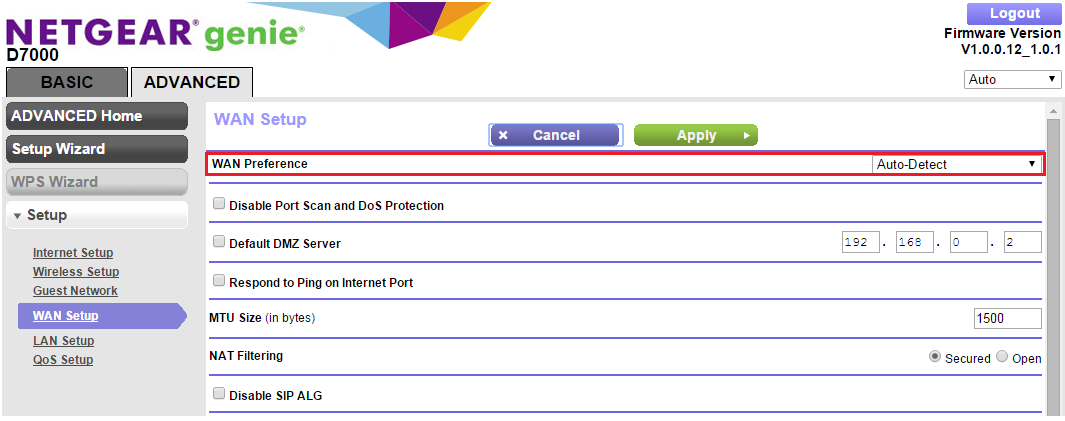
- Select the WAN connection type that you want the device to use.
There are 3 options for WAN Preference.
Auto-Detect: Automatically detect the type of internet connection
Must use DSL WAN: The device will use the ADSL port for internet connection
Must use Ethernet WAN: The device will use the WAN port for internet connection
- Click Apply.
The device is now set to use your preferred WAN connection.
Last Updated:07/08/2025
|
Article ID: 29325