

When using Replicate jobs on ReadyDATA, the system leverages ZFS snapshots to keep the source and destination dataset in sync.
When a Replicate job is running:
- It will maintain a Replicate snapshot at the source and destination.
- This is in addition to any other snapshots that may exist such as continuous protection, manual, or ReadyRECOVER snapshots.
- As the Replicate job continues to run over time, newer Replicate snapshots will be created and older Replicate snapshots associated with the job will be removed.
If you have deleted Replicate jobs in the past, keep in mind:
- When you delete a Replicate job, it is important to understand that the Replicate snapshots associated with the job do not get removed. This is by design and is done to allow the job to be re-created in the future and provide the option to resume the job from those snapshots. This can be useful in cases where you do not want to copy the entire dataset again, but instead resume the Replicate job using a snapshot as a starting point.
- It is likely that you will have some "stale" Replicate snapshots still present on the file system.
- Depending on the rate of change of data in the dataset on which the Replicate snapshot exists, these stale Replicate snapshots may begin to consume large amounts of capacity. You may therefore wish to consider deleting stale Replicate snapshots.
Note: Before deleting stale Replicate snapshots, you should first be sure that you no longer require them. For example, it would be safe to remove stale Replicate snapshots in a situation where you have created a new Replicate job and it is now up to date using more recent Replicate snapshots or if you no longer require a Replicate job on the dataset.
To delete old Replicate snapshots:
1. In the ReadyDATA web interface, go to Shares and click on the timeline view.
2. In the left hand pane, click on the required dataset.
3. Move through the timeline view and find the Replicate snapshot you wish to delete. Note that that different types of snapshots are color coded based on their type. Replicate snapshots are orange. The screenshot below shows an example:
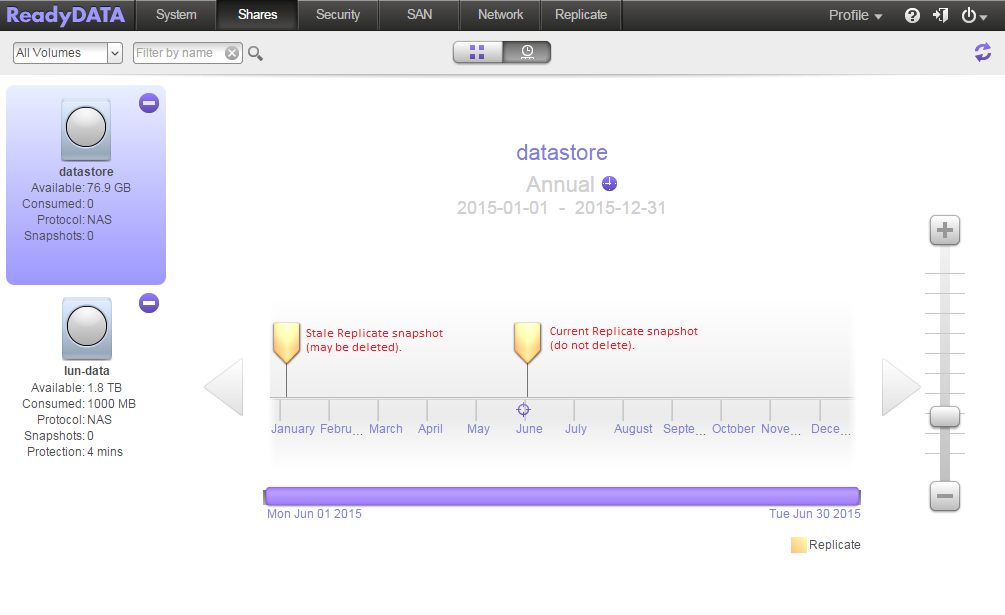
4. Hover the mouse over the snapshot to see the timestamp of the snapshot.
5. Right-click on the snapshot you wish to delete and click Remove.
6. You will be prompted with "Are you sure you would like to remove this snapshot?"
7. Click Yes to confirm.
Note: If the snapshot is very large, the deletion process may have an impact on system performance.