

When you try to mount backup images by using the mount options in ShadowProtect, the following error occurs: "Failed to mount volume, the file or directory is corrupted and unreadable"
A "Failed to mount volume, the file or directory is corrupted and unreadable" error occurs when you try to mount and recover files from a ShadowProtect backup image in the following procedure:
- From a UNC path to the ReadyDATA, locate the data share on which the ShadowProtect job is backing up.
- Select the .vhdx file for the date for which you want to recover the file.
Folders are dated in the format s_2015_06_05_10_53_54, which represents 05th June 2015 at 10:53:54 AM. - Right-click the .vhdx file and select StorageCraft Mount.
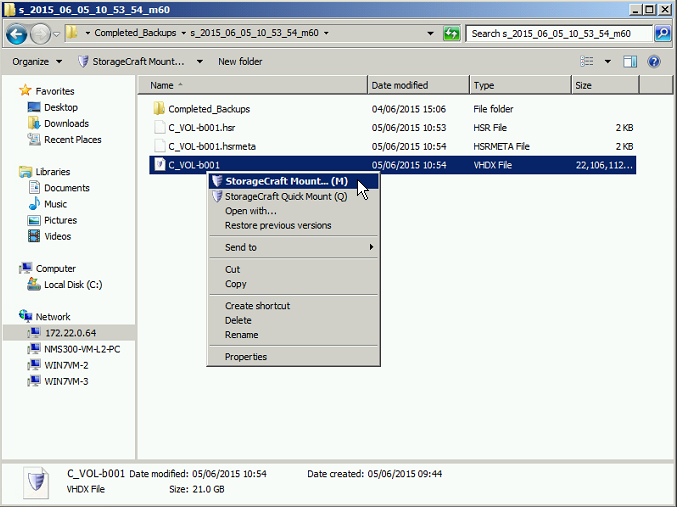
At this point, mounting fails and the "Failed to mount volume, the file or directory is corrupted and unreadable" error occurs.
To solve this problem, either upgrade to the latest version of ShadowProtect or run a repair installation of ShadowProtect and reboot the system.
To upgrade to the latest version of ShadowProtect:
- Check if you are using the latest version of ShadowProtect by selecting
Help from the menu bar and then About.
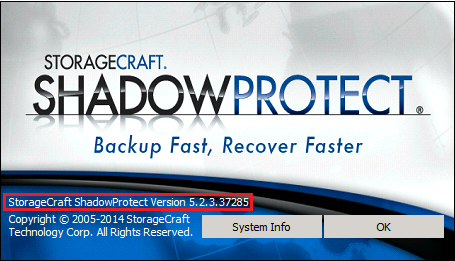
- To upgrade ShadowProtect, visit https://www.storagecraft.com/netgear-readyrecover.
To run a repair installation of ShadowProtect and reboot the system:
- On the Control Panel, click Program and Features.
- Right click StorageCraft ShadowProtect and select Uninstall/Change.
- Select Repair and then the Next button.
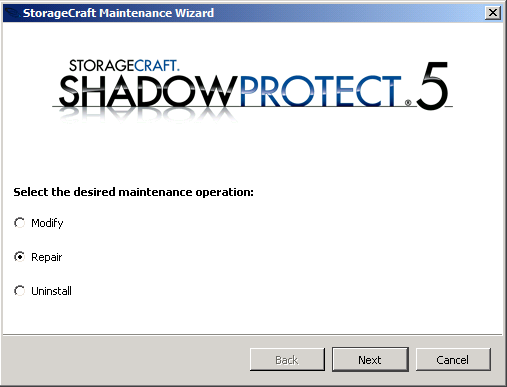
- Select the Next button again.
The ShadowProtect installation is repaired. - Reboot the system.
The repair takes effect.
Note: You can also reboot the system at a more convenient time.
After you upgraded to the latest version of ShadowProtect or repaired ShadowProtect and rebooted the system, the backup image is mountable and you can recover files.