

Use the boot menu to restart or troubleshoot your ReadyNAS storage system. Your storage system has the following boot modes:
- Normal. Initiates a normal boot process, just like booting using the Power button.
- Factory default. Initiates a short disk test that takes approximately 5 minutes. After the disk test, a 10-minute time-out period begins. During the 10-minute time-out period, you can choose to power off the storage system without causing any data loss, and the factory default process is canceled. If you choose not to power off the storage system, after the 10-minute time-out period, the factory default process begins.
-
WARNING: The factory default reboot process resets the storage system to factory settings, erases all data, resets all defaults, and reformats the disk to X-RAID2.
Note: To start the factory default process immediately, press the Reset button during the 10-minute time-out period.
- OS reinstall. Reinstalls the firmware from the internal flash to the disks. Use the OS reinstall boot mode when the system crashes and corrupts some configuration files. OS reinstall boot mode also resets some settings on your storage system, such as Internet protocol settings and the administrator password, to defaults.
- Tech support. Boots into a low-level diagnostic mode. Use the tech support boot mode only when instructed to do so by a NETGEAR technical support representative.
- Volume read only. Mounts a volume as read-only. Use this option when you are attempting to rescue data off a disk during a disaster recovery.
- Memory test. Performs a memory test. The pass or fail result is reported using the storage system's LEDs. Contact a NETGEAR technical support representative to interpret memory test results.
- Test Disk. Performs an offline full disk test. This process can take four hours or more, depending on the size of your disks. Any problems are reported in the system logs, which you can view using the local admin page. For more information about viewing the system logs, see the support article.
To access the boot menu:
- Power off your system.
- Using a straightened paper clip, press and hold the Reset button.

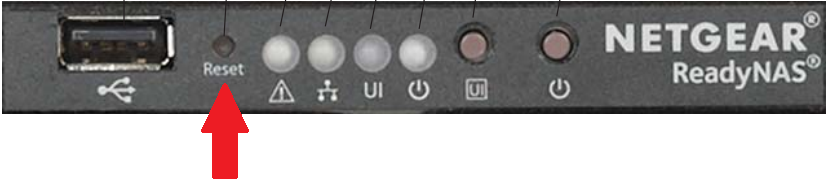
- Press the Power button on the front panel of the system. The system powers on.
- Continue to press the Reset button until the system powers on and either the Power LED stops blinking or the Power, UI, and Health LEDs are lit. Notes: It takes approximately one minute for the system to enter the boot menu..
- Release the Reset button.
- Press the Reset button for less than 1 second and release to scroll through the boot menu modes.
The storage system shows the boot mode options using the LEDs, as described in the following table:Boot Mode Status Indicator Description Health LED UI LED Power LED Boot Menu Health, UI and Power LEDs blink. 


Normal Health LED lights. 

Factory Default UI LED lights. 
OS reinstall Health and UI LEDs light. Tech support Power LED lights. 
Volume read only Health and Power LEDs light. Memory test UI and Power LEDs light. Test Disk Health, UI and Power LEDs light. Legend:
- Solid:
- Blinking:
- Off:
- Solid:
- Press and hold the Reset button for 4 seconds to confirm your boot menu selection. The system boots in the selected boot mode.
Last Updated:07/08/2025
|
Article ID: 27204