

New Features:
- Storm Control
- TOS and DSCP to be additional options of QoS
Modification and bugs Fixed:
- Fixed the bug that when a port is configured in forced mode, the port cannot be linked up to a PC with a cross-over cable.(already fixed on V2.0.1_01)
- Fixed the bug that the configuration of IEEE802.1Q VLAN could not be retained after reboot if more than one VLAN group exists. (already fixed on V2.0.1_01)
- Fixed the bug that '128.0.0.x' was treated as invalid IP addresses. (already fixed on V2.0.1_01)
- Modified the ACL setting so that the current IP address of the switch cannot be added into ACL. (already modified on V2.0.1_01)
- Modified to show a warning message when apply "Restore" without indicating a file for "Restore saved setting from file" on Configuration Backup page.
- Fixed the bug that the DSCP setting does not work after system reset.
Known Issues:
- When upgrading from V2.0.1_01 to V2.0.2_02, the user needs to upload the same firmware (V2.0.2_02) twice inorder to complete the upgrade. After the first upload, “Image corrupted” will be displayed on the Status field of Upgrade List as shown below:
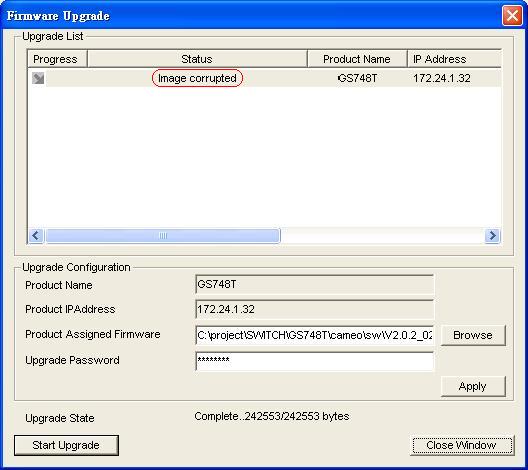
- After the second upload, “Upgrade successful” will be displayed on the Status field of Upgrade List as shown below:

Installation Instructions
- Download the new firmware to a convenient place on your local system (e.g., C:\downloads\).
- Start Smart Wizard Discovery Utility, (included on the CD coming with your Smart Switch). If it is not installed, do so now, before continuing.
- In Smart Wizard Discovery window, click Discover to find your Smart Switch. The switch will be listed in the device list table once found. (Note: Smart Wizard Discovery uses broadcast packets to find Smart Switches, which means it can only find Smart Switches in the same routing domain.)
- Highlight the Smart Switch to upgrade and click Start Upgrade.
- Follow the screen prompts to complete the upgrade. Smart Wizard Discovery will report a successful completion at the end.
Download: http://support.netgear.com/product/gs748tv1
D102980.asp
Last Updated:10/17/2025
|
Article ID: 2667