

Quality of Service (QoS) management lets you fine-tune priorities for different types of traffic.
Quality of Service Concepts
Quality of Service (QoS) works by default for the advanced profile groups. Change QoS only if you have a reason to do so, such as device vendor specifications that require you to use different QoS settings.
Using QoS Wi-Fi MultiMedia (WMM) ensures that the applications that require better throughput and performance are provided special queues with higher priority. For example, video and audio applications are given higher priority over applications such as FTP.
WMM defines the following four queues in decreasing order of priority:
- Voice. The highest priority queue with minimum delay, which makes it ideal for applications such as voice over IP (VoIP) and streaming media.
- Video. The second highest priority queue with low delay is given to this queue. Video applications are routed to this queue.
- Best Effort. The medium priority queue with medium delay is given to this queue. Most standard IP applications use this queue.
- Background. Low priority queue with high throughput. Applications, such as FTP, that are not time-sensitive but require high throughput can use this queue.
QoS prioritization and coordination of wireless medium access is enabled automatically. QoS settings on the access point control downstream traffic that flows from the access point to the client station (AP Enhanced Distributed Channel Access [EDCA] parameters) and the upstream traffic that flows from the client station to the access point (Station EDCA parameters).
The Advanced QoS Settings screen lets you change the QoS settings per profile group and per radio for upstream traffic flowing from the station (that is, the wireless client) to managed access points and the downstream traffic flowing from managed access points to the station. These settings are applied only to managed access points that have the capacity to support these settings.
Disabling WMM deactivates QoS control of station EDCA parameters for upstream traffic flowing from the client station to the access point. (You can change the settings for the station EDCA parameters, but these settings do not take effect until you enable WMM.) However, when WMM is disabled, you can still set some parameters for downstream traffic flowing from the access point to the client station (AP EDCA parameters), and these settings do take effect even when WMM is disabled.
Configure Quality of Service for a Profile Group
You can configure Quality of Service (QoS) settings for each advanced profile group.
»To configure the QoS settings for a profile group:
- Open a web browser. In the browser’s address field, type the http:// followed by the IP address that you assigned to the wireless controller.
By default, the IP address is 192.168.0.250. If you have not yet assigned another IP address to the wireless controller, type http://192.168.0.250.
The wireless controller’s login screen displays. - Enter your user name and password.
If you have not yet personalized your user name and password, enter admin for the user name and password for the password, both in lowercase letters. - Click the Login button.
The wireless controller’s web management interface opens and displays the Summary screen. - Select Configuration > Wireless > Advanced > QoS.
The Advanced QoS Settings screen displays:
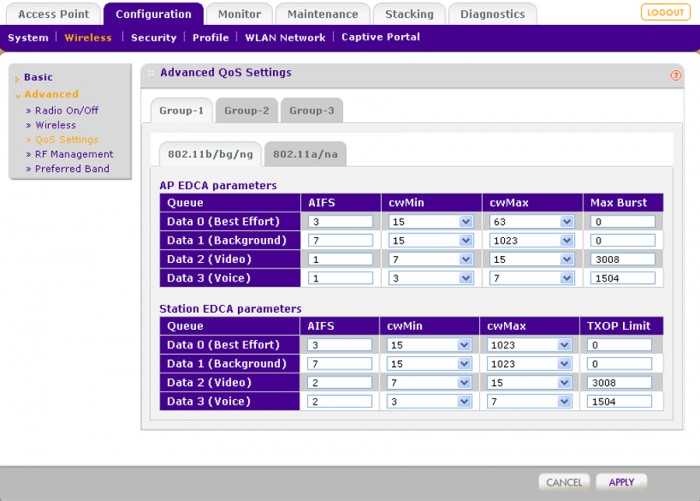
- Click the tab for the profile group for which you want to configure the QoS settings.
- Click the tab for the radio for which you want to configure the QoS settings.
- Configure the settings as described in the following table:
Setting Description AIFS Specify a wait time (in milliseconds) for data frames. Valid values for arbitration inter-frame space (AIFS) are 1 through 255. The following are the default values for the AP EDCA parameters:
• Data 0 (Best Effort). 3
• Data 1 (Background). 7
• Data 2 (Video). 1
• Data 3 (Voice). 1The following are the default values for the Station EDCA parameters:
• Data 0 (Best Effort). 3
• Data 1 (Background). 7
• Data 2 (Video). 2
• Data 3 (Voice). 2CwMin Specify an upper limit (in milliseconds) of a range from which the initial random backoff wait time is determined.
Valid values for this field are 1, 3, 7, 15, 31, 63, 127, 255, 511, or 1023. The value for the minimum contention window (CwMin) must be lower than the value for the maximum contention window (CwMax).The following are the default values for the AP EDCA parameters:
• Data 0 (Best Effort). 15
• Data 1 (Background). 15
• Data 2 (Video). 7
• Data 3 (Voice). 3The following are the default values for the Station EDCA parameters:
• Data 0 (Best Effort). 15
• Data 1 (Background). 15
• Data 2 (Video). 7
• Data 3 (Voice). 3CwMax Specify an upper limit (in milliseconds) for the doubling of the random backoff value.
Valid values for this field are 1, 3, 7, 15, 31, 63, 127, 255, 511, or 1023. The value for the maximum contention window (CwMax) must be higher than the value for minimum contention window (CwMin).The following are the default values for the AP EDCA parameters:
• Data 0 (Best Effort). 63
• Data 1 (Background). 1023
• Data 2 (Video). 15
• Data 3 (Voice). 7The following are the default values for the Station EDCA parameters:
• Data 0 (Best Effort). 1023
• Data 1 (Background). 1023
• Data 2 (Video). 15
• Data 3 (Voice). 7Max Burst
parameters onlySpecify (in milliseconds) the maximum burst length allowed for packet bursts on the wireless network.
A packet burst is a collection of multiple frames transmitted without header information. Valid values for maximum burst length are 0 through 8192. The maximum burst length applies only to AP EDCA parameters.The following are the default values for the AP EDCA parameters:
• Data 0 (Best Effort). 0
• Data 1 (Background). 0
• Data 2 (Video). 3008
• Data 3 (Voice). 1504TXOP Limit
Note: Station EDCA
parameters onlySpecify the transmission opportunity (TXOP) limit.
The TXOP limit applies only to station AP EDCA parameters and specifies the maximum period during which the client station client can initiate transmissions.The following are the default values for the Station EDCA parameters:
• Data 0 (Best Effort). 0
• Data 1 (Background). 0
• Data 2 (Video). 3008
• Data 3 (Voice). 1504 - Click the Apply button.