

Access points installed and working in standalone mode in different Layer 3 networks do not function in the same subnet as the wireless controller. These types of access points are connected to the wireless controller through a router and function in different IP ranges.
Note: If you have a large wireless network, you may have to run the Discovery Wizard several times. Ensure the DHCP option 43 (vendor-specific information) is enabled on an external DHCP server.
To discover access points installed and working in standalone mode in different layer 3 networks:
- Type http://192.168.0.250 into your web browser address field.
The default IP address is 192.168.0.250. If you assigned another IP address to the wireless controller use your specific IP address instead. - Enter your username and password on the wireless controller login screen. If you have not yet personalized your username and password enter the following:
- User Name: admin
- Password: password
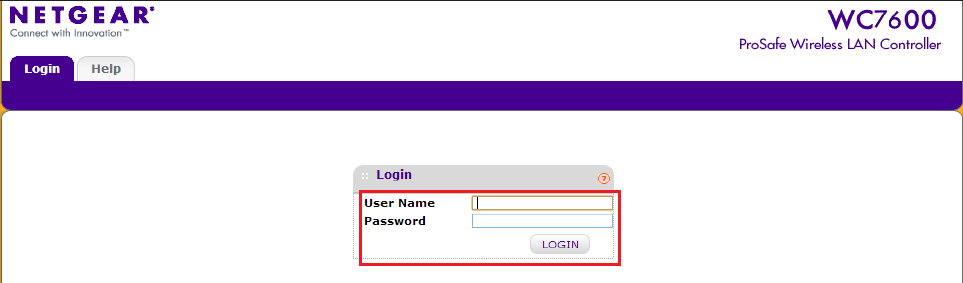
- Click Login. The wireless controller web management interface opens.
- Select Access Point > Discovery Wizard.
Discovery Wizard Step 1 of 3: Choose state of Access Points screen displays.
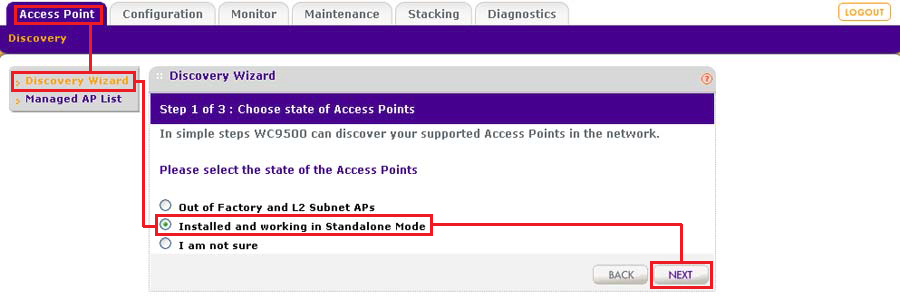
- Select Installed and working in Standalone Mode.
Note: The option labeled ‘I am not sure’ directs you to the product documentation. - Click NEXT.
Discovery Wizard Step 2 of 3: Specify IP Range screen displays.

- In the Range 1 section, fill in the Start IP and End IP fields.
The IP addresses specify the range in which the wireless controller should discover access points. - Click ADD if more IP address ranges are required.
The screen adjusts to display a second set of Start IP and End IP fields. Click ADD again if a third set is needed. - Click NEXT.
Discovery Wizard Step 3 of 3: Select Access Points to manage screen displays.
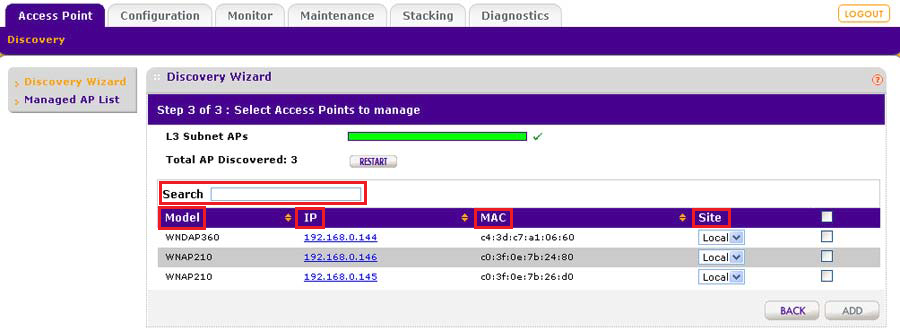
The wireless controller searches for NETGEAR products on the LAN based on MAC address and then identifies which access point models are supported. The green bar displays the progress of the discovery process.
Each discovered access point is displayed in a table by MODEL, IP, MAC address, and Site. - Use the Search field to find an individual access point.
- Review the discovery results to ensure all access points are listed.
The effectiveness of the discovery process depends on how the access points are set up on your LAN. Discovery works best if each access point is configured with a unique IP address and is running current firmware.
If the wireless controller already manages a particular access point, it will not display in the discovery list. If the discovery results are not what you expect, check the following:Note: If more than one access point has the same IP address, only one is discovered at a time. You must add the access point to the managed list, change its IP address, and run the discovery process again to discover the next access point with that IP address.- Managed AP List
- Ensure the DHCP server is available on the wireless controller or network
- Click Refresh to run the discovery process again.
- Under Site, click the drop down arrow and select Remote.
By default, all discovered access points are designated as Local. The Remote and Local designations are for organization only.
Note: The wireless controller cannot discover remote access points over a site-to-site VPN connection or behind a remote NAT router without a VPN connection. This capability will be added in a future release.
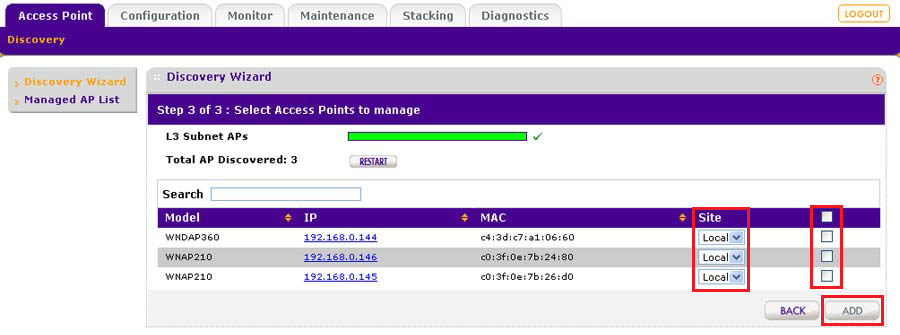
- Click the check boxes on the right hand side of the table to add individual access points to the Managed AP List. Click the check box in the upper right hand side of the table heading if you intend to add all discovered access points to the Managed AP List.
- Click ADD.
Note: A login name and password screen may display depending on the type of access points discovered. - If required, enter the login name and password. Managed AP List screen displays.
Note: The Managed AP List is split in the following two figures due to screen width.
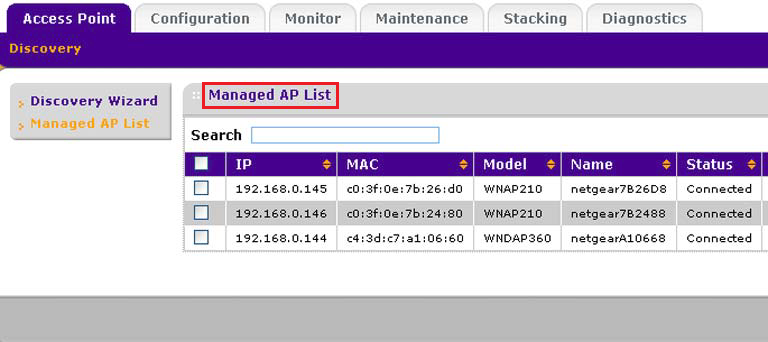
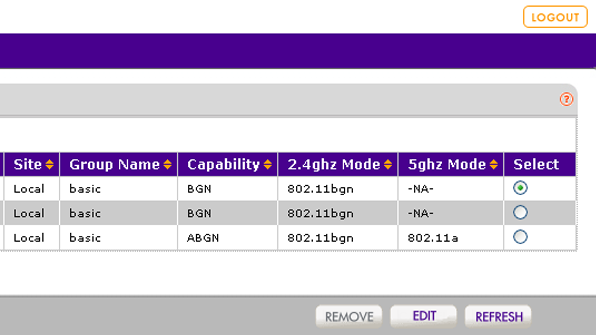
After the access points are added to the Managed AP List, the wireless controller upgrades the firmware of the access points to the latest firmware loaded on the wireless controller. The access points become managed access points. This process might take several minutes, depending on the number of access points added to the Managed AP List.
Note: The access point upgrade process uses multicast by default.
Last Updated:07/07/2025
|
Article ID: 25660