

New Features & Enhancements:
- Initial Release
This document describes the steps to update the firmware in the NETGEAR MBR1516. There are two parts to the upgrade: router firmware and LTE modem firmware.
Please follow the instructions below to upgrade the router firmware first then modem firmware.
Router Firmware Upgrade Instructions:
- Using the Download Link below, download and extract the new firmware to a convenient place such as your desktop.
Download Link: http://www.downloads.netgear.com/files/GDC/MBR1516/MBR1516-V1.2.2.84-BM.zip
Note: It is recommended that you connect to the router with Ethernet and not to perform the upgrade via wireless - Open a web browser to http://192.168.0.1
- Log into the MBR1516 with the following credentials
Username = admin
Password = password

- Navigate to the “Router Upgrade” page which is located in under the advance tab Administration menu
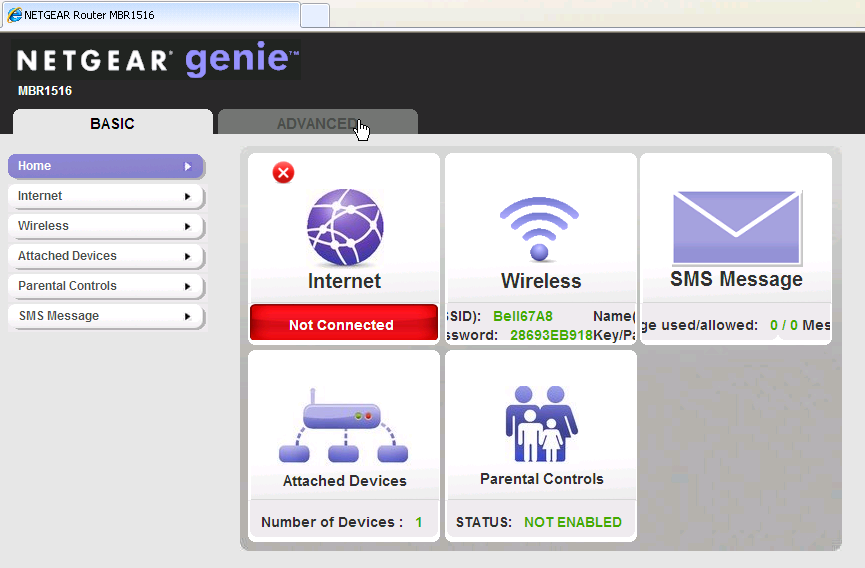
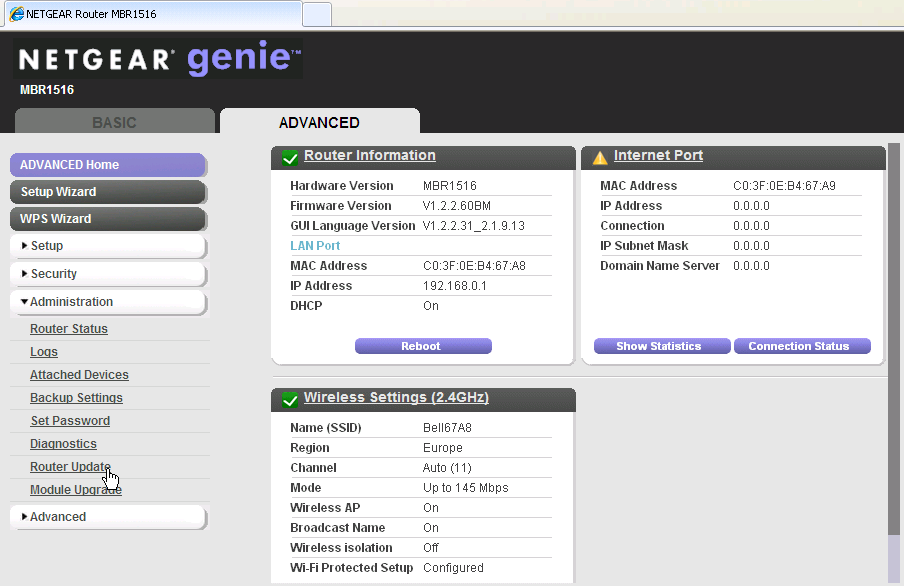
- Now select browse and select the file (MBR1516_v1.2.2.84BM.chk) you saved to your computer in step 1.

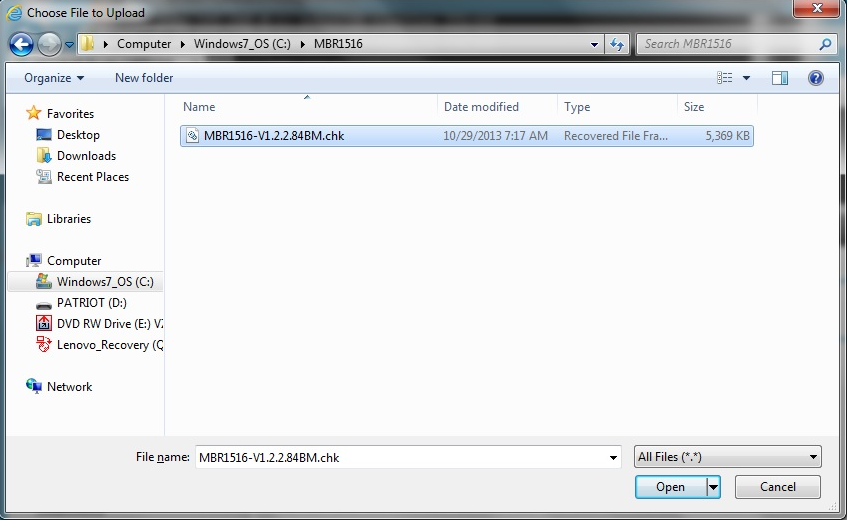
- Now select upload and the OK to confirm


- It will now load the firmware. Do not power the unit off during this process. Once complete the unit will reboot. The web page will refresh once the unit has completed the reboot process.
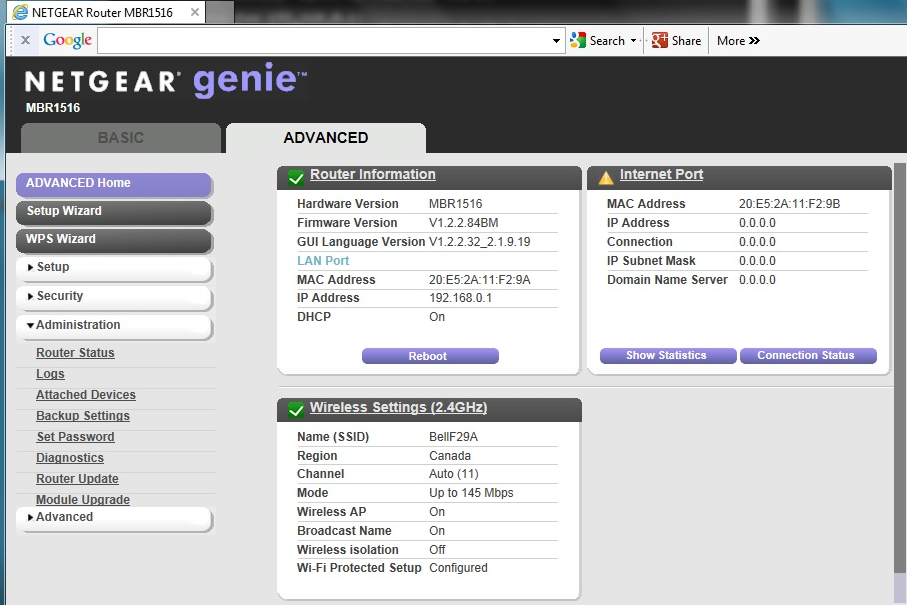
- The router firmware is now updated.
Modem Firmware Upgrade Instructions:
- Save the new firmware file
(9999999_9999999_9200_03.05.20.05_00_generic_000.000_001_SPKG_MC.cwe) to the computer that you will connect to the router to upgrade.
Note: It is recommended that you connect to the router with Ethernet and not to perform the upgrade via wireless - Open a web browser to http://192.168.0.1
- Log into the MBR1516 with the following credentials
Username = admin
Password = password
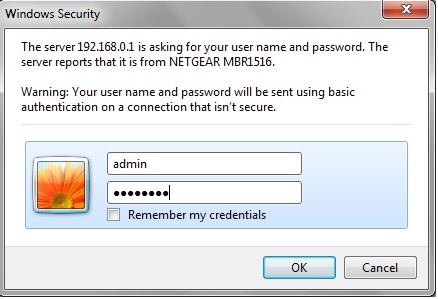
- Navigate to the “Router Upgrade” page which is located under the advance tab/administration/module upgrade

- Now select browse and select the file (9999999_9999999_9200_03.05.20.05_00_generic_000.000_001_SPKG_MC.cwe) you saved to your computer in step 1.

- Now select upload and the OK to confirm


- Now select Yes and then OK to confirm


- It will now load the firmware. Do not power the unit off during this process.


- Once complete the unit will reboot. The web page will refresh once the unit has completed the reboot process.
- The device is now updated.

Last Updated:10/17/2025
|
Article ID: 25341